

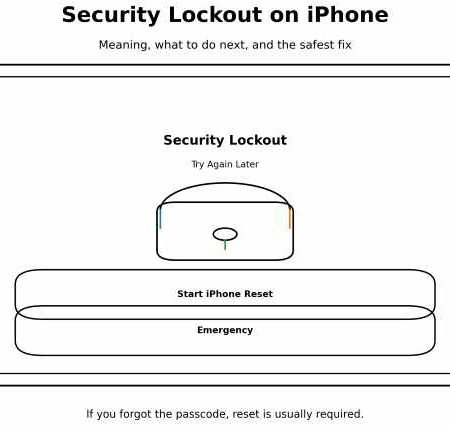

If your iPhone shows “Security Lockout”, it means the phone is fully locked and iOS is blocking passcode entry. This usually happens after too many incorrect passcode attempts (or repeated tries after the “iPhone Unavailable” timer).
In most cases, you can’t “wait it out” anymore. The reliable fix is to reset (erase) the iPhone, then restore your data from a backup.
Quick answer (do this first)
- If you see “Start iPhone Reset” on the screen, use it (it’s the safest on-screen route). Apple notes you can only reach this reset flow if you have an active cellular/Wi-Fi connection and previously enabled Find My.
- If you don’t see the reset option, use Recovery Mode on a computer to restore the iPhone.
- If you recently changed your pass code (within about 72 hours), you might be able to use your old password one time via Password Reset.
Security Lockout vs iPhone Unavailable (don’t mix them up)
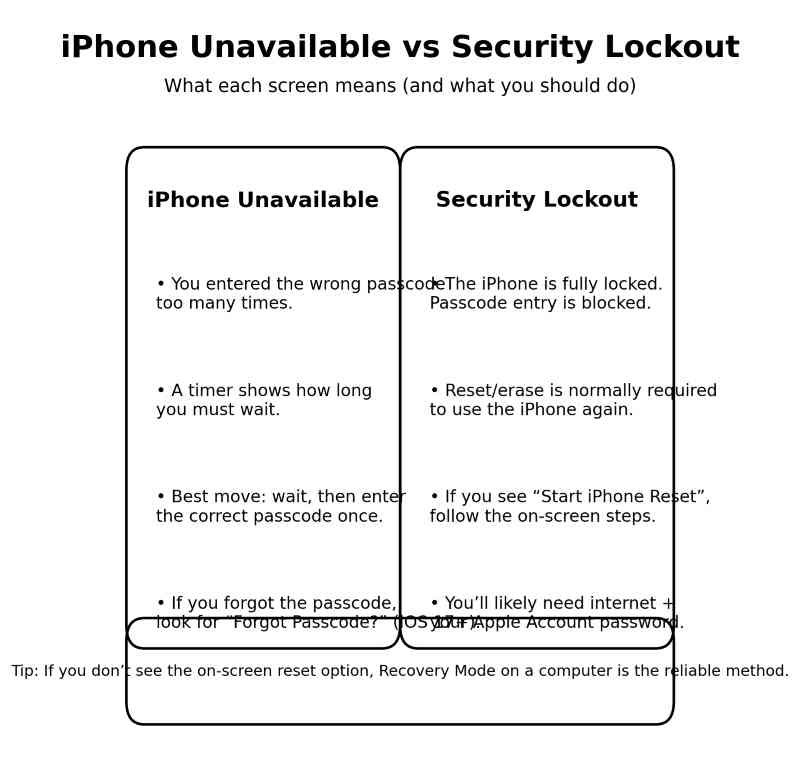
- iPhone Unavailable usually shows a timer (“Try Again in…”). You can often unlock by waiting and entering the correct passcode once.
- Security Lockout usually means passcode entry is blocked, and reset is normally required.
What to do when you see iPhone Unavailable
Why your iPhone shows “Security Lockout”
Most common reasons:
- Too many wrong pass code attempts
- Someone kept trying after the timer (kids, pocket taps, etc.)
- Face ID/Touch ID failed repeatedly and password attempts went wrong
- A damaged screen registering ghost touches
The safest fix path (recommended)
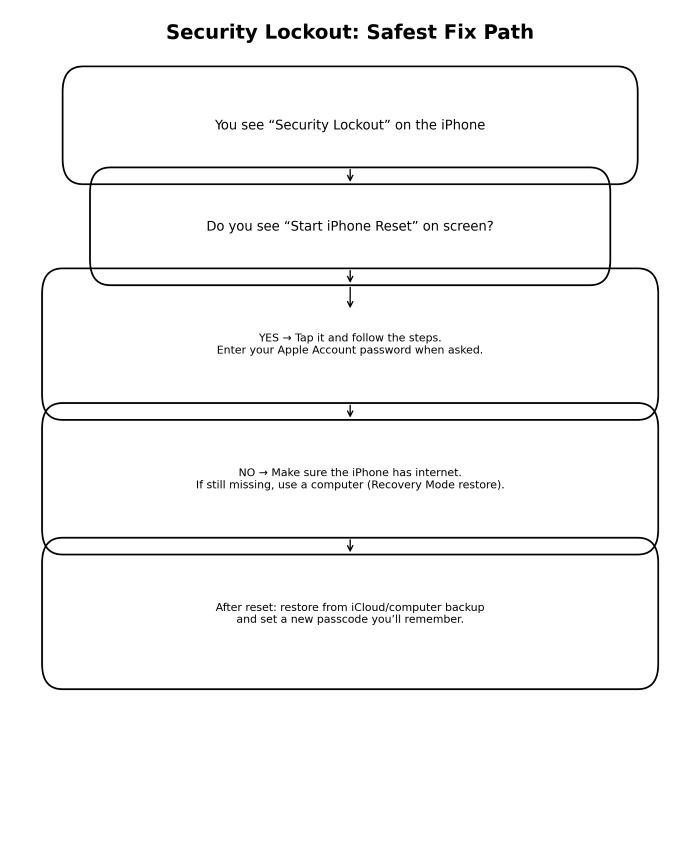
Step 1: Check if “Start iPhone Reset” appears
If your Security Lockout screen includes “Start iPhone Reset”, follow the on-screen instructions. Apple’s guidance notes you’ll likely be asked to enter your Apple Account password to sign out.
how to fix iPhone Unavailable without a computer
Step 2: Make sure your iPhone has internet
This matters because Apple notes the Security Lockout reset flow depends on having an active cellular/Wi-Fi connection and Find My being enabled.
Try:
- Connect to a trusted Wi-Fi network (if possible)
- Insert SIM / enable mobile data (if it was off)
Step 3: If reset option still doesn’t show, use Recovery Mode (computer)
If on-screen reset isn’t available, Apple’s official recovery method is to reset using a computer (Recovery Mode) and then restore from backup.
Important: Recovery Mode erases the iPhone.
Can you fix Security Lockout without erasing data?
Usually, no. If you forgot the password and reached Security Lockout, Apple’s guidance makes it clear that accessing the device again normally requires a reset, which erases data currently on the device.
The only “data-safe” scenario is:
- You actually remember the correct pass and the phone is not in a state that blocks pass code entry (more common with “Unavailable” than “Security Lockout”).
Special case: You changed your passcode recently (iOS 17+)
If you changed your passcode and forgot the new one, Apple describes Passcode Reset that can let you use the previous passcode within a limited window (commonly 72 hours).
If you see a “Forgot Pass?” path, follow it and look for the option to use the old pass.
After you reset: restore and prevent it happening again
- Restore from iCloud backup or a computer backup
- Set a passcode you will remember (and store it safely)
- Keep Find My enabled (helps with recovery options)
Q1: What does iPhone Security Lockout mean?
iPhone Security Lockout appears after too many wrong passcode attempts, typically after 10 failed tries. It is Apple’s security feature to prevent unauthorized access. Depending on your settings, it may lock for 1 minute, 5 minutes, or require connecting to iTunes or Finder to unlock.
Q2: How long does iPhone Security Lockout last?
iPhone Security Lockout duration increases with each failed attempt: 1 minute after 5 wrong tries, 5 minutes after 7, 15 minutes after 8, and 1 hour after 9. After 10 failed attempts, the iPhone is disabled permanently and requires connecting to a computer with iTunes or Finder to restore.
Q3: Can I unlock iPhone Security Lockout without a computer?
A: Yes, if you have iCloud enabled, you can unlock iPhone Security Lockout without a computer. Go to iCloud.com on another device, sign in, select Find My > your iPhone > Erase iPhone. This removes the passcode and lockout, but also erases all data. Your data restores from your last iCloud backup.
Q4: Will I lose data if I fix iPhone Security Lockout?
Fixing iPhone Security Lockout through iTunes, Finder, or iCloud erase will erase the iPhone. However, if you had iCloud backup enabled, you can restore your data after unlocking. Go through setup after erasing and choose Restore from iCloud Backup to get your data back.
Q5: How do I prevent iPhone Security Lockout in the future?
To prevent future lockouts, use Face ID or Touch ID as your primary unlock method to avoid passcode attempts. You can also enable Erase Data after 10 failed attempts in Settings > Face ID & Passcode, which automatically wipes the phone after too many wrong attempts.
Sources
Apple Support: If you see an iPhone unavailable message or Security Lockout
https://support.apple.com/en-us/105090

Apple Support: If you forgot your iPhone passcode or your iPhone is disabled
https://support.apple.com/en-us/118430

Apple Support: Temporarily use your old passcode when you forget your new passcode
https://support.apple.com/en-us/105039
Related guides on MozPK