



Quick Answer: Paramount Plus Error Code 3005 (“This video is currently unavailable. Please try again.”) means the app couldn’t hold a stable connection to Paramount’s streaming servers. Paramount’s own first fix: restart your modem/router, wait for the connection to fully return, and relaunch the app. If it keeps happening — especially on a Samsung smart TV — update the TV’s firmware and switch its DNS to Google’s 8.8.8.8 / 8.8.4.4; those two steps clear most persistent 3005 cases.
You hit play, the stream stumbles, and up comes: “This video is currently unavailable. Please try again. Error code: 3005.” Sometimes it kills the video at the start; sometimes it strikes mid-episode after minutes of buffering.
Error 3005 is one of Paramount+’s most reported playback errors, and at its heart it’s a connection-stability problem: the app lost its grip on the streaming servers long enough for playback to fail. Your subscription and account are fine — the fixes are all about the pipe between your device and Paramount, and the nine below work through it from your couch outward.
Find Your Situation
| Symptom | Most Likely Cause | Jump to Fix |
|---|---|---|
| Error appears with heavy buffering first | Unstable or congested connection | Fix 2 & 4 |
| Happens mostly in the evening (7–11 PM) | Peak-hour network congestion | Fix 4 |
| Persistent on a Samsung smart TV | TV firmware or DNS/IPv6 quirks | Fix 6 & 8 |
| During a live game or big premiere | Paramount server load | Fix 3 |
| After ignoring app updates for months | Outdated app or firmware | Fix 5 & 6 |
| Different code (131), sign-in or license flavored | Session/VPN issue — see our Error 131 guide | — |
How to Fix Paramount Plus Error Code 3005
Fix 1: Tap OK, Retry, and Restart the App
3005 is often a momentary stumble — give the stream a clean second chance before touching anything else.
- Tap OK on the error, go back, and press play again.
- If it repeats, fully close the app (Force stop on Android/Google/Fire TV; relaunch from Home on Roku/Apple TV) and reopen.
Fix 2: Restart Your Modem and Router — Paramount’s Official Fix
Paramount’s own support instruction for 3005 starts exactly here, and for good reason: a stale connection at the router is the most common cause.
- Unplug the modem and router (or the combined unit) for 30 seconds.
- Plug back in and wait until the internet is fully up — lights steady, other devices online.
- Relaunch Paramount+ and play.
Fix 3: Rule Out a Paramount+ Outage
When 3005 hits everyone at once, it’s their servers, not your setup.
- Check Downdetector or Paramount+’s social accounts for a spike.
- Live sports finals and premiere nights overload streaming servers routinely — those waves resolve on their own within a couple of hours, and no router restart will hurry them.
Fix 4: Stabilize and De-Congest Your Connection
Streaming fails on instability even when speed tests look fine.
- Prefer wired Ethernet for TVs and consoles; failing that, move the router closer or switch to the 5 GHz band.
- Pause the bandwidth hogs: big downloads, cloud backups, other 4K streams in the house — congestion during the 7–11 PM peak is a classic 3005 pattern.
- Quick test: hotspot from your phone. If Paramount+ plays flawlessly on the hotspot, your home network is the whole story.
Fix 5: Update the Paramount+ App
Outdated app versions lose compatibility with the streaming servers — and TVs are the worst at auto-updating.
- Open your device’s app store, search Paramount+, and update.
- Restart the app afterwards and retry the stream.
Fix 6: Update Your Device’s Firmware
Especially on Samsung TVs, outdated firmware is a confirmed cause of persistent 3005 — old firmware can lack the codec support and certificates Paramount’s servers require.
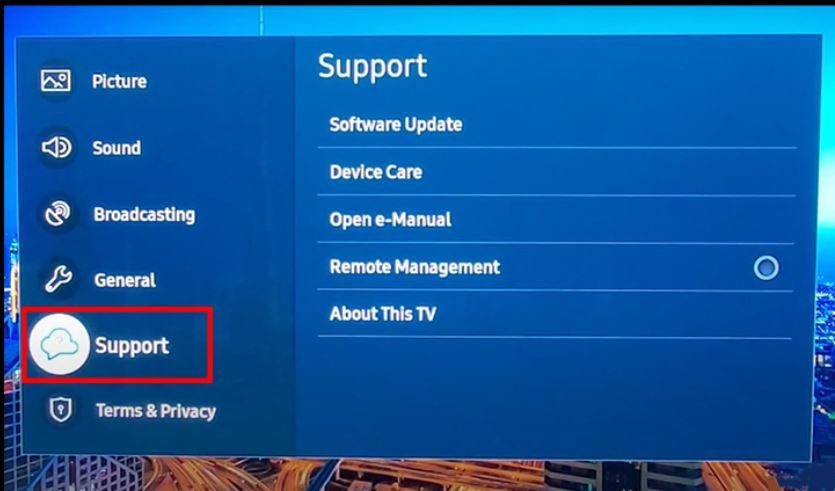
- Samsung: Settings → Support → Software Update → Update Now.
- Other smart TVs, Fire TV, Roku: find System/About → check for updates.
- Restart the device fully after updating — smart TVs left on standby for weeks accumulate exactly the glitches that a real power cycle clears.
Fix 7: Clear the App’s Cache — or Reinstall
Corrupted cached data breaks streams, particularly on TVs and sticks that never get turned off.
- Android / Google / Fire TV: Settings → Apps → Paramount+ → Clear cache; escalate to Clear data (you’ll sign in again) if needed.
- Roku / Apple TV / Samsung: remove the app, restart the device, reinstall, sign in.
Fix 8: Switch the TV’s DNS to Google (Samsung Favorite)
Samsung TV owners report persistent 3005 vanishing after a DNS change — the TV’s default DNS or IPv6 handling trips up the connection to Paramount’s servers.
- On the TV: Settings → Network → Network Status → IP Settings → DNS Settings → Enter manually.
- Set DNS to 8.8.8.8 (add 8.8.4.4 as secondary where offered) — or Cloudflare’s 1.1.1.1.
- Restart the TV and test. The same trick works on Fire TV and most smart platforms under network settings.
Fix 9: Turn Off VPNs and Proxies
Paramount+ doesn’t support VPN connections, and VPN routing adds exactly the instability 3005 punishes.
- Disconnect VPN apps on the streaming device and any VPN configured on the router itself.
- Disable smart-DNS or DNS-filtering services pointed at streaming.
- Retry on your plain home connection.
Still Seeing Error 3005?
- Reset the TV’s network settings (Samsung: Settings → General → Network → Reset Network) and set the connection up fresh — this clears deeper misconfigurations DNS changes can’t reach.
- Getting Error 131 instead sometimes? The two travel together but point different directions — 131 is session/cache/VPN flavored, and our Paramount Plus Error 131 guide handles it fix by fix.
- Every streaming app struggling? Then Paramount is the messenger, not the problem — your connection needs attention first; our connected-but-no-internet guide covers the network side.
- Contact Paramount+ support with your device model and app version if a single device keeps failing after everything above — device-specific playback bugs do get tracked and fixed on their end.
More streaming & app fixes on MozPK
- Error Code Finder — look up any error code
- Paramount Plus Error Code 131
- Error Code 233011 (browser video playback)
- YouTube not playing videos on Android
- Instagram Reels not working
- HBO Max Error Code 1400500
- App Fixes Hub
Seeing a different code? Our Error Code Finder covers 65 codes across streaming apps, iPhone, Android and the Play Store — type the code or the message and get the fix.
Frequently Asked Questions
What does Error Code 3005 mean on Paramount Plus?
The app couldn’t maintain a stable connection to Paramount’s streaming servers long enough to load or continue the video. It’s a connection/playback error — not a billing or account problem.
What’s Paramount’s official fix for Error 3005?
Restart your modem, wait for the internet connection to fully return, then relaunch the app. It’s the first step for a reason — connection staleness at the router is the most common cause.
Why does my Samsung TV keep showing Error 3005?
Samsung TVs are the most reported device for persistent 3005, usually due to outdated firmware or the TV’s DNS/IPv6 handling. Update the firmware (Settings → Support → Software Update) and switch DNS to 8.8.8.8.
Why does Error 3005 happen mostly at night?
Evening peak hours (roughly 7–11 PM) congest both home networks and internet routes. Wired Ethernet, pausing other heavy usage, and the 5 GHz Wi-Fi band all reduce evening failures.
Is Error 3005 my internet or Paramount’s servers?
Test another streaming app: if everything struggles, it’s your connection. If only Paramount+ fails everywhere at once, check Downdetector — big live events regularly overload their servers, and those waves pass on their own.




