


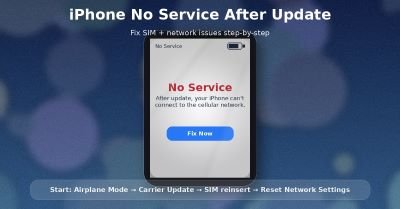

If your iPhone shows No Service, Searching, or SOS after an iOS update, the cause is usually one of these: a temporary carrier outage, a SIM/eSIM issue, outdated carrier settings, or iOS network settings that need a refresh. Apple’s official troubleshooting flow starts with reconnecting to the network, checking carrier/service status, updating iOS, and then checking carrier settings/SIM.
- Toggle Airplane Mode (ON 15 seconds → OFF)
- Restart your iPhone
- Check carrier outage / account status (ask your carrier)
- Go to Settings → General → About to install a Carrier Settings Update (if prompted)
- If using a physical SIM: remove and reinsert SIM
- If still stuck: Reset Network Settings
Wi-Fi Connected but No Internet on iPhone: 11 Fixes
Fix 1: Toggle Airplane Mode (15 seconds)
Go to Settings → Airplane Mode → ON (15 sec) → OFF.
Apple specifically recommends this to reconnect to the cellular network.
Fix 2: Restart iPhone
A restart clears stuck modem/network processes. Apple includes restarting as a key step for No Service / Searching issues.
Fix 3: Check coverage, carrier outage, and your account
This sounds boring, but it’s one of the most common real causes:
- Are you in a low-signal area?
- Is there a carrier outage in your city?
- Is your account active and in good standing?
Apple advises contacting your carrier to confirm coverage/outage/account status.
Fix 4: Install the Carrier Settings Update
Carrier settings updates can fix network connection issues after updates.
Go to:
Settings → General → About
If an update is available, you’ll see a prompt to install it.
Fix 5: Remove and reinsert the SIM (physical SIM only)
If you use a physical SIM:
- Power off the iPhone (optional but safer)
- Eject SIM tray carefully
- Reinsert SIM and try again
Apple provides official instructions for removing/reinserting the SIM tray.
If the SIM is damaged or not seating properly, your carrier may need to replace it.
Fix 6: Check Cellular settings (quick sanity check)
Go to Settings → Cellular:
- Ensure your line is visible (for dual SIM / eSIM devices)
- Ensure Cellular Data isn’t turned off (if needed)
If your line is missing, it can point to an eSIM/SIM provisioning issue (carrier side).
Fix 7: Update iOS again (small patches matter)
Sometimes the first update introduces a modem bug, and a follow-up patch fixes it.
Go to:
Settings → General → Software Update
Fix 8: Reset Network Settings (best “last step” on iPhone)
If nothing above works, do:
Settings → General → Transfer or Reset iPhone → Reset → Reset Network Settings
This resets:
- Wi-Fi networks & passwords
- Cellular settings
- VPN/APN settings
Apple ID Verification Failed on iPhone: 9 Fixes
Fix 9: If it shows SOS only
“SOS” often means your iPhone can’t register on your carrier network for normal service. Follow the same steps above (Airplane Mode, restart, carrier check, carrier update). Apple includes SOS with No Service / Searching guidance.
Fix 10: When it’s time to contact Apple or your carrier
Contact your carrier first if:
- Your SIM/eSIM line disappears
- Your account might be blocked/barring service
- You suspect an outage
Contact Apple Support if:
- Cellular never returns after trying the full Apple flow
- You suspect hardware damage (drops/water) right before the update
iPhone Security Lockout: Meaning + How to Fix It
Sources
Apple Support: If you see SOS, No Service, or Searching on your iPhone
https://support.apple.com/en-us/120000

Apple Support: Manually update your carrier settings on iPhone
https://support.apple.com/en-us/109324

Apple Support: Remove or switch the SIM card in your iPhone
https://support.apple.com/en-us/109357

Apple Support: Reset iPhone settings to their defaults / Reset Network Settings
https://support.apple.com/guide/iphone/reset-iphone-settings-iphea1c2fe48/ios

Apple Support: If you can't connect to Wi-Fi (includes Reset Network Settings steps)
https://support.apple.com/en-us/111786




