

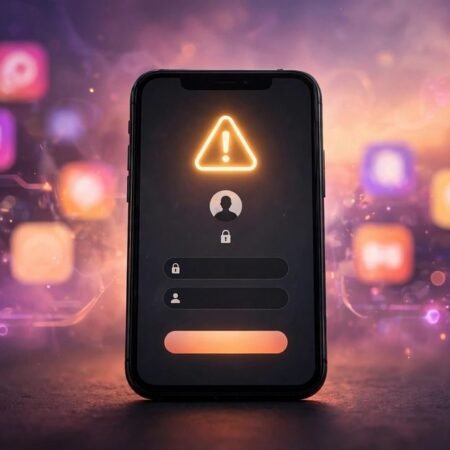

You type the right password, tap Log In, and Instagram just spins, throws you back to the login screen, or shows a vague error like “Sorry, there was a problem with your request.” Nothing is more frustrating than being locked out of an account you use every day, especially when the app gives you no useful explanation.
Instagram login problems are among the most reported issues on the platform: login loops, passwords that suddenly stop working, two factor authentication codes that never arrive, and suspicious login blocks after switching phones. Most failures trace back to a short list of causes, and the fixes below are ordered from most likely to work.
Quick Answer
If you cannot log in to Instagram, first switch your network: turn off WiFi and try mobile data, or the other way around. This alone fixes the “Sorry, there was a problem with your request” error for most people, because Instagram often blocks the IP address temporarily. Next, turn off any VPN, update the app, and force close and reopen it. If you are stuck at two factor authentication, tap “Try another way” and use a backup code, an SMS code, or approve the login from a device where you are still signed in.
Why Can’t You Log In to Instagram?
Instagram rarely tells you the real reason a login fails. Based on Instagram support documentation and thousands of user reports, these are the actual causes behind most login problems:
- Temporary IP or network block. Instagram rate limits logins from an IP address that made too many attempts. This is the top cause of the “Sorry, there was a problem with your request” message.
- VPN or proxy interference. Instagram flags many VPN connections as suspicious, which triggers login blocks.
- Outdated app version. Old Instagram builds mishandle newer login security checks.
- Corrupt app cache or data. Damaged local data breaks the login handshake.
- Two factor authentication problems. Lost authenticator apps, changed phone numbers, or delayed SMS codes lock users out.
- Password issues. Forgotten passwords, or passwords changed from another device, plus failed reset emails.
- Account security blocks. Instagram locks accounts after suspicious activity, too many failed attempts, or logins from unusual locations.
- Server side outages. When Instagram itself has problems, nobody can log in properly.
12 Fixes That Work
Fix 1: Switch Your Network
This is the number one fix for the “Sorry, there was a problem with your request” error. Instagram often blocks an IP address temporarily after too many login attempts, and switching networks gives you a fresh IP.
- If you are on WiFi, turn it off and try logging in on mobile data.
- If you are on mobile data, connect to a stable WiFi network and try again.
- Restart your router if you suspect your home IP is the blocked one.
- Try logging in again after the switch. Many users report instant success with this step alone.
Fix 2: Turn Off Your VPN
Instagram treats many VPN connections as suspicious. If you use a VPN, it may be the entire reason you cannot log in.
- Disconnect your VPN completely and exit the VPN app.
- Check your phone settings to confirm no VPN profile shows as connected.
- Force close Instagram, reopen it, and try logging in again.
Fix 3: Check If Instagram Is Down
Before changing anything on your phone, rule out an Instagram outage.
- Open DownDetector and search for Instagram.
- Look for a spike in user reports in the last hour.
- Check Instagram’s official social accounts for outage announcements.
- If others report the same problem, wait 30 to 60 minutes and try again.
Fix 4: Force Close and Restart the App
A stuck app session causes login loops where the app throws you back to the login screen endlessly.
- Close Instagram completely from the app switcher.
- On Android, go to Settings, Apps, Instagram, and tap Force Stop.
- Wait 10 seconds, reopen Instagram, and try logging in.
- If the app itself misbehaves in other ways too, our guide on apps not opening on Android covers the general fixes.
Fix 5: Update the Instagram App
Old app versions fail newer login security checks, producing vague errors.
- On iPhone, open the App Store and update Instagram.
- On Android, open the Google Play Store and update Instagram.
- Relaunch the app after updating and try logging in.
Fix 6: Clear Cache or Reinstall
Corrupt cache data breaks the login handshake on Android.
- On Android, long press the Instagram icon, tap App Info, then Storage, then Clear Cache. Do not tap Clear Data unless you are ready to set the app up fresh.
- On iPhone, there is no cache clear option, so delete the app and reinstall it from the App Store.
- Try logging in on the fresh install.
Fix 7: Reset Your Password Properly
If the password itself is the problem, reset it the right way.
- On the login screen, tap Forgot Password or Get Help Logging In.
- Enter your username, email, or phone number and request the reset link.
- Check spam and junk folders for the reset email.
- Open the reset link on the same phone where Instagram is installed.
- Set a new strong password and log in with it.
Fix 8: Try Logging In on the Web
The web version uses a different login flow and often works when the app refuses.
- Open a browser and go to instagram.com.
- Log in with your username and password there.
- If web login works, the problem is app specific. Reinstall the app.
- If web login also fails, the issue is your account or network, so continue with the next fixes.
Fix 9: Get Past Two Factor Authentication
Being stuck at the 2FA screen is one of the most common login traps.
- On the verification screen, tap Try Another Way to see alternate methods.
- Use one of your backup codes if you saved them when enabling 2FA.
- Request the code via SMS instead of the authenticator app, or vice versa.
- Approve the login from another device where you are still signed in to Instagram.
- If SMS codes never arrive, the same delivery problem affects other apps too. See why a WhatsApp verification code is not received for the network side fixes.
Fix 10: Log In with Facebook
If your Instagram is linked to Facebook, this bypasses the Instagram password flow entirely.
- On the Instagram login screen, tap Log In with Facebook.
- Approve the connection in the Facebook prompt.
- Once inside, go to Settings and update your Instagram password and 2FA settings so the normal login works next time.
Fix 11: Temporarily Unlink Facebook
A broken Facebook link can itself cause login loops. Temporarily removing it sometimes clears the block.
- Log in via the web if possible, go to Settings, Accounts Center, and remove the Facebook link.
- Log out everywhere, then log back in with your Instagram credentials.
- Relink Facebook afterward if you want. If you ever want to step away from Facebook itself, here is how to deactivate your Facebook account safely.
Fix 12: Wait Out Temporary Blocks
Instagram’s automated systems sometimes impose cooling periods after suspicious activity.
- Stop all login attempts for 24 to 48 hours. Repeated attempts extend the block.
- Do not use third party apps or bots during the wait.
- After the wait, log in from your usual device on your home network.
- If the block persists beyond 48 hours, use the in app appeal option or the Help Center contact form.
Still Not Working?
If none of the 12 fixes worked, your account may need direct review:
- Use the Instagram Help Center appeal form and describe the exact error message you see.
- Check the email linked to your account for any security notices from Instagram.
- If you suspect the account was hacked, start the hacked account recovery flow from the login screen.
Frequently Asked Questions
1. Why does Instagram say “Sorry, there was a problem with your request”?
This usually means Instagram temporarily blocked your IP address or network after too many login attempts. Switch from WiFi to mobile data or vice versa. That single step resolves it for most people.
2. Why am I not receiving the Instagram security code?
Carrier SMS delays, a changed phone number, or spam filtering are the usual causes. Tap Try Another Way for backup codes or alternate methods, and check that the phone number on the account is current.
3. Can I log in to Instagram without my phone number?
Yes, with your username and password, through a linked Facebook account, or with backup codes if 2FA is enabled. The web login at instagram.com also accepts these methods.
4. How long does an Instagram login block last?
Most temporary blocks clear within 24 to 48 hours if you stop attempting logins. Repeated attempts during the block can extend it, so waiting quietly is the fastest path.
5. Will deleting and reinstalling Instagram delete my account?
No. Your account, posts, and messages live on Instagram’s servers. Reinstalling only removes the local app data. You will need your login credentials to sign back in.