


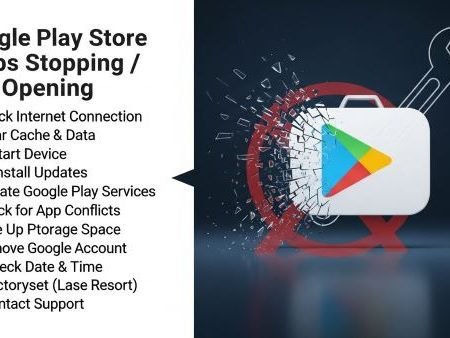

If your Google Play Store won’t open, keeps closing, or you see “Google Play Store keeps stopping”, the cause is usually one of these:
- Play Store bugged update
- Corrupted cache/data
- Google Play services conflict
- Low storage
- Wrong date/time or a stuck system process
Do this first
- Restart your phone
- Update the Google Play Store (Settings → About → Update Play Store)
- Clear Play Store cache/data
- Clear Google Play services cache/data if Play Store still crashes
- Free 1–2 GB storage
- If still not opening: Uninstall Play Store updates (revert to factory version)
Google Play services keeps stopping: 12 Fixes
Fix 1: Restart your phone (simple, but important)
Google’s Android troubleshooting for broken apps starts with restart + updates.
Fix 2: Check if Play Store has an update
If Play Store opens even for 10 seconds, do this:
Play Store → Profile → Settings → About → Update Play Store
Fix 3: Force stop Play Store
Settings → Apps → Google Play Store → Force stop
Then open it again.
Fix 4: Clear Play Store cache (safe)
Settings → Apps → Google Play Store → Storage & cache → Clear cache
This is one of Google’s main recommendations for Play Store issues.
Fix 5: Clear Play Store data/storage (strong fix)
If cache didn’t help:
Settings → Apps → Google Play Store → Storage & cache → Clear storage / Clear data
Then restart and try again.
Fix 6: Clear Google Play services cache/data
When Play Store keeps crashing, Google often points to cleaning Google Play services too.
Steps:
Settings → Apps → Google Play services → Storage & cache → Clear cache → Clear data
Restart your phone.
Google Play Store Download Pending: 13 Fixes
Fix 7: Check storage (low space = crashes)
If storage is nearly full, Play Store and Play services can misbehave. Free at least 1–2 GB, then retry.
Fix 8: Set Automatic Date & Time
Wrong time can break secure sign-in and background services.
Go to: Settings → Date & time → Set automatically (ON)
Google’s Android “app not working” guide includes updating/syncing basics like this.
Fix 9: Disable VPN / Private DNS (temporarily)
If Play Store opens but fails immediately or errors out, turn off VPN/Private DNS and test again.
Fix 10: Uninstall Play Store updates (revert to factory version)
If Play Store still won’t open:
Settings → Apps → Google Play Store → (menu) Uninstall updates
Google’s Play Store troubleshooting includes uninstalling updates as an advanced fix.
Then open Play Store and let it update again.
Fix 11: Remove and re-add Google account (if sign-in is stuck)
If Play Store keeps stopping right after it tries to load your account:
Settings → Accounts → Google → Remove account → Restart → Add account again
(Do this after cache/data steps.)
Fix 12: Still crashing? Update Android system
Settings → System → System update
Google’s Android troubleshooting emphasizes keeping the OS updated when apps keep crashing.
Sources
Google Play Help: Fix problems with the Google Play Store app (advanced)
https://support.google.com/googleplay/answer/14121800

Google Play Help: Update the Google Play app
https://support.google.com/googleplay/answer/15747876

Google Play Help: Keep your device & apps working with Google Play services
https://support.google.com/googleplay/answer/9037938

Android Help: Fix an installed Android app that isn't working
https://support.google.com/android/answer/2668665




