


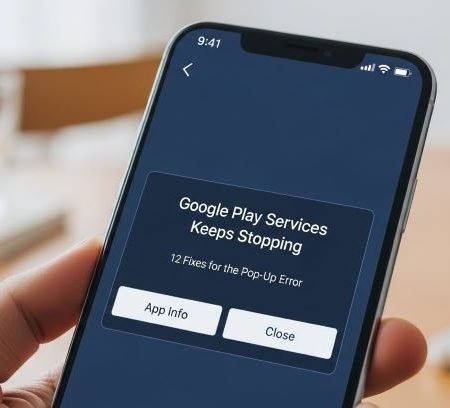

If you keep seeing “Google Play services keeps stopping” (or “Google Play services has stopped”) and your Google apps keep crashing, it’s usually caused by a bad update, corrupted cache/data, low storage, wrong date/time, or a Play Store/Play services conflict.
- Restart your phone
- Update Google Play services (if your phone shows Update/Install)
- Free at least 1–2 GB storage
- Clear Google Play services cache (then restart)
- If still crashing: clear Google Play services data/storage (warning: can remove some saved info)
- Clear Google Play Store cache/data, then update Play Store
Google Play Store Download Pending: 13 Fixes
Why this error happens
Google Play services runs important background stuff for many apps (sign-in, location, push notifications, etc.). When it bugs out, you’ll notice:
- Google apps won’t open
- Play Store downloads fail
- Pop-up keeps appearing every few seconds
Google notes you can’t normally “uninstall” Play services like a normal app, so the fix is usually update + cache/data cleanup.
Fix 1: Restart your phone (don’t skip)
A restart clears temporary crashes and stuck background processes. Google’s Android troubleshooting also starts with restart + update checks.
Fix 2: Update Google Play services (official method)
On many phones, you can update Play services from system settings.
Try this path (may vary by device):
Settings → (your profile) → All services → System services → Google Play services → Update/Install
If you don’t see Update/Install, continue with the next fixes (cache/data).
Fix 3: Check storage (low space breaks everything)
When storage is almost full, system components crash more often.
Go to Settings → Storage and free space (videos, WhatsApp media, unused apps).
Fix 4: Clear Google Play services cache (safe + common)
Go to:
Settings → Apps → Google Play services → Storage & cache → Clear cache
Then restart your phone.
Fix 5: Clear Google Play services data/storage (powerful, but read this)
If the pop-up still keeps coming back, clear its storage:
Settings → Apps → Google Play services → Storage & cache → Clear storage / Clear all data → Delete
Important warning from Google: clearing Play services data can remove some information saved on the device (examples include passwords and certain wallet/transit/payment items) and may require you to sign in again.
Fix 6: Clear Google Play Store cache/data too (Play services depends on it)
Google recommends clearing the Play Store cache/data as part of fixing Play services/Play Store issues.
Steps:
Settings → Apps → Google Play Store → Storage → Clear cache → Clear data
Fix 7: Update the Play Store (small updates can stop crashes)
Open Google Play Store → Profile icon → Settings → About → Update Play Store
Fix 8: Set Automatic Date & Time (quick sanity fix)
Wrong time can break secure connections and Google sync.
Go to: Settings → System → Date & time → Automatic date & time (ON)
Google’s Android troubleshooting includes re-syncing date/time with Google servers as a fix for app issues.
Fix 9: Boot into Safe Mode (to catch a bad third-party app)
If Play services only started crashing after you installed a new app (cleaner, VPN, security app, modded APK), Safe Mode helps test that.
- If the error stops in Safe Mode, uninstall recently installed apps one-by-one after rebooting normally.
(Every phone has slightly different Safe Mode steps.)
Fix 10: Update Android system
After big Android updates, Play services may need newer components.
Settings → System → System update
Fix 11: Remove and re-add your Google account (if sync/auth is stuck)
If Google sign-in is broken and Play services crashes immediately:
Settings → Accounts → Google → Remove account → Restart → Add again
This is a “strong” fix; do it after the cache/data steps.
Fix 12: Last resort — Factory reset (only if nothing works)
If Play services keeps stopping on a clean setup too, reset may be required. Google Play’s advanced troubleshooting mentions resetting the device if steps don’t fix the issue.
Android “App Not Installed” Error: 11 Fixes
Sources
Google Play Help: Keep your device & apps working with Google Play services
https://support.google.com/googleplay/answer/9037938

Google Play Help: Fix problems with the Google Play Store app (includes clearing Play services cache/data)
https://support.google.com/googleplay/answer/14121800

Android Help: Fix an installed Android app that isn't working (restart/update/date-time sync)
https://support.google.com/android/answer/2668665

Google Play Help: Update the Google Play app
https://support.google.com/googleplay/answer/15747876




