




Face ID Not Available After Update: Causes + Fixes (Step-by-Step). If Face ID stopped working right after an iOS update, it’s usually one of these:
- Something is blocking the TrueDepth camera area (case edge, smudge, screen protector)
- A setting changed during the update
- iOS needs a restart or a small follow-up update
- In rare cases, there’s a TrueDepth camera issue that needs service
Apple ID Verification Failed on iPhone: 9 Fixes
Quick checklist (do these in order)
Checklist quick fix if face id not available in this image
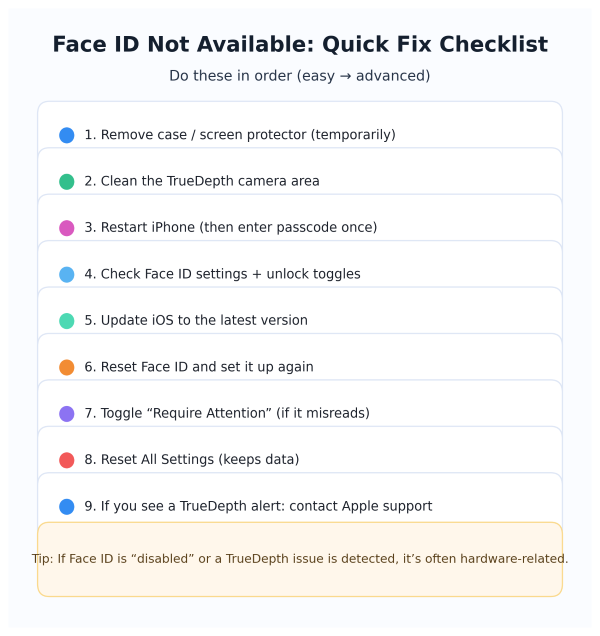
Fix 1: Remove case or screen protector (temporarily)
Some cases or protectors can cover or reflect light near the TrueDepth area. Remove them for 2 minutes and test Face ID again. Apple also recommends checking that nothing is covering the TrueDepth camera.
Fix 2: Clean the TrueDepth camera area
Wipe the top front area gently (where the TrueDepth camera sits). Smudges can stop Face ID from reading properly.
Fix 3: Restart iPhone (then enter passcode once)
Restart, unlock with passcode, then try Face ID again. Apple includes checking updates and basic checks for Face ID issues.
iPhone Unavailable: How Long Does It Last?
Fix 4: Check Face ID settings (quick toggle check)
Go to: Settings → Face ID & Passcode
Make sure Face ID is enabled for what you need (iPhone Unlock, App Store, etc.). Apple’s Face ID setup and settings live here.
Fix 5: Update iOS again (small patches matter)
Sometimes Face ID bugs are fixed in follow-up updates.
Go to: Settings → General → Software Update
Fix 6: Reset Face ID and set it up again
Apple’s official steps:
- Settings → Face ID & Passcode → Reset Face ID
- Then tap Set Up Face ID and follow the prompts
Fix 7: Toggle “Require Attention” (optional)
If Face ID keeps failing (especially with glasses or low light), toggling attention settings can help in some cases. Do this only as a test:
Settings → Face ID & Passcode → Require Attention for Face ID
(If it gets worse, switch it back on.)
Fix 8: Reset All Settings (keeps your data)
If Face ID broke after update because of a settings conflict, this can help.
Go to: Settings → General → Transfer or Reset iPhone → Reset → Reset All Settings
This keeps photos and apps, but resets system settings.
When it might be a hardware problem (TrueDepth alert)
If you see alerts like Face ID has been disabled or a TrueDepth camera issue message, Apple warns that Face ID may require service and should be handled by trained technicians due to the advanced technology involved.
At that point:
- Update iOS (if possible)
- If it still fails, contact Apple Support / service
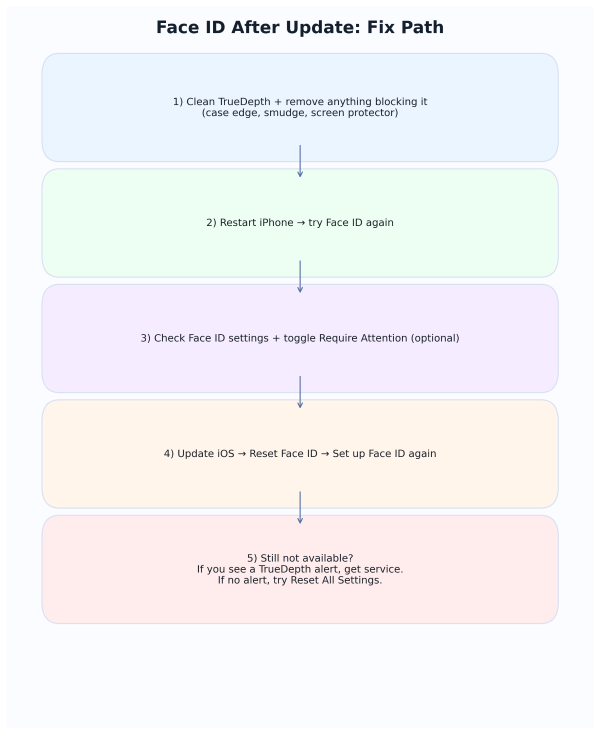
Fix Path (visual)
iPhone Security Lockout: Meaning + How to Fix It
Sources
Apple Support: If Face ID isn't working on your iPhone or iPad Pro
https://support.apple.com/en-us/118243

Apple Support: Use Face ID on your iPhone or iPad Pro (setup steps)
https://support.apple.com/en-us/108411

Apple Support: About Face ID advanced technology (service and safety guidance)
https://support.apple.com/en-us/102381




