


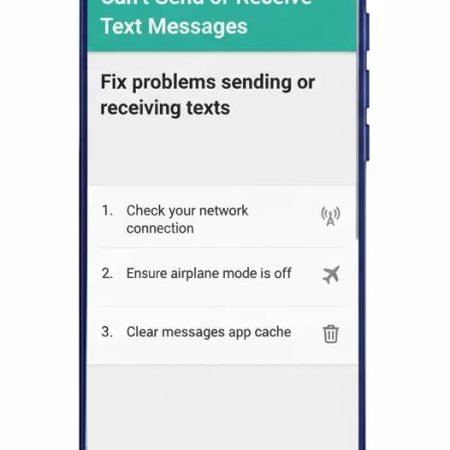

When text messages break on Android, it helps to know what type you’re dealing with:
- SMS: plain texts sent over your mobile network (no internet needed)
- MMS: photos, videos, group texts, and long media messages (often needs mobile data + correct APN)
- RCS (Chat features): “modern” chats inside Google Messages (uses internet and carrier support)
Google Messages troubleshooting also highlights common causes like: Messages not set as the default app, the app not updated, SIM issues, and carrier support for SMS/MMS/RCS.
Do this first
- Check signal and turn Airplane mode ON 10 seconds → OFF, then restart
- Make sure Google Messages (or your messaging app) is the default texting app
- Update the Messages app and clear its cache
- If MMS fails, turn mobile data ON and reset APN to default
- If RCS fails, toggle RCS off/on (reset chat features)
- If nothing works, reset network settings and reseat SIM
No Service / No Signal on Android
Fix 1: Check your signal and service first (fast reality check)
If you have 0–1 bars, texts may fail or arrive late. Also confirm your line is active and you’re not in a no-coverage spot. Samsung’s messaging troubleshooting starts with verifying carrier/service status and signal.
Try moving outdoors and sending one SMS to a different number.
Fix 2: Make sure your messaging app is set as the default
If Google Messages isn’t the default texting app, sending/receiving can behave strangely (especially after an update or phone migration). Google specifically recommends verifying Messages is set as your default texting app.
Go to Settings → Apps → Default apps → SMS app (wording varies) and set it correctly.
Fix 3: Update the Messages app (small updates fix big bugs)
An outdated app can cause stuck sending, missing MMS downloads, or RCS not connecting. Google Messages troubleshooting includes keeping the app updated.
Update from Play Store, then reboot once.
Fix 4: Clear Messages app cache (safe cleanup)
Cache corruption is a common reason for “Message failed to send” or messages not showing up. Samsung explicitly suggests clearing the Messages app cache.
Go to Settings → Apps → Messages → Storage → Clear cache (don’t clear data unless you know what it does).
Fix 5: Restart your phone (simple, still one of the best)
Restarting resets the phone’s messaging and network services. Samsung includes restart in its official messaging troubleshooting steps.
After restart, wait 30–60 seconds before testing.
Fix 6: Check blocked numbers and message settings
If texts fail only with one person, it might be a contact issue: wrong number format, blocked contact, or country code missing. Google Messages suggests checking if the number is correct, blocked, or needs a country code.
Test with a different contact to confirm.
Fix 7: If SMS fails for everyone, check the Message Center number (SMSC)
This is an underrated fix. If your Message Center number (SMSC) is missing or wrong, SMS can fail even when everything else works. Samsung notes incorrect message centre number settings as a common reason texts fail.
If you can’t find SMSC in your phone, your carrier can provide the correct number.
Fix 8: If MMS fails, turn mobile data ON (even if you’re on Wi-Fi)
MMS often needs a data connection, and Google Messages specifically says: for MMS issues, ensure you have a data connection.
So if picture messages or group texts won’t send/download, turn mobile data ON, then retry.
Fix 9: Reset APN to default (big fix for MMS)
APN (Access Point Name) controls how your phone connects to your carrier for data and MMS. Google Messages troubleshooting recommends resetting APN to default when MMS won’t work.
Go to SIM/Mobile network settings → APN → menu → Reset to default (path varies by phone).
Fix 10: Fix “RCS not working” by resetting Chat features
If your issue is with RCS (messages stuck on “Connecting…” or not coming through), Google provides an RCS troubleshooting flow: turn RCS off, then back on in Messages settings.
This is especially useful after switching phones or changing SIMs.
Fix 11: Check storage and permission basics
Low storage can delay apps and cause weird behavior (including messaging apps). Make sure you have some free space, then reopen Messages and try again. This is a simple check that often saves time.
Fix 12: Reset network settings (strong clean slate)
If texting broke after an update or random network glitch, reset network settings. Sony documents the standard Android path: Settings → System → Advanced → Reset options → Reset network settings.
You’ll need to reconnect Wi-Fi and Bluetooth devices afterward.
Fix 13: Reseat SIM (or toggle eSIM line OFF/ON)
A slightly loose SIM, damaged SIM, or eSIM line glitch can stop texting. Samsung’s troubleshooting includes inspecting SIM installation/damage.
If you use eSIM, toggle the line off/on instead of deleting the eSIM profile.
Fix 14: Test your SIM in another phone (isolates SIM vs phone)
This quick test removes guessing:
- SIM fails in another phone too → SIM or line provisioning issue
- SIM works elsewhere → phone settings/app problem
Samsung also suggests SIM inspection and carrier checks in message troubleshooting.
Fix 15: Contact your carrier if it still fails
If you’ve tried default app, cache, APN, RCS reset, network reset, and SIM tests, it’s time to ask your carrier to:
- confirm your plan supports SMS/MMS and isn’t restricted
- refresh/re-provision your line for messaging
- confirm there’s no outage in your area
Google Messages also points out that carrier support for SMS/MMS/RCS can be a limiting factor.
SIM Not Detected / No SIM / Invalid SIM on Android: 15 Fixes
Sources
Google Messages Help: Fix problems sending or receiving messages (default app, SIM, carrier support, MMS/APN tips)
https://support.google.com/messages/answer/9077245

Google Messages: Troubleshoot RCS chat (reset chat features)
https://messages.google.com/disable-chat

Samsung Support (US): Messages are slow, do not send, or can’t be received (signal, cache, SIM)
https://www.samsung.com/us/support/troubleshooting/TSG01001439/

Samsung Support (AU): Unable to send or receive text messages (network issues, message center number, SIM)
https://www.samsung.com/au/support/mobile-devices/unable-to-send-or-receive-text-messages/

Sony Support: Reset network settings (Android path)
https://www.sony.com/electronics/support/articles/SX670101




