


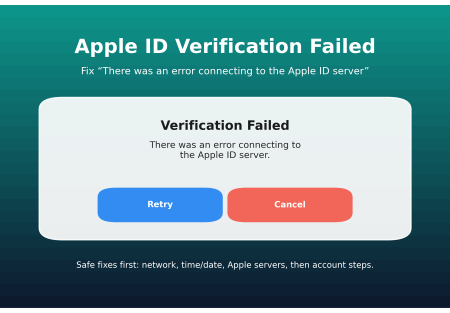

Apple ID Verification Failed on iPhone: 9 Fixes That Actually Work. If you’re trying to sign in on your iPhone (iCloud, App Store, or Apple Account settings) and you see “Verification Failed” or “There was an error connecting to the Apple ID server”, it’s usually caused by one of three things:
- Apple’s servers are having a temporary issue
- Your network settings (Wi-Fi/VPN/Proxy/DNS) are blocking the connection
- Your Apple Account sign-in or verification (2FA) is stuck
This guide gives you 9 fixes in the right order (safe and easy first, deeper steps later).
iPhone Security Lockout: Meaning + How to Fix It
Quick checklist (do these in order)
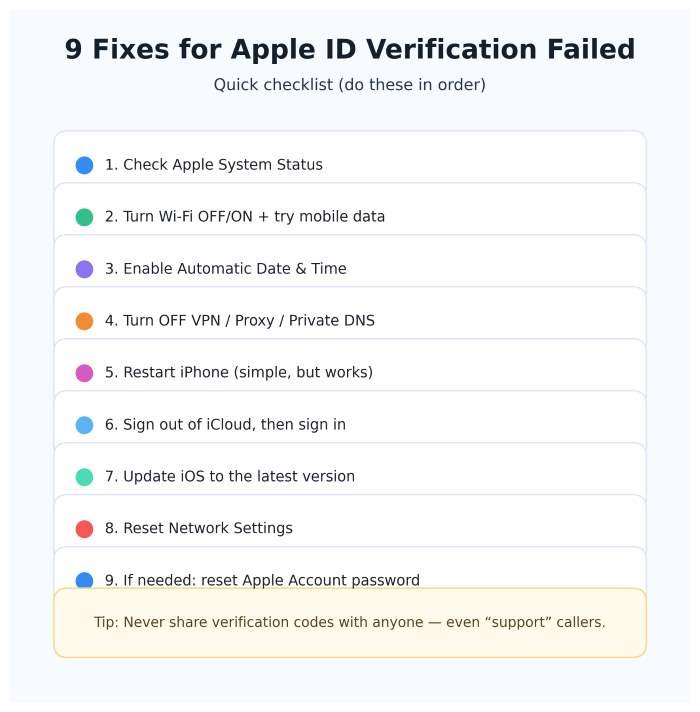
Fix 1: Check Apple System Status (takes 20 seconds)
Before changing anything, check if Apple services are down. If there’s an outage, your iPhone can show verification errors even when your password is correct.
Fix iPhone Unavailable Without Computer
Fix 2: Switch networks (Wi-Fi ↔ mobile data)
This error is often just a connection issue.
Try this:
- Turn Wi-Fi OFF and use mobile data
- Or connect to a different Wi-Fi network
- Then try signing in again
If it works on mobile data but not Wi-Fi, your Wi-Fi/router settings are likely the problem.
Fix 3: Turn OFF VPN / Proxy / Private DNS
VPNs and proxy settings can block Apple’s sign-in connection.
- If you use a VPN app, disable it
- If you use proxy settings on Wi-Fi, turn them off (temporarily)
Then retry sign-in.
Fix 4: Enable Automatic Date & Time
Wrong date/time can break secure connections.
Go to:
Settings → General → Date & Time → Set Automatically (ON)
Then try again.
Fix 5: Restart your iPhone
It sounds basic, but it clears stuck background sign-in processes.
- Restart your iPhone
- Try signing in again
Fix 6: Sign out of iCloud (if possible) and sign back in
If your Apple Account session is stuck, re-authentication can fix it.
Go to:
Settings → [Your Name] → Sign Out
Then restart your iPhone and sign in again.
If you’re unable to sign in to iCloud at all, Apple provides a dedicated troubleshooting checklist.
Fix 7: Update iOS
Older iOS builds can cause sign-in bugs or certificate issues.
Go to:
Settings → General → Software Update
Install updates, then retry sign-in.
Fix 8: Reset Network Settings
If Wi-Fi, DNS, or network profiles are corrupted, this helps.
Go to:
Settings → General → Transfer or Reset iPhone → Reset → Reset Network Settings
This removes saved Wi-Fi passwords, VPN/APN settings, etc. (So note your Wi-Fi password first.) Apple Support discussions commonly recommend this step for verification failures.
Fix 9: If it’s an Apple Account / 2FA issue, use the official recovery options
A) Get a verification code the official way (2FA)
If you aren’t receiving codes or the verification is stuck, Apple explains how to request a code or choose “Didn’t Get a Code?” and send it to your trusted number.
B) Reset your Apple Account password (safe official method)
If you suspect password/account issues, use Apple’s official password reset steps.
C) Use account recovery if you can’t reset normally
If you’re locked out of verification and can’t reset your password, Apple provides account recovery through iforgot.apple.com and explains how to check the recovery status.
Special case: “This device can only be used with Apple Accounts from [organization]”
If the message mentions an organization/school/business, your iPhone may be managed and limited to specific accounts. Apple’s guidance is to contact the organization admin (or Apple if you bought it from Apple/authorized reseller).
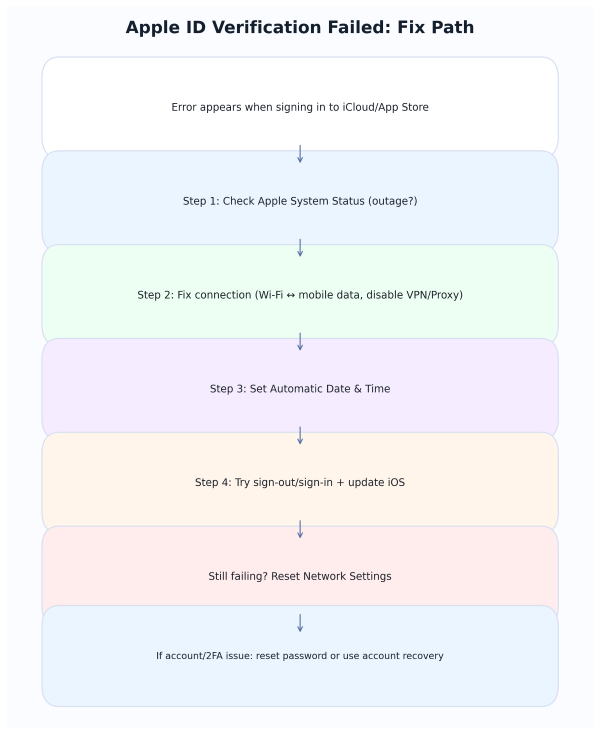
Fix Path (visual)
Security tip (very important)
Never share Apple verification codes with anyone — not even someone claiming to be “Apple Support.” Apple’s 2FA flow is designed for you to enter the code only on Apple’s own sign-in screen.
FAQs
Why does my Apple ID work on the web but not on my iPhone?
Often it’s a network/VPN/DNS issue, wrong device time, or an Apple service outage. Start with System Status.
What if I can’t receive the verification code?
Use Apple’s “Didn’t Get a Code?” options to send it to your trusted number.
What if nothing works?
Reset your Apple Account password (official steps), or use account recovery if you’re locked out.
Sources
Apple System Status
https://www.apple.com/support/systemstatus/

Get a verification code and sign in with two-factor authentication
https://support.apple.com/en-us/102606

If you forgot your Apple Account password
https://support.apple.com/en-us/102656

How to use account recovery when you can't reset your password
https://support.apple.com/en-us/118574

If you can't connect or sign in to iCloud
https://support.apple.com/en-us/118446

If you can't sign in to your device with your organization Apple Account
https://support.apple.com/en-us/122725




