


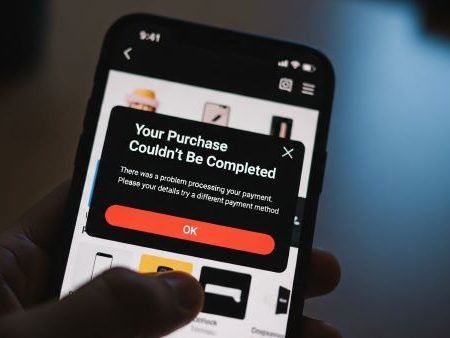

If Google Play shows: “Your purchase couldn’t be completed. Please update your Play account settings so that the selected Play country matches your country of residence”, it’s usually a country/profile mismatch (not an app bug). Google’s official guidance is to update your Play country settings — and if you’re traveling (or your Play country is already correct), Google recommends contacting support.
App Fixes Hub (Complete Guide)
Do this first
- Play Store → Settings → General → Account and device preferences → Country and profiles and confirm the selected country.
- If you recently changed your Play country, check the 90-day restriction.
- If you’re in a Google Family group, you may not be able to change Play country until you leave it.
- Confirm your payment method billing address matches the address in Google Payments.
- If you’re traveling or everything looks correct but it still fails, Google says to contact support.
Fix 1: Confirm this is a “country/residence” error (not a generic payment decline)
If your message specifically mentions Play country and country of residence, use this guide. If it’s just “payment declined,” jump to Fix 9–12.
Fix 2: Check your Play country (official menu)
Google explains the Play catalog depends on your selected Play country and it’s managed inside Play Store settings.
Path (most phones): Play Store → Profile icon → Settings → General → Account and device preferences → Country and profiles.
Fix 3: If you can’t see “Country and profiles,” verify the 3 official reasons
Google says you may not see the option if:
- you changed country within the last 90 days,
- you’re not currently located in a new country, or
- you’re a member of a Google Family group.
Fix 4: Understand the 90-day rule (this blocks many users)
Google states you must wait at least 90 days after setting your Play country before changing it, and also 90 days between changes.
So if you changed recently, the only “fix” may be waiting.
Fix 5: If you moved countries, do the change the correct way (not VPN-only)
Google says to add a new country you must be physically in that country and have a payment method from that country, and the update can take up to 48 hours.
Fix 6: If you’re traveling, don’t switch countries unless you truly relocated
Google explicitly says if you’re traveling (or Play country is correct but you still get the error), contact support.
Switching countries while traveling can trap you behind the 90-day limits.
Fix 7: Leave Google Family group (if you’re in one)
Google states you can’t change Play country if you’re a member of a Google Family group.
If you’re stuck, leave the family group and retry.
Fix 8: Don’t try to “edit” your Payments profile country (you can’t)
Google Payments Center says you cannot change the country of an existing payments profile; you must create a new profile to use a different country.
If your payments profile country doesn’t match your real residence, this is often the root cause.
Fix 9: Make sure your card billing address matches Google Payments
Google’s payment troubleshooting recommends checking that your card address matches the address in Google Payments, otherwise payments can be declined.
This is one of the most common hidden triggers for the “purchase couldn’t be completed” loop.
Fix 10: Remove/update expired cards and retry
Google advises removing or updating expired cards and then trying the purchase again.
Fix 11: Confirm you have enough funds / bank isn’t blocking online payments
Google’s payment troubleshooting includes checking sufficient funds and suggests contacting your bank if you’re still having issues.
Fix 12: Try a different payment method
Google Payments Center suggests trying a different payment method if the transaction keeps failing.
(For USA audience, you can mention: if one card fails on Verizon/AT&T/T-Mobile data too, it’s likely account/billing, not the network.)
Fix 13: Turn off VPN / Private DNS (quick sanity check)
This is not about bypassing country rules—just preventing network routing issues during checkout. Use a normal connection for one attempt:
- VPN OFF
- Private DNS set to Automatic
- Try Wi-Fi, then mobile data
Fix 14: Clear Play Store cache/data and retry purchase
If your country settings are correct but the Play Store UI is stuck showing old data, a cache/data reset can refresh the session. Google’s Play country help page lists clearing cache/data as a troubleshooting step and warns it can remove some Play Store settings.
This Item Isn’t Available in Your Country (Play Store): Fixes
Fix 15: Contact Google Play support (when everything looks correct)
Google says if you’re traveling or your Play country is correct but you still receive this error, contact support.
This is the right move when your account has a backend mismatch (country signals, payments profile conflicts, subscription constraints).
Fix Payment Issues on Google Play (Declined / Can’t Complete Purchase)
FAQs
Why does Google Play say my country must match my residence?
Because your Play country controls availability, currency, and eligibility for purchases, and Google requires those settings to match your country of residence for certain transactions.
How often can I change my Play Store country?
Google says you must wait 90 days before changing after initial setup and 90 days between changes.
Why can’t I see “Country and profiles”?
Google says it may be hidden if you changed country within 90 days, you aren’t in a new country, or you’re in a Google Family group.
Can I change the country on my Google Payments profile?
No. Google Payments Center says you cannot change the country of an existing payments profile; you must create a new profile.
My Play country is correct but I’m traveling—what should I do?
Google says to contact support in this case.
My card works elsewhere but fails on Google Play—why?
Google notes address mismatch in Google Payments can cause declines and recommends ensuring the billing address matches.
Sources
Google Play Help: How to change your Google Play country (includes the exact “purchase couldn’t be completed… country of residence” error + 90-day rule + Family group + 48 hours note)
https://support.google.com/googleplay/answer/7431675?hl=en

Google Play Help: Fix payment issues on your account (billing address match, expired card, sufficient funds)
https://support.google.com/googleplay/answer/1267137?hl=en

Google Payments Center: Change countries in your payments profile (cannot change country; must create new profile)
https://support.google.com/paymentscenter/answer/9037801?hl=en

Google Payments Center: Fix payment issues like declined transactions (try different method / contact bank)
https://support.google.com/paymentscenter/answer/9034675?hl=en




