




When your iPhone shows Wi-Fi connected but websites and apps won’t load, the problem is usually the router/ISP, a VPN/proxy/DNS block, or a stuck Wi-Fi connection on the phone.
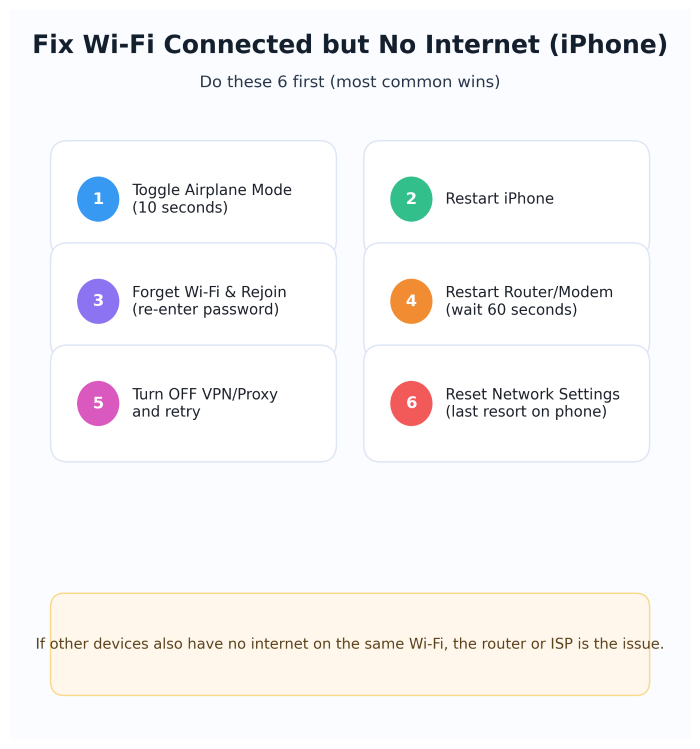
Try these in order (most common wins):
- Toggle Airplane Mode (ON 10 seconds → OFF)
- Restart iPhone
- Restart router/modem (unplug 60 seconds)
- Turn VPN/Proxy OFF
- Forget Wi-Fi and rejoin
- If still broken: Reset Network Settings
Apple ID Verification Failed on iPhone: 9 Fixes
Quick visual steps
Step 1: Check if the Wi-Fi itself has internet
Before changing iPhone settings, check:
- Do other phones/laptops on the same Wi-Fi also have no internet?
- Yes → router or ISP issue (restart router, contact ISP)
- No → iPhone-only issue (continue steps)
Step 2: Toggle Airplane Mode
- Turn Airplane Mode ON for 10 seconds
- Turn it OFF
- Test Safari or YouTube
This refreshes the network connection quickly.
Step 3: Restart iPhone
Restart clears stuck network services (simple, but often works). Apple’s general connectivity guidance includes checking device settings/software when issues appear.
Step 4: Turn OFF VPN / Proxy (very common cause)
If you use:
- a VPN app, or
- proxy settings on Wi-Fi,
turn them off and test again. VPN/proxy settings can affect connections and DNS behavior.
Step 5: Forget the Wi-Fi network and reconnect
Go to:
Settings → Wi-Fi → tap (i) next to your Wi-Fi → Forget This Network → Rejoin
Apple’s Wi-Fi guidance includes re-checking Wi-Fi settings and rejoining networks as key troubleshooting steps.
Step 6: If it’s a hotel/office Wi-Fi, open the login page (captive portal)
Some Wi-Fi networks require a browser login.
- Open Safari and try visiting a plain site (example:
http://captive.apple.comor any non-https page) - If a login page appears, sign in
Step 7: Toggle Private Wi-Fi Address for that network (test only)
Sometimes a router reacts badly to a private address. You can test by turning it off for that network:
Settings → Wi-Fi → (i) → Private Wi-Fi Address → OFF (for this network only)
Apple explains how private Wi-Fi addresses work and how to change the setting per network.
After testing, it’s usually better for privacy to turn it back ON.
Step 8: Update iOS
Go to:
Settings → General → Software Update
Small updates often fix Wi-Fi bugs.
Step 9: Reset Network Settings (best “last step” on iPhone)
If nothing works, do this:
Settings → General → Transfer or Reset iPhone → Reset → Reset Network Settings
This resets Wi-Fi networks/passwords, cellular settings, and VPN/APN settings.
Apple ID Verification Failed (fix it when internet is unstable)
Step 10: Router settings that commonly break iPhone Wi-Fi
If multiple devices lose internet or iPhone keeps disconnecting, your router settings might be the issue. Apple publishes recommended Wi-Fi router settings for best compatibility.
Common fixes on the router side:
- Restart modem + router
- Try 2.4 GHz vs 5 GHz
- Update router firmware
- Use recommended security modes (WPA2/WPA3)
Step 11: If the Wi-Fi is managed by school/work, ask IT
Apple notes that if your network is configured for school/business, you may need your IT admin before resetting or changing settings.
FAQ
Why does it show Wi-Fi connected but apps don’t load?
Wi-Fi can be connected to the router, but the router may have no internet, DNS may be failing, or VPN/proxy settings may block access.
Will Reset Network Settings delete my photos?
No. It resets network-related settings (Wi-Fi passwords, VPN/APN, etc.).
Should I keep Private Wi-Fi Address OFF?
Usually no. Turn it off only to test a problem network, then turn it back on for privacy.
Sources
Apple Support: If you can't connect to Wi-Fi on your iPhone or iPad
https://support.apple.com/en-us/111786

Apple Support: Use private Wi-Fi addresses on Apple devices
https://support.apple.com/en-us/102509

Apple Support: Reset iPhone settings to their defaults
https://support.apple.com/guide/iphone/reset-iphone-settings-iphea1c2fe48/ios

Apple Support: Recommended settings for Wi-Fi routers and access points
https://support.apple.com/en-us/102766

Apple Support: If your device has network connectivity issues, check for…
https://support.apple.com/en-ke/102281




