


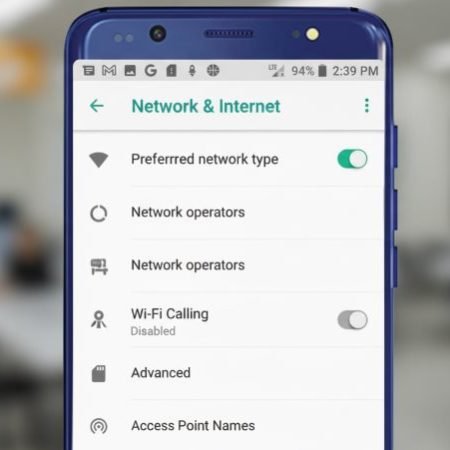

If Wi-Fi Calling isn’t working on your Android, you’ll usually see one of these situations:
- The Wi-Fi calling option is missing
- Wi-Fi calling is ON but calls still fail or drop
- Calls go through cellular even though Wi-Fi is strong
- It works on one Wi-Fi network but not another
Google’s Phone app help makes one thing clear: if you don’t see Wi-Fi calling, it’s often because your carrier doesn’t support it (or it isn’t enabled on your line).
Do this first
- Confirm your carrier supports Wi-Fi calling and it’s enabled on your line
- Enable Wi-Fi calling in the Phone app settings (if available)
- Turn VPN OFF (Wi-Fi calling can fail with VPN)
- Restart phone + router, then try again
- Reset network settings if it’s still stuck
VoLTE / 4G Calling Not Working on Android
Fix 1: Confirm your carrier supports Wi-Fi calling (and it’s enabled)
If the feature isn’t supported by your provider, you won’t be able to turn it on in the Phone app. Google explicitly says that if you don’t see the Wi-Fi calling option, it’s because your carrier doesn’t support it.
If your carrier does support it, some also require it to be enabled from your carrier account side.
Fix 2: Enable Wi-Fi calling from the Phone app (correct location)
On many Android phones, the toggle is inside the Phone app settings (not just general Settings). Google’s official steps: Phone app → More (⋮) → Settings → Calls → Wi-Fi calling.
If you can’t find it, search Settings for “Wi-Fi calling” (some brands place it under SIM settings).
Fix 3: Connect to a stable Wi-Fi network (don’t test on weak Wi-Fi)
Wi-Fi calling needs a steady connection. Samsung’s guidance emphasizes being connected to a stable Wi-Fi network before enabling/using Wi-Fi calling.
If your Wi-Fi is weak, your phone may automatically switch calls back to cellular.
Fix 4: Turn Airplane mode ON, then enable Wi-Fi, then test a call
This is a clean test to confirm Wi-Fi calling can carry the call without cellular.
Steps: Airplane mode ON → Wi-Fi ON → try calling. If Wi-Fi calling works in this state, your issue might be cellular handoff, not Wi-Fi itself.
Fix 5: Turn VPN OFF (very common cause)
Google Fi explicitly warns Wi-Fi calling may not work if you have a VPN turned on, and recommends turning it off or configuring the VPN to bypass the Fi app.
Even if you’re not on Fi, VPN can still break routing and calling registration on some devices.
Fix 6: Set Private DNS to Automatic (or OFF temporarily)
If you use a custom DNS provider, it can sometimes block/slow the domains needed for Wi-Fi calling registration. For troubleshooting, set Private DNS to Automatic, then retry. (After it works, you can re-enable your custom DNS and test again.)
Fix 7: Restart your phone (clears stuck calling services)
Restarting resets the phone’s calling stack and Wi-Fi modules. Samsung includes restarting as a core step when Wi-Fi calling isn’t working.
After restart, wait 60 seconds on Wi-Fi before testing a call.
Fix 8: Restart your router (or try another Wi-Fi network)
Some routers block certain ports, have strict firewalls, or use “client isolation” settings that cause Wi-Fi calling to fail. Testing on a different Wi-Fi (friend’s Wi-Fi or mobile hotspot) quickly tells you if the router is the problem.
Fix 9: Accept terms and add emergency address (only if your carrier asks)
Some carriers require accepting Wi-Fi calling terms and entering an emergency address before Wi-Fi calling will activate.
If you see an “Emergency address” prompt during setup, complete it — otherwise Wi-Fi calling may stay stuck.
Fix 10: Update your phone software
Software updates can fix Wi-Fi calling bugs, especially after Android updates. Samsung recommends keeping the OS up to date as part of Wi-Fi calling troubleshooting.
After updating, restart once and test again.
Fix 11: Reset network settings (strong fix)
If Wi-Fi calling worked before and suddenly stopped, a network reset is one of the highest-success fixes. Samsung recommends resetting network settings for Wi-Fi calling issues.
Sony documents the generic Android path for resetting network settings.
Note: this resets Wi-Fi + Bluetooth connections too.
Fix 12: Check app conflicts (recent apps, call blockers, security apps)
Some “call management” apps, firewall apps, or aggressive battery saver tools can interfere with Wi-Fi calling. Samsung explicitly lists checking for app conflicts and removing recently installed apps as a troubleshooting step.
If the problem started after installing a new app, uninstall it and test.
Fix 13: Re-check SIM/eSIM status (Wi-Fi calling often ties to your line)
Wi-Fi calling is usually still associated with your SIM/eSIM line even though it uses Wi-Fi for transport. If your SIM line is partially provisioned or glitched, Wi-Fi calling can fail.
Try: toggle the SIM line off/on, or reseat the physical SIM.
Fix 14: If the Wi-Fi calling option is missing, don’t force it
If your Phone app doesn’t show Wi-Fi calling, Google’s guidance is that your carrier doesn’t support it.
In that case, the practical alternatives are:
- use a VoIP app (WhatsApp/Telegram/Signal)
- use your provider’s official calling app (if they offer one)
- switch to a provider/device combo that supports Wi-Fi calling
Fix 15: Ask your carrier to enable Wi-Fi calling / re-provision the feature
If you have the toggle but it won’t register, ask your carrier to:
- confirm Wi-Fi calling is enabled on your account
- refresh/re-provision your line settings
Samsung’s troubleshooting includes contacting the carrier when basic steps don’t fix Wi-Fi calling.
Can’t Make Calls But Data Works on Android
Sources
Google Phone app Help: Make calls over Wi-Fi (carrier support + where the setting is)
https://support.google.com/phoneapp/answer/2811843

Samsung Support: Wi-Fi Calling is not working on Samsung phone (restart, update, reset network)
https://www.samsung.com/us/support/troubleshoot/TSG10004906/

Samsung Support: Turn on Wi-Fi Calling on Galaxy phones (requirements + setup)
https://www.samsung.com/us/support/answer/ANS10001348/

Google Fi Help (Android): Make calls over Wi-Fi (VPN can stop Wi-Fi calling)
https://support.google.com/fi/answer/6157793

Sony Support: Reset network settings on Android
https://www.sony-asia.com/electronics/support/articles/SX670101

Example carrier requirement: terms + emergency address prompt for Wi-Fi calling
https://www.verizon.com/support/wifi-calling-faqs/




