


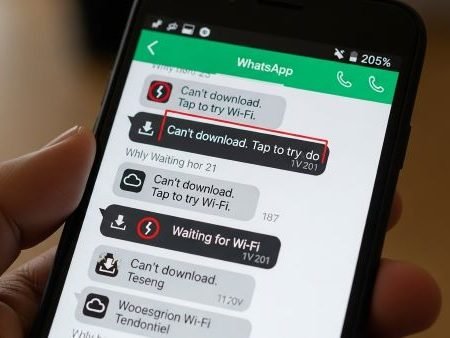

When WhatsApp won’t download photos, videos, voice notes, or documents, it’s usually one of these: weak internet, not enough storage, auto-download turned off, Data Saver/Low Data Mode, or background data restricted. WhatsApp’s own help pages point to connection and storage as common reasons, and also mention auto-download settings.
App Fixes Hub (Complete Guide)
Do this first
- Switch internet: Wi-Fi ↔ mobile data (USA users: test on Verizon / AT&T / T-Mobile data once).
- Free storage (WhatsApp says you may need enough storage to download/open media).
- Check WhatsApp Media auto-download settings (Wi-Fi vs Cellular).
- Turn off restrictions: Android Data Saver or iPhone Low Data Mode (they can reduce background data).
- If downloads still fail, clear cache (Android) / update WhatsApp (WhatsApp recommends actions like clearing cache + keeping free space for update/download issues).
Quick diagnosis (pick what you see)
- “Download failed” → network / storage / auto-download settings
- Stuck on “Downloading…” → Data Saver/Low Data Mode/background data
- Only on Wi-Fi or only on mobile data → router/VPN/DNS/carrier restriction
- Old media won’t download but new does → message/media expired or storage path issue
Fix 1: Confirm your internet is truly working
Open a website in Chrome/Safari. If pages load slowly, WhatsApp media will fail first. WhatsApp says connection issues are often the main reason for problems sending/receiving and uploading/downloading media.
USA tip: if Wi-Fi is bad, try mobile data once (Verizon / AT&T / T-Mobile). If it works on data, your Wi-Fi/router is the problem.
Fix 2: Turn Airplane Mode ON → OFF (quick network reset)
- Turn Airplane Mode ON for 10 seconds
- Turn it OFF
- Try downloading again
Fix 3: Check WhatsApp storage space (very common)
WhatsApp notes you need enough storage to download/open media.
Free at least 1–2 GB, then restart the phone.
Fix 4: Make sure Media auto-download isn’t turned off
WhatsApp has Auto-download controls for Photos/Videos/Audio/Documents (Wi-Fi vs Cellular).
WhatsApp path (typical):
WhatsApp → Settings → Storage and data → Media auto-download
- Enable Photos on Wi-Fi
- If you want on data too, enable on Cellular (your choice)
Fix 5: On iPhone, check Low Data Mode (Wi-Fi + Cellular)
Apple explains Low Data Mode reduces background network use and can turn off automatic downloads.
Turn it off (quick test):
- Settings → Cellular → Cellular Data Options → Low Data Mode OFF
- Settings → Wi-Fi → (i) on your Wi-Fi → Low Data Mode OFF
Fix 6: On Android, check Data Saver + allow unrestricted data for WhatsApp
Android’s Data Saver feature limits background data, but you can whitelist apps under Unrestricted data.
Do this:
Settings → Network & Internet → Data Saver → Unrestricted data → turn ON for WhatsApp
(If you don’t see it, search “Data Saver” in Settings.)
Fix 7: Enable Background data (Android)
Google explains background data affects app downloads/notifications and Data Saver can limit background data.
So if WhatsApp can’t download unless it’s open, background data is usually blocked.
Fix 8: Turn off VPN / Private DNS (one clean test)
This isn’t about bypassing anything. It’s just to remove routing issues.
- VPN OFF
- Private DNS → Automatic
Then retry one download.
Fix 9: Check WhatsApp permissions (Android)
If WhatsApp can’t save media, storage/media permission may be blocked (common after updates).
Go: Settings → Apps → WhatsApp → Permissions → allow Photos/Media (wording varies by phone).
Fix 10: If media downloads but doesn’t appear in Gallery
This is usually “media visibility” / gallery indexing. In WhatsApp, check settings related to media visibility, and restart the phone once (gallery refresh).
Fix 11: Clear WhatsApp cache (Android only)
WhatsApp’s update/download troubleshooting mentions clearing cached data via Android settings (Storage & cache → Clear cache).
Steps: Settings → Apps → WhatsApp → Storage & cache → Clear cache
Fix 12: Update WhatsApp (and restart)
Old app builds often break downloads. WhatsApp also recommends keeping sufficient free space (it mentions a minimum free space for update/download issues).
Fix 13: Re-download the message media (don’t just retry once)
Some media fails on the first attempt.
- Tap the media → Cancel → Try again after switching network once.
Fix 14: If only documents fail (PDF/ZIP/etc.)
WhatsApp has file size/format limits (documents can be large, but very large files or unsupported formats can fail).
Try:
- Ask sender to resend as a smaller file
- Or send via email/Drive link
Fix 15: Last resort — backup then reinstall
If downloads fail across all networks and all chats:
- Backup your chats (Google Drive/iCloud)
- Uninstall WhatsApp
- Reinstall and sign in again
FAQs
Why are WhatsApp photos not downloading on Wi-Fi but work on mobile data?
Usually your Wi-Fi/router is blocking or unstable. WhatsApp itself points to connection issues as a common cause of media download problems.
Why do WhatsApp downloads fail on iPhone?
Low Data Mode can reduce background activity and automatic downloads.
Why do WhatsApp downloads fail on Android?
Data Saver/background data restrictions can stop apps from downloading in the background, but Android lets you whitelist apps under “Unrestricted data.”
Is storage really a big reason?
Yes. WhatsApp says you need enough storage to download/open media.
Sources
WhatsApp Help Center: Can’t download/open/send media (storage and related checks)
WhatsApp Help Center: Configure auto-download settings
WhatsApp Help Center: Connection issues affecting downloads/uploads
WhatsApp Help Center: Can’t download or update WhatsApp (cache/space guidance)
Android.com: Data Saver + Unrestricted data steps
Apple Support: Low Data Mode behavior + steps
Google Play Help: Background data / Data Saver impact on downloads




