


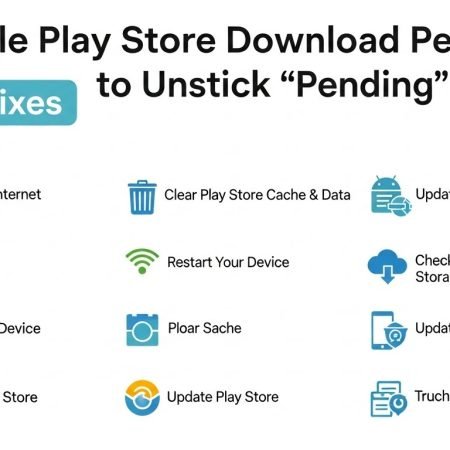

If your Google Play Store is stuck on “Download pending” (or just shows Pending forever), it usually means something is blocking the download queue—like a bad connection, too many updates queued, Download Manager disabled, low storage, Play Store cache corruption, or Google Play services issues.
Try these in order (most common wins):
- Cancel all stuck downloads/updates + restart Play Store
- Switch Wi-Fi ↔ mobile data and turn VPN/Proxy OFF
- Free 1–2 GB storage
- Clear Google Play Store cache/data and Google Play services cache/data
- Ensure Download Manager is enabled, then clear its cache
- Set Automatic date & time
- If still stuck: remove and re-add Google account, or uninstall Play Store updates
Android “App Not Installed” Error: 11 Fixes
Why Play Store gets stuck on “Pending”
Common reasons behind pending download Play Store:
- Multiple app updates queued and Play Store “waiting its turn”
- Weak internet / DNS / VPN interference
- Low phone storage
- Play Store / Play services cache is corrupted
- Download Manager disabled or bugged
- Wrong date/time causing secure connection problems
Fix 1: Stop the queue (cancel stuck downloads/updates)
Open Play Store → tap your profile icon → Manage apps & device
- Pause or cancel anything stuck on “Pending”
- Then try downloading one app only
This clears the “line” so one app can start.
Fix 2: Force stop Play Store (fast reset)
Go to Settings → Apps → Google Play Store → Force stop
Then reopen Play Store and try again. Google’s own troubleshooting includes closing/reopening Play Store as a basic step.
Fix 3: Switch networks (Wi-Fi ↔ mobile data)
A lot of “Play Store not downloading” cases are just network-related:
- Turn Wi-Fi OFF → try mobile data
- Or connect to a different Wi-Fi
- Restart your router if all devices are slow
Wi-Fi Connected but No Internet on iPhone: 11 Fixes
Fix 4: Turn OFF VPN / Proxy / Private DNS
If you use:
- VPN apps
- Proxy settings
- Private DNS
Disable them temporarily and retry. These can block Play Store connections or make downloads “pending”.
Fix 5: Check storage (very common)
Google recommends checking storage as a basic Play Store download fix.
Go to Settings → Storage
Free at least 1–2 GB and try again.
Fix 6: Clear Play Store cache + data
Google Help commonly recommends clearing cache/data for Play Store when it misbehaves.
Steps:
Settings → Apps → Google Play Store → Storage → Clear cache → Clear storage/data
Then restart your phone.
Fix 7: Clear Google Play services cache + data
Play Store depends on Google Play services. If it’s stuck, downloads can stay on pending. Samsung’s official support guide also suggests clearing Play services cache.
Steps:
Settings → Apps → Google Play services → Storage → Clear cache → Clear data
Restart and test.
Fix 8: Reset / enable Download Manager (must be ON)
If Download Manager is disabled, Play Store downloads often won’t start.
On many Android phones:
Settings → Apps → (Filter) Show system apps → Download Manager
- Make sure it’s Enabled
- Tap Force stop
- Then clear its cache/data (if available)
Samsung specifically lists resetting Download Manager for Play Store download issues.
Fix 9: Set Automatic date & time
Wrong time/date can break secure requests and cause pending installs.
Go to Settings → Date & time → Automatic date & time (ON)
Samsung also lists this as a Play Store download troubleshooting step.
Fix 10: Disable Data Saver / Battery Saver (temporarily)
Some phones restrict background downloads.
- Turn OFF Data Saver
- Turn OFF Battery Saver/Power saving
Then retry.
Fix 11: Remove and re-add your Google account
If Play Store queue is stuck because your account sync/auth is stuck:
Settings → Accounts → Google → Remove account
Restart phone → Add Google account again
Google Play community replies often suggest this when pending doesn’t go away.
Fix 12: Uninstall Play Store updates (advanced but effective)
If Play Store itself is bugged:
Settings → Apps → Google Play Store → (3 dots) Uninstall updates
Then open Play Store again and let it update itself.
Google’s help guidance includes uninstall/reinstall Play Store updates as an advanced fix.
Fix 13: Last resort — system update or factory reset
- Check Android system updates
- If nothing works across any apps and you’ve tried everything, reset may be needed (backup first)
(Keep this as last step.)
Quick “When it’s not your phone” check
If Play Store downloads are pending on multiple devices on the same Wi-Fi, it’s probably:
- router DNS issue
- ISP issue
- network filtering at office/school/hotel
Switch to mobile data to confirm.
Sources
Google Play Help: Fix problems downloading apps (basic troubleshooting)
https://support.google.com/googleplay/answer/14122894

Google Play Help: Fix problems with the Google Play Store app (advanced)
https://support.google.com/googleplay/answer/14121800

Samsung Support: What to do if Google Play Store will not load or download apps
https://www.samsung.com/ie/support/mobile-devices/what-to-do-if-google-play-store-will-not-load-or-download-apps/




