


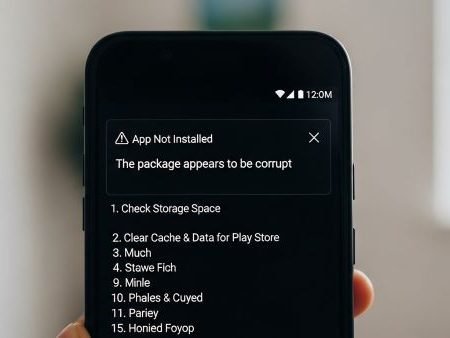

This message usually means Android can’t verify or read the install package properly. In real life, it’s commonly caused by one of these:
- Incomplete/corrupted download (file broke mid-download)
- Wrong APK type (split packages like APKS/XAPK instead of a normal APK)
- Wrong device match (Android version too old, or wrong CPU build like arm64 vs armeabi-v7a)
- Security block (Samsung Auto Blocker, Play Protect warning, or install permission is off)
- Conflict with an already-installed version (same app installed with a different signature)
App Fixes Hub (Complete Guide)
Do this first
- Delete the APK and download it again (most common fix).
- Make sure it’s a real .APK (not .XAPK / .APKS).
- Turn on Install unknown apps for the app you’re using (Chrome / Files). Samsung shows the exact steps.
- If you’re on Samsung and installs are blocked, disable Auto Blocker temporarily.
- Keep Play Protect ON so it can scan apps installed from outside Play Store.
There Was a Problem Parsing the Package (15 Fixes)
Fix 1: Restart once (quick reset)
A simple reboot clears stuck installer processes. After restart, wait 30–60 seconds, then try again.
Fix 2: Re-download the APK (don’t reuse the same file)
If the download paused or your browser “resumed” it incorrectly, the file can look fine but fail at install time.
Download it again using a stable connection (Wi-Fi or mobile data) and avoid download accelerators.
Fix 3: Confirm the file is .APK, not XAPK / APKS
Many sites provide bundles (XAPK/APKS) that include extra files. Android’s built-in installer often can’t handle them directly.
What to do:
- If it’s XAPK/APKS, get the standard APK version instead
- Or install it using the official method recommended by the source (if you trust it)
Fix 4: Check Android version compatibility (common silent blocker)
If the APK needs Android 12+ and you’re on Android 10, installs can fail with confusing messages.
Update Android if possible, or use an older compatible app version.
Fix 5: Check CPU/architecture match (arm64 vs armeabi-v7a)
Some APKs are built for specific device CPUs. If you install the wrong one, Android may reject it.
Rule of thumb:
- Most modern phones = arm64-v8a
- Older/cheap devices may need armeabi-v7a
If the download page offers multiple variants, choose the one that matches your device.
Fix 6: Uninstall the older version first (signature conflict)
If you already have the same app installed (especially from a different source), the new APK may be blocked because it’s “not the same app” internally.
Try this:
- Uninstall the current version
- Restart
- Install the APK again
Fix 7: Free up storage (keep at least 1–2 GB)
Low storage can break installs in weird ways. Clear some space, restart, then try again.
Fix 8: Allow “Install unknown apps” for your source app (Chrome/Files)
On newer Android, this permission is per app (not one global toggle).
Samsung steps: Settings → Security and privacy → More security settings → Install unknown apps → select Chrome/Files → allow.
Fix 9: Samsung users: Turn off Auto Blocker (if it’s enabled)
Auto Blocker can disable unknown app installs completely. Samsung explains that when Auto Blocker is on, the “Install unknown apps” menu may be disabled until you turn it off.
Fix 10: Keep Google Play Protect ON (don’t blindly bypass warnings)
If you install apps from outside Google Play, Google warns it can put your device and data at risk, and Play Protect may scan those apps.
Blocked by Play Protect (Unsafe App Blocked): Safe Fixes
Fix 11: Clear cache for Package Installer (system app)
Sometimes the installer component glitches.
Steps:
Settings → Apps → (⋮) Show system apps → Package Installer / Installer → Storage → Clear cache → retry.
Fix 12: Clear Download Manager cache (if file came from browser)
If downloads behave oddly (stuck, incomplete, strange file size), clearing Download Manager cache can help, then download again cleanly.
Fix 13: Remove duplicates and rename weird files
If you downloaded the same APK multiple times, delete all copies and keep one clean file.
Also avoid renaming extensions (like “app.apk.apk”).
Fix 14: Try installing from a trusted store (safer option)
If the APK keeps failing and you can find the same app on Google Play, install from there instead. Google recommends getting apps from Google Play when possible.
Fix 15: If the app is modded/cracked, stop and switch sources
A lot of “corrupt package” errors happen on modified APKs. Even if you manage to install them, they’re higher risk for malware and account theft.
Android “App Not Installed” Error: 11 Fixes
FAQs
What does “The package appears to be corrupt” mean?
It means Android can’t verify/read the install package correctly. Common reasons: broken download, incompatible build, split package type, or a security block.
Is this the same as “Parsing the package” error?
They’re closely related. Both usually point to a bad file, wrong format, compatibility, or permission issues.
How do I fix it quickly?
Re-download the file, confirm it’s a normal APK, allow “Install unknown apps,” and on Samsung check Auto Blocker.
Is it safe to install APKs from outside Play Store?
Google warns that apps from unknown sources can put your device and personal info at risk.
Why is “Install unknown apps” greyed out on Samsung?
Auto Blocker can disable it until you turn Auto Blocker off.
Should I turn off Play Protect?
Usually no. Play Protect can scan apps installed from outside Google Play.
Why does it fail only on my phone but works on my friend’s?
Different Android version and CPU architecture is a common reason, plus different security settings.
Will clearing cache/data delete my photos?
No. Clearing Package Installer cache doesn’t delete personal files.
Sources
Google Android Help: Download apps to your Android device (unknown sources risk)
https://support.google.com/android/answer/9457058?hl=en

Google Android Help: Use Google Play Protect (scan unknown apps)
https://support.google.com/android/answer/2812853?hl=en

Samsung Support: Enable permission to install apps from unknown sources
https://www.samsung.com/ae/support/mobile-devices/how-to-enable-permission-to-install-apps-from-unknown-source-on-my-samsung-phone/

Samsung US Support: Galaxy phone/tablet won’t install apps from unknown sources (steps)
https://www.samsung.com/us/support/troubleshoot/TSG10001913/

Samsung Support: Auto Blocker prevents installing unknown apps
https://www.samsung.com/levant/support/mobile-devices/why-am-i-unable-to-install-apps-and-keep-receiving-an-error-pop-up-on-fold6-flip6/




