


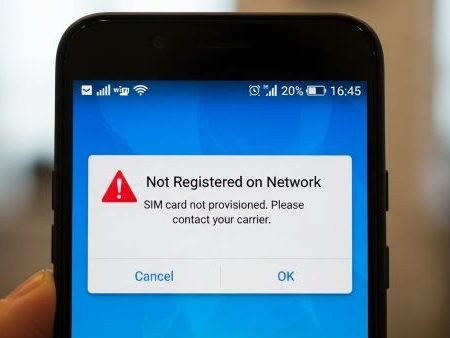

When Android shows “Not registered on network”, “SIM not provisioned”, or you can only make emergency calls, it means your phone isn’t successfully authenticated on your carrier’s network. This can happen because the line isn’t active, the SIM/eSIM profile needs re-activation, the phone picked the wrong network operator, or settings like APN/network configuration got corrupted.
Google’s Pixel support notes that if you see a SIM-related error, you may need to contact your carrier, and it also lists steps like checking Airplane mode, resetting mobile network settings, updates, and confirming you have the right SIM for the device
Do this first
- Toggle Airplane mode ON (10 sec) → OFF, then wait 1 minute. Verizon lists this as a common SIM issue fix.
- Restart the phone.
- Power off → remove SIM → reinsert (or toggle eSIM line OFF/ON). Verizon also recommends reseating and cleaning contacts.
- Go to Settings → SIMs → Network and try picking the operator manually (then test). Pixel includes “Pick your network operator” in SIM settings.
- Reset APN to default, then restart. Samsung and Bell show the “Reset to default” APN path.
- If still failing, reset mobile network settings and contact the carrier to verify the line is active/provisioned.
No Service / No Signal on Android: 15 Fixes
Fix 1: Check for a carrier outage in your area
Before changing deep settings, confirm other phones on the same carrier are working in your area. If multiple people have “no service,” it’s likely a network-side issue.
Fix 2: Turn Airplane mode ON then OFF
This forces a fresh network attach. Verizon lists airplane mode toggling as a common fix for SIM-related problems
Fix 3: Restart your phone
A restart clears temporary radio glitches
Fix 4: Reseat the SIM correctly (physical SIM)
Power off → remove SIM tray → reinsert carefully. Some time an improperly inserted SIM can cause network connection failure.
Fix 5: Clean SIM contacts (simple but effective)
If the gold contacts are dirty, wipe gently with a clean, dry, lint-free cloth. Recommends cleaning SIM contacts for recognition issues.
Fix 6: Make sure the SIM type matches your phone (4G SIM in 5G phone can cause issues)
Some networks companies warns that using an incompatible SIM type (for example, a 4G SIM in a 5G device) can lead to network connection failures or limited service
Fix 7: Dual SIM users: confirm the correct line is selected for data/calls
Pixel support explains that with multiple SIMs, you choose which SIM is used for calls, texts, and data. If the wrong SIM is selected, service can look “broken.”
Fix 8: Manually select a network operator
If auto-selection gets stuck, manually choosing the carrier can instantly restore service. Pixel lists “Network: Pick your network operator from available networks.”
Samsung steps for manual operator selection are also commonly: Mobile networks → Network operators → Search/select.
Fix 9: Switch network mode (try LTE/4G if 5G is unstable)
In weak coverage areas, forcing LTE can stabilize registration. Lifewire notes switching network mode is useful when 5G isn’t reliable.
Pixel also shows “Preferred network type” options like 5G and LTE.
Fix 10: Reset APN to default
APN is how your carrier routes your phone to the internet gateway. Resetting it helps when service partially works or data breaks after switching providers.
- Samsung’s APN reset path includes “Reset to default.”
- Bell’s device steps show the same “Access Point Names → menu → Reset to default.”
Fix 11: Reset mobile network settings (strong clean slate)
If the registration error started after an update or settings change, reset mobile network settings:
- Pixel: System → Reset options → Reset Mobile Network Settings
- Sony’s guide confirms the general Android reset path as well.
Fix 12: Check for system updates
Pixel support includes checking system updates as part of fixing mobile connection problems.
Fix 13: If you see “SIM locked / PUK lock,” you must unlock it
If a SIM PIN is entered incorrectly multiple times, the SIM can lock and require a PUK code to work again. T-Mobile explains PUK/SIM lock behavior clearly.
In this case, random troubleshooting won’t help until it’s unlocked.
Fix 14: US carrier-specific activation checks (Verizon, AT&T, T-Mobile)
If the SIM/eSIM isn’t activated correctly, the phone may never register.
- AT&T notes that device upgrades or number transfers often require activating the new SIM.
- T-Mobile provides SIM/eSIM transfer and activation steps inside their flow (T-Life app, line selection, activation).
- Verizon highlights that the SIM must be attached to an active account line, not suspended/disconnected.
Fix 15: Ask your carrier to “re-provision” the line or replace the SIM
If none of the above works:
- Ask support to refresh provisioning (activation profile) on your line
- Request a SIM replacement if the card is damaged/old
Verizon notes SIM failure can be caused by account issues, blocks, damage, or dirty contacts.
Data Roaming Not Working on Android
FAQs
What does “Not registered on network” mean on Android?
It means your phone’s SIM/eSIM isn’t successfully connecting to your carrier’s network, so calls/texts/data may fail. Lifewire explains it as the SIM being unable to connect to the provider’s network.
Will reseating the SIM card actually help?
Yes. A slightly misaligned SIM or dirty contacts can stop registration. Verizon recommends reinserting and cleaning contacts as common fixes.
Why does this happen after switching phones or moving to eSIM?
Because the line may need activation or a new profile download. AT&T notes upgrades/transfers often require SIM activation.
Can a wrong SIM type cause signal problems?
It can. Verizon notes an incompatible SIM (example: 4G SIM in a 5G device) can cause network connection failure or reduced service.
What does resetting network settings do?
It resets mobile network configuration and can fix stubborn connection issues. Pixel includes “Reset Mobile Network Settings” as a troubleshooting step.
What if my SIM is locked (PUK required)?
You must unlock it with the PUK code. T-Mobile explains that repeated incorrect SIM PIN attempts can lock the SIM and require PUK to use it again.
Should I pick the operator manually?
If auto-selection is stuck, manual operator selection often fixes registration. Pixel lists “Pick your network operator from available networks.”
When should I contact the carrier?
If airplane mode, reboot, SIM reseat, and operator selection don’t work, it’s likely provisioning/account-side. Pixel suggests contacting the carrier for SIM error messages.
Sources
Google Pixel Help: Connect to mobile networks + reset mobile network settings + operator selection
https://support.google.com/pixelphone/answer/2926415?hl=en

Verizon Support: SIM card not working / eSIM not working (common causes + fixes)
https://www.verizon.com/support/troubleshooter/sim-card-not-recognized/

T-Mobile Support: SIM card & eSIM (activation/transfer steps)
https://www.t-mobile.com/support/devices/sim-esim

AT&T Support: Activate and use your device (SIM activation for upgrades/transfers)
https://www.att.com/support/article/wireless/KM1008711/

T-Mobile Support: PUK and SIM error troubleshooting (PUK lock)
https://www.t-mobile.com/support/devices/device-troubleshooting/puk-and-sim-error-troubleshooting

Samsung Support (PK): APN setup/reset to default
https://www.samsung.com/pk/support/mobile-devices/smart-phone-how-to-setup-the-apn-and-how-to-reset-it/

Bell Support: Reset APN settings to default (step-by-step path)
https://support.bell.ca/mobility/smartphones_and_mobile_internet/samsung-smartphone.how_to_reset_the_apn_settings_to_default

Sony Support: Reset network settings (Android steps)
https://www.sony.com/electronics/support/articles/SX670101

Lifewire: Troubleshoot “Not Registered on Network” (additional context + steps)
https://www.lifewire.com/fix-not-registered-on-network-error-samsung-galaxy-5188191




