


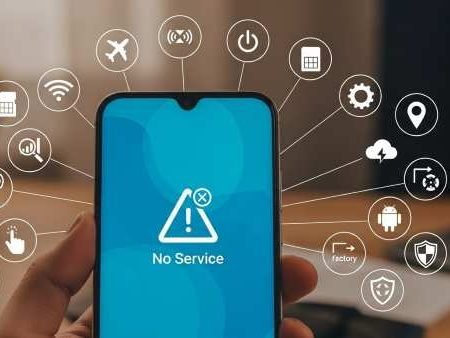

When Android shows “No Service”, “No signal”, or you’re stuck on 0 bars, it means your phone is not registering on your network provider’s cellular network. This can happen due to weak coverage, SIM/eSIM issues, wrong network mode settings, or a software glitch after an update. Samsung notes mobile network connection issues can be affected by your region, environment, plan, and network settings.
Do this first
- Toggle Airplane mode ON for 10 seconds → OFF
- Restart your phone
- Turn Wi-Fi OFF (test pure cellular signal) and wait 60 seconds
- Reseat SIM (or toggle eSIM line OFF/ON)
- Set network mode to Auto / LTE/5G preferred
- Reset network settings
- If still no service: manual operator selection + provider check (outage/provisioning)
Emergency Calls Only / SOS Only on Android: 15 Fixes
Fix 1: Move to an open area (quick coverage test)
First, rule out simple coverage issues. Go outside or near a window and wait 1–2 minutes. If bars appear there, your earlier location likely had weak signal or heavy interference. Samsung mentions that environment/region can temporarily affect network connection.
Fix 2: Toggle Airplane Mode (fast radio reset)
Airplane mode forces your phone to disconnect and then re-register to the nearest tower. Google’s Android connectivity troubleshooting includes switching Airplane Mode as a core step.
After turning it off, give it a full minute—sometimes registration is not instant.
Fix 3: Restart your phone (don’t skip this)
A restart clears stuck modem/network processes. Google lists restarting as one of the first fixes for connection problems.
If this started right after a system update, a restart is even more important.
Fix 4: Turn Wi-Fi OFF (test cellular only)
Sometimes your phone keeps trying to use Wi-Fi calling or weak Wi-Fi and you misread what’s happening. Testing with Wi-Fi OFF helps you confirm whether cellular registration is actually happening. Pixel’s mobile connectivity guide also uses SIM/mobile settings as the primary place to diagnose service.
Fix 5: Check if Mobile Data + “Use SIM” are enabled (Dual SIM/eSIM phones)
On many Android phones (especially Pixel-style menus), each SIM/eSIM line has toggles like Mobile data and Use SIM. If these toggles got turned off after an update, you can see “No service” symptoms. Pixel Help shows these SIM settings and steps to confirm they are enabled.
Fix 6: Reseat your SIM (physical SIM)
Power off your phone, remove the SIM tray, and reinsert the SIM properly. Even a tiny misalignment can stop your phone from reading it correctly, which leads to “No service.” Samsung’s troubleshooting for low/no signal includes checking account/service and common device steps; SIM/tray issues often show up in these cases.
Fix 7: Clean the SIM + tray (dry only)
If the SIM is dusty, slightly scratched, or the tray has lint, the contact may be weak. Use a soft, dry cloth and reinsert the tray firmly. This helps especially if the issue is intermittent (service returns when you press the tray).
Fix 8: For eSIM users: toggle the line OFF/ON
If you use eSIM, there’s no tray to reseat. Instead, go to SIM settings and switch the eSIM line OFF, wait 10 seconds, then ON. This forces a fresh network registration attempt.
Fix 9: Switch Network Mode to Auto / LTE/5G preferred
After updates, some phones revert to a limited mode or get stuck on older networks. Samsung recommends checking your mobile network settings and selecting the network mode.
On Pixel-style Android, you can also choose Preferred network type (5G/LTE/3G/2G) based on availability.
Fix 10: Manually select your network operator (one-time forced registration)
If automatic selection fails, manual selection can force the device to re-register. This is useful if your phone keeps bouncing between networks or won’t attach at all. Samsung’s guidance includes checking network settings and—when basics fail—moving to deeper network troubleshooting.
Fix 11: Reset Network Settings (strong fix after updates)
This is one of the highest success steps for “No service” when nothing obvious is wrong. Sony’s official instructions show the typical Android path:
Settings → System → (Advanced) → Reset options → Reset network settings
After this, you’ll need to reconnect Wi-Fi and Bluetooth devices.
Fix 12: Check Private DNS (set to Automatic) + turn VPN OFF
Private DNS and VPN can sometimes break connectivity flows or make your phone behave strangely with network registration. Google explains where to find Private DNS settings on Android and recommends the default behavior.
For troubleshooting, set Private DNS to Automatic (or Off temporarily) and disable VPN.
Fix 13: Install any pending system update
Sometimes a bug ships and gets fixed quickly in a follow-up patch. If “No service” started right after an update, check again for an additional update and install it. Pixel troubleshooting includes checking device settings and network components as part of resolving mobile connectivity issues.
Fix 14: Test your SIM in another phone (isolates SIM vs device)
This is the fastest way to stop guessing:
- If your SIM fails in another phone too → SIM/provisioning issue is likely
- If your SIM works elsewhere → your phone has a settings/software issue (or rare hardware fault)
Do the reverse test too: try a known-working SIM in your phone.
Fix 15: Contact your network provider (when your phone checks out)
If you tried Airplane Mode, restart, SIM/eSIM steps, network mode, and network reset and still have no service, contact your provider and ask them to:
- confirm your line is active (not suspended)
- refresh/re-provision your SIM/eSIM
- check outages/maintenance in your area
Samsung’s low/no signal troubleshooting also emphasizes verifying account/services and carrier-side factors.
SIM Not Detected / No SIM / Invalid SIM on Android: 15 Fixes
Sources
Samsung Support: Issues with mobile network connection (settings, network mode, resets)
https://www.samsung.com/us/support/troubleshooting/TSG01212956/

Samsung Support: Phone has poor signal and cannot use data or make calls (low/no signal causes)
https://www.samsung.com/us/support/troubleshooting/TSG01001598/

Google Pixel Help: Fix mobile connectivity issues (SIMs, mobile data, preferred network type)
https://support.google.com/pixelphone/answer/14116080

Google Play Help: Fix internet connection problems on Android (restart, toggles)
https://support.google.com/googleplay/answer/2651367

Sony Support: Reset network settings (Android 9.0 or higher)
https://www.sony-asia.com/electronics/support/articles/SX670101

Google Android Help: Private DNS settings (where to change it)
https://support.google.com/android/answer/9654714




