


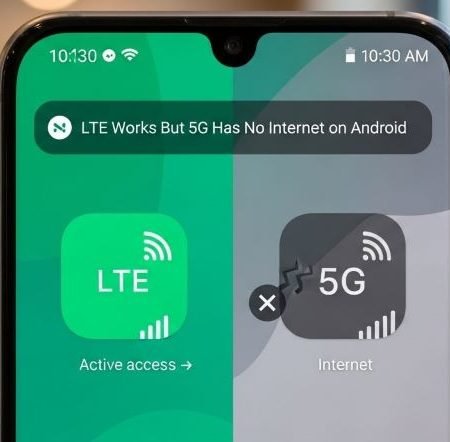

If browsing works fine on LTE/4G but everything stops loading when your phone switches to 5G, it usually means the device is attaching to the new network layer but something in the data path is failing. In many cases, a quick reconnect (airplane mode), switching the preferred network type, or resetting APN/network settings brings it back.
Google’s official Android connection troubleshooting also starts with simple but effective checks like restarting and switching between Wi-Fi and cellular data to isolate the issue.
Do this first
- Force LTE for 5 minutes and test again (confirms it’s a 5G-only problem). Pixel devices allow choosing a preferred network type like 5G or LTE.
- Toggle Airplane mode ON (10 seconds) → OFF, then wait 60–90 seconds.
- Turn VPN OFF and set Private DNS to Automatic (temporary test).
- Reset APN to default, then reboot. Samsung shows the “Reset to default” path inside Access Point Names.
- If it still fails: Reset network settings (strong clean-slate). Samsung’s troubleshooting includes resetting network settings for mobile connection issues.
5G Shows But No Internet on Android: 15 Fixes
Fix 1: Confirm the issue happens only on 5G (quick comparison)
Before changing settings, do a clean test:
- Turn Wi-Fi off
- Use LTE for 2 minutes and open 2–3 sites
- Switch back to 5G and test the same sites
If LTE works every time but 5G fails, focus on network mode, APN, DNS/VPN, and carrier provisioning.
Fix 2: Do a restart first (it fixes “stuck” sessions)
It sounds basic, but it clears the radio stack and often fixes a broken session after switching networks. Google lists restarting as an early step for bad connections.
Fix 3: Toggle airplane mode to re-register cleanly
Airplane mode forces a detach/attach cycle. That can fix cases where the phone shows a 5G indicator but traffic is not routing properly. Google’s troubleshooting includes airplane-mode style resets as part of general connection fixes.
Fix 4: Switch Preferred Network Type to LTE for stability (test for a day)
If your area has weak 5G indoors, LTE can feel more reliable even if the “newer” signal is present. On Pixel phones you can pick a preferred network type, including LTE and 5G.
Try LTE for 24 hours. If your browsing becomes stable, you’ve found a practical solution.
Fix 5: Use Auto mode instead of “5G only” (if your phone offers it)
Some devices let you choose “5G only”. That can backfire in mixed-coverage areas. Auto mode usually gives smoother handoffs.
Fix 6: Turn Data Saver OFF and remove strict mobile limits
Data Saver can restrict background traffic and make apps behave like the internet is not responding. Android’s official guide shows where Data Saver lives and how it limits usage.
Disable it temporarily, then test again.
Fix 7: Turn VPN OFF (temporary test)
A VPN can route you through a slow or blocked path. Turn it off, test browsing, and only re-enable after the connection is stable.
Fix 8: Set Private DNS to Automatic (or OFF temporarily)
Private DNS can sometimes cause “connected but not loading” issues if the DNS endpoint is blocked or slow on your current mobile route. Google explains where to find and change Private DNS.
After switching to Automatic, toggle airplane mode once and re-test.
Fix 9: Reset APN to default (high-impact fix)
APN is the carrier internet gateway profile. If it’s wrong or corrupted, LTE might still work while 5G routing fails (especially after SIM changes). Samsung documents the APN reset path: Connections → Mobile networks → Access Point Names → menu → Reset to default.
After resetting, reboot once and test.
Fix 10: If APN reset didn’t help, don’t guess values
Use your carrier’s official APN settings. Random internet values can break MMS and mobile data. If you need a clean reference, your APN guide article already covers the safe approach.
Fix 11: Reset network settings (strong clean slate)
If this started after an update, SIM swap, or moving between carriers, a network reset often fixes hidden configuration issues. Samsung’s troubleshooting includes “Reset network settings” steps for mobile connection problems.
Note: You’ll re-add Wi-Fi passwords and Bluetooth devices afterward.
Fix 12: Check for a small system update
Modem and connectivity fixes often arrive in follow-up patches. Install updates, restart, then test again in the same spot.
Fix 13: Refresh SIM or toggle eSIM line
- Physical SIM: power off, reseat SIM, power on
- eSIM: toggle the line off/on (do not delete unless you can re-add it)
This forces fresh registration and can stabilize data behavior.
Fix 14: Check if your plan/device is provisioned for 5G (US carriers + worldwide)
On Verizon, AT&T, and T-Mobile (and globally), it’s possible to have a phone that supports 5G but the line is not properly provisioned. If LTE works but 5G never loads, ask support to verify:
- 5G access on your plan
- correct SIM/eSIM provisioning for NR (5G)
- refresh your line settings
(You don’t need to mention technical acronyms. Just ask them to “refresh my 5G provisioning”.)
Fix 15: If it’s only bad in one location, it’s likely coverage or congestion
If 5G fails at home but works across town, the issue is coverage, building interference, or local capacity. In that case, LTE at that spot is a smarter choice than fighting the signal.
APN Settings on Android: Reset, Fix Mobile Data & MMS
FAQs
Why does LTE work but 5G won’t load anything?
Usually it’s weak indoor coverage, a stuck registration, DNS/VPN conflict, or carrier provisioning. Start with airplane mode, then try LTE-only for stability.
Should I keep mobile data on while testing?
Yes. Also turn Wi-Fi off so you are genuinely testing cellular data. Google recommends switching between Wi-Fi and mobile data to compare results.
Can Private DNS break browsing on mobile data?
It can. If the DNS resolver is blocked or slow on a specific network route, pages may not open. Set it to Automatic and re-test.
Will resetting APN delete my photos or apps?
No. APN reset only restores internet gateway settings. Samsung shows it as a network setting reset inside Access Point Names.
Will resetting network settings erase my phone?
No, it doesn’t delete personal files. It resets connectivity settings like Wi-Fi, Bluetooth, and mobile network configuration. Samsung includes it as a troubleshooting step for mobile connection issues.
What network mode should I use if 5G is unstable?
Try LTE for a day. Pixel phones let you pick a preferred network type like LTE or 5G.
If LTE feels smoother, keep it indoors and switch back to Auto outdoors.
Does Data Saver affect speed?
It can make apps feel slower because it limits background traffic and can change how apps fetch content. Android explains how Data Saver restricts usage.
When should I contact my provider?
If LTE is fine but 5G never works in multiple locations, contact support and ask them to refresh 5G provisioning on your line and confirm coverage in your area.
Sources
Google: Fix internet connection problems on Android devices
https://support.google.com/googleplay/answer/2651367?hl=en

Google Pixel Help: Connect to mobile networks (Preferred network type like 5G/LTE)
https://support.google.com/pixelphone/answer/2926415?hl=en

Google Fi Help: Control Private DNS & other network settings
https://support.google.com/fi/answer/2819583?hl=en

Samsung Support (US): Issues with mobile network connection (includes reset network settings)
https://www.samsung.com/us/support/troubleshooting/TSG01212956/

Samsung Support (PK): How to troubleshoot mobile data issues (includes reset network settings)
https://www.samsung.com/pk/support/mobile-devices/how-to-troubleshoot-mobile-data-issues/

Samsung Support: Setup APN and reset it (Reset to default steps)
https://www.samsung.com/lb/support/mobile-devices/smart-phone-how-to-setup-the-apn-and-how-to-reset-it/

Android.com: Data Saver guide
https://www.android.com/intl/en_uk/articles/how-to-use-android-data-saver/




