



If your iPhone suddenly shows “iPhone Unavailable” and a message like “Try Again in 15 Minutes”, it usually means too many incorrect passcode attempts were made. It can happen if you (or someone else) typed the wrong passcode a few times, a child kept tapping the screen, or your pocket triggered the lock screen.
The good news is that, in many cases, the message is temporary. The bad news is that guessing the passcode repeatedly can increase the wait time and can eventually lead to a screen that forces a full reset.
This guide explains:
- What the “Try Again” timer really means
- How long it can last
- What to do next (safe steps first)
- When you must reset the iPhone
Safety note: Some solutions erase your iPhone. I will clearly label those steps so you do not lose data by accident
Quick Fix Checklist (Do this first)
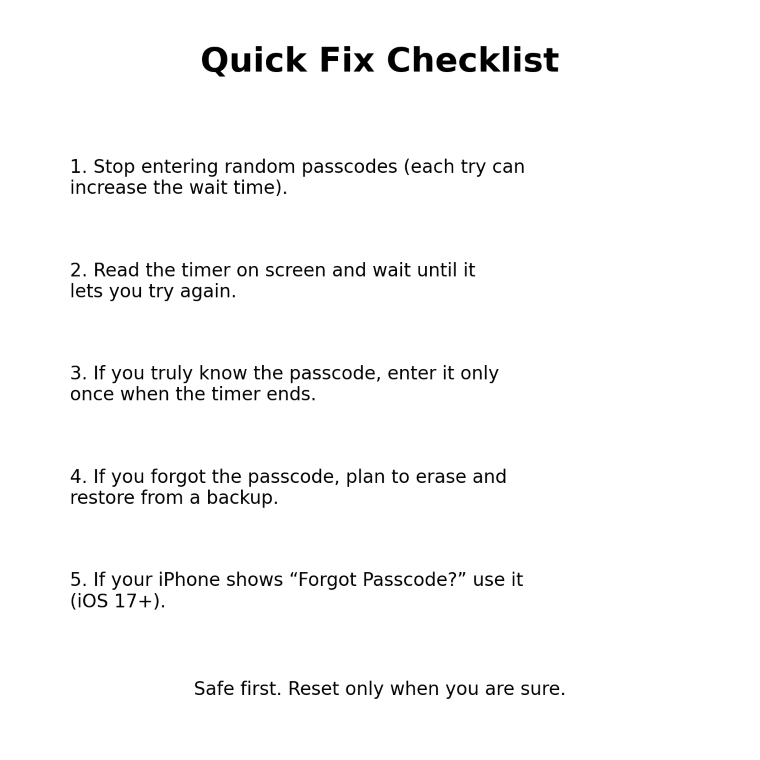
Before you do anything else:
- Stop entering random passcodes. Each wrong try can increase the lockout time.
- Look for the timer on the screen (minutes or hours).
- Wait until the timer ends. Then try only once if you are confident you know the correct passcode.
- If you forgot the passcode, prepare to erase and restore (explained below).
- If your iPhone shows “Forgot Passcode?”, that option can help you reset safely (iOS 17 or later).
How long does “iPhone Unavailable” last?
There is no single fixed time like “always 15 minutes.”
The lockout duration depends on how many wrong passcode attempts happened and whether more wrong attempts keep happening.
What you should expect
- If your screen shows “Try Again in X minutes/hours”, the lockout usually lasts exactly as long as the timer says, as long as nobody keeps trying wrong passcodes.
- If wrong attempts continue, the timer can increase from minutes to hours.
- In some situations, your iPhone may show “Security Lockout” instead. That typically means you can no longer enter a passcode and must erase the device.
Important detail
Do not rely on random “timer charts” you see online. The most accurate rule is simple:
Your iPhone tells you how long to wait. Follow the timer on your screen.
What “iPhone Unavailable” means (in plain words)
Your iPhone is protecting your data. When too many incorrect passcodes are entered, iOS blocks passcode entry for a while. This prevents someone from guessing until they get it right.
If you keep trying passcodes anyway, your iPhone can escalate to:
- Longer wait times
- A “Security Lockout” state
- A point where the only solution is erasing the iPhone
Apple’s official guidance focuses on reset options once you are locked out. (Apple Support)
The safest way to unlock (based on your situation)
Use this decision flow to avoid making the problem worse:
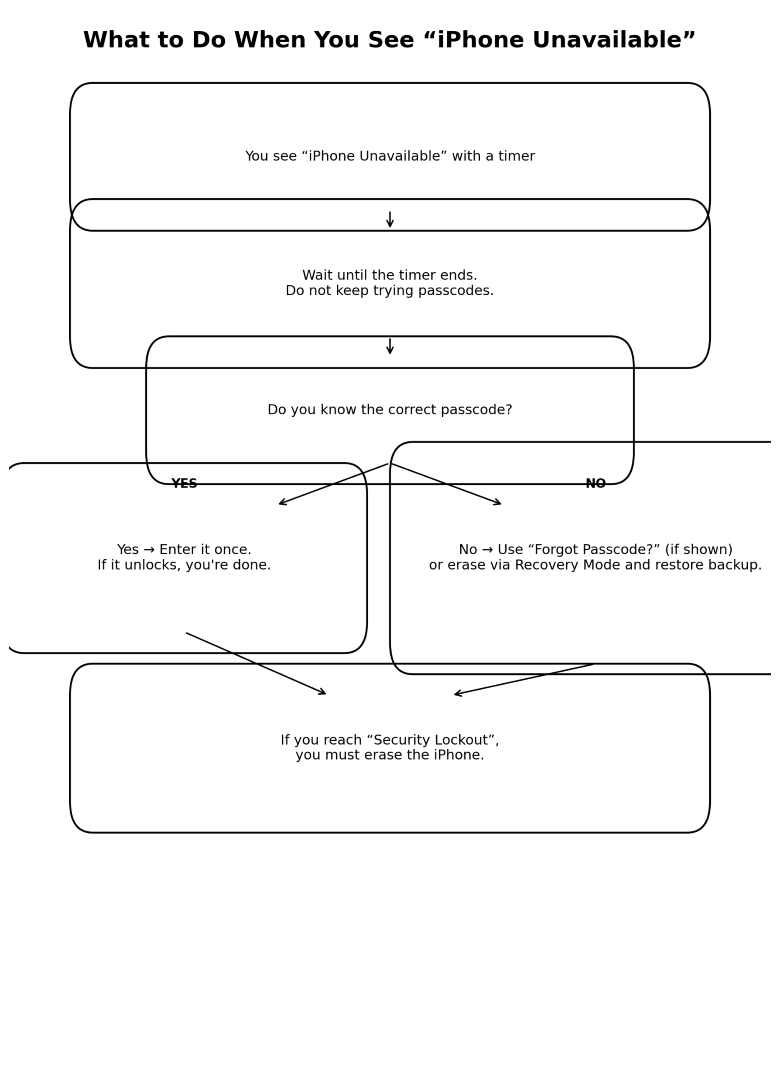
Case 1: You KNOW the correct passcode
Do this:
- Wait until the timer ends.
- Enter the passcode once.
- If it fails and you are not 100% sure, stop. Do not keep guessing.
Why: One more wrong try can increase the lockout again.
Case 2: You do NOT remember the passcode
If you truly forgot it, waiting longer will not magically make the passcode work. Your realistic options are:
- Use “Forgot Passcode?” (if your iPhone shows it) to reset and then restore your data (iOS 17+).
- Or erase using a computer (Recovery Mode) and then restore from a backup.
I’ll explain both below.
Fix 1: Use “Forgot Passcode?” (if you see it)
On iOS 17 or later, many iPhones show “Forgot Passcode?” on the unavailable screen after enough failed attempts.
General steps (your exact screen may vary):
- Tap Forgot Passcode?
- Follow the on-screen steps to start the reset
- You may need your Apple Account password to continue
When this is best:
- You have access to your Apple Account (Apple ID) password
- You want the simplest official route
Fix 2: Recovery Mode restore (computer method)
If you cannot use “Forgot Passcode?” or it is not available, Recovery Mode is the standard method.
What is Recovery Mode?
It’s a special screen that lets a computer reinstall iOS on your iPhone. This removes the passcode, but it also erases your data. You can get your data back only if you have a backup.
What you need
- A Mac (Finder) or a Windows PC (iTunes or Apple Devices app, depending on your setup)
- A cable to connect the iPhone
Steps (high level)
- Connect iPhone to the computer.
- Put the iPhone into Recovery Mode (button steps vary by model).
- On the computer, choose Restore when asked.
Fix 3: Erase iPhone from iCloud (Find My) (only if enabled)
If Find My iPhone was already enabled and your iPhone is online, you may be able to erase it remotely from iCloud. This is also a data-erasing method, but it can be easier than Recovery Mode.
This method still requires:
- Your Apple Account login
- The iPhone to be connected to the internet (Wi-Fi or mobile data)
Things that do NOT help (and can waste time)
Restarting the iPhone
A restart can refresh the system, but it usually does not remove the unavailable lockout. If anything, you might lose track of the timer and end up waiting longer.
Entering “common passcodes”
Avoid guessing. Even “one more try” can turn 15 minutes into 1 hour, then 3 hours, and so on.
Random third-party “unlock tools”
Be careful. Many tools online promise “unlock without erase” and are not trustworthy. If you do not fully understand what a tool does, skip it.
How to avoid this problem next time (simple prevention)
Once you unlock or restore your iPhone:
- Turn on iCloud Backup (or backup to a computer).
- Make sure you know your Apple Account password and your trusted phone number.
- If kids use your phone, consider enabling Screen Time and using a passcode you will remember.
- Keep your iPhone updated, especially security updates.
FAQs
Can I wait it out and get back in without resetting?
Yes, only if you know the correct passcode. Wait for the timer to end, then enter it once. If you forgot the passcode, waiting will not unlock it.
Why did my iPhone become unavailable overnight?
This can happen if the screen kept getting taps (pocket touches, kids, or a damaged screen). It can also happen if Face ID failed repeatedly and the phone required passcode entry, then wrong attempts happened.
What does “Security Lockout” mean?
It typically means your iPhone is no longer allowing passcode entry and you must erase it to use it again.
Will I lose everything if I restore?
A restore erases the iPhone. You can recover your data only if you restore from an iCloud backup or computer backup.
I use eSIM. Should I worry?
If you use an eSIM, you may need your carrier’s help to reactivate after a reset, depending on your setup and iOS version. Apple mentions eSIM considerations in its unavailable/reset guidance.
Post references:
Apple Support: If you see an iPhone unavailable message or Security Lockout
https://support.apple.com/en-us/105090

Apple Support: If you forgot your iPhone passcode or your iPhone is disabled
https://support.apple.com/en-us/118430



