


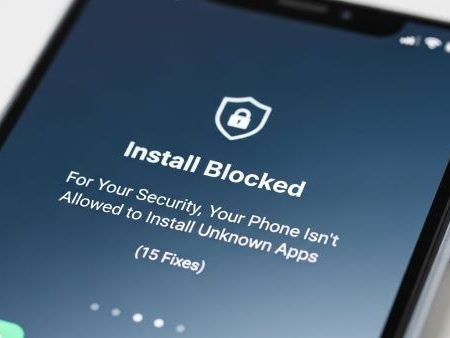

This warning appears when you try to install an APK from outside Google Play, but Android hasn’t allowed the app you’re using (Chrome, Files, Gmail, WhatsApp, etc.) to install apps. On modern Android, this is a per-app permission called Install unknown apps / Allow from this source.
App Fixes Hub (Complete Guide)
Do this first
- Go to Settings → Security & privacy → More security settings → Install unknown apps (Samsung path), pick the app you used (Chrome/Files), then enable Allow from this source
- If you’re on Samsung and the option is disabled, turn Auto Blocker off temporarily. Samsung says Auto Blocker can disable the “Install unknown apps” menu.
- Keep Google Play Protect ON because it checks apps you try to install from higher-risk sources like browsers and messaging apps.
- Delete the APK and download it again if it might be incomplete.
- After installing, turn the permission back OFF for safety.
Fix 1: Identify what “this source” actually is
“This source” means the app that opened the APK, for example:
- Chrome (web download)
- Files / My Files (file manager)
- Gmail (attachment)
- WhatsApp/Telegram (received file)
You must enable permission for that exact app, not just “Android in general.”
Fix 2: Enable “Install unknown apps” for Chrome / Files (Samsung steps)
Samsung’s official steps are:
Settings → Security and Privacy → More security settings → Install unknown apps → pick the app (e.g., Chrome) → enable permission.
(Other brands look similar: Apps → Special access → Install unknown apps.)
Fix 3: If you see the toggle but it keeps turning off, check Samsung Auto Blocker
On newer Samsung phones, Auto Blocker can prevent installs from unauthorized sources and can disable the install permission menu.
Temporarily turn it off, install your APK, then re-enable it.
Fix 4: Don’t ignore safety warnings. Use Play Protect.
Google says Play Protect analyzes apps you try to install from higher-risk sources (like browsers or messaging apps) to protect against harmful behavior and sensitive permission abuse.
Blocked by Play Protect (Unsafe App Blocked): Safe Fixes
Fix 5: Prefer Google Play when possible
Google warns that downloading apps from unknown sources can put your device and personal information at risk.
If the same app exists on Google Play, install it from there instead.
Fix 6: Re-download the APK (corrupt/incomplete files are common)
If the download was interrupted, Android may refuse to install it. Delete the file and download again.
Tip: If you’re targeting USA users, mention a simple test: try downloading on mobile data (Verizon / AT&T / T-Mobile) to rule out Wi-Fi filters.
Fix 7: Make sure it’s a real APK (not XAPK / APKS)
If the file is .xapk or .apks, many phones won’t install it using the default installer. Get the standard .apk version, or use the official method the publisher recommends.
Fix 8: Check storage quickly
Low storage can stop installs silently. Keep at least 1–2 GB free, then retry.
Fix 9: Update Android (compatibility matters)
If your Android version is older than what the app requires, installs can fail or show related errors.
There Was a Problem Parsing the Package (15 Fixes)
Fix 10: Try an older version of the app
If your phone is older, a previous version may install correctly (especially for heavy apps).
Fix 11: Uninstall any conflicting version first
If the same app is already installed from another source (different signature), Android can reject the new build. Uninstall it, restart, then install again.
Fix 12: Install using the same app you granted permission to
Example: If you enabled “Allow from this source” for Chrome, install by opening the APK from Chrome downloads, not from a different file manager.
Fix 13: Turn the permission back OFF after installation (recommended)
This is how you keep your phone safer long-term: only allow the source app when needed, then disable it again.
Fix 14: Work phone / school phone restriction
Some devices (Work Profile/MDM) block sideloading using admin restrictions. Android changed how “unknown sources” is handled (it’s not the old global toggle), and admins can restrict installs.
If this is a managed phone, you may need your admin to allow it.
Fix 15: If nothing works, don’t force it
If Auto Blocker/Play Protect repeatedly blocks the install, treat it as a red flag. Use Google Play or a verified publisher source.
The Package Appears to Be Corrupt (15 Fixes)
FAQs
Why am I getting “Install blocked” on Android?
Because Android hasn’t allowed the app you used (Chrome/Files/etc.) to install apps from outside Google Play. You must enable “Install unknown apps” for that specific app.
Where is “Allow from this source” setting?
On Samsung: Security and Privacy → More security settings → Install unknown apps.
Many phones: Apps → Special access → Install unknown apps.
Why is “Install unknown apps” greyed out on Samsung?
Samsung says Auto Blocker can disable the “Install unknown apps” menu until Auto Blocker is turned off.
Is it safe to install APK files?
Google warns that apps from unknown sources can put your device and personal info at risk.
If you must sideload, keep Play Protect enabled.
Does Play Protect scan APKs installed from outside Play Store?
Yes, Play Protect checks apps installed from higher-risk sources like browsers and messaging apps.
Why does it work for one APK but not another?
Different Android version requirements, different APK packaging (split APKS/XAPK), or a blocked permission can change the outcome.
What should I do after installing the APK?
Turn off “Allow from this source” again to reduce risk.
What if it’s a company phone?
It may be blocked by admin policy (Work Profile/MDM).




