



Running out of storage on your iPhone can slow things down and stop you from taking new photos or installing apps. The good news is that you can free up space with a few easy steps. This guide breaks everything down so you can clean your iPhone without stress.
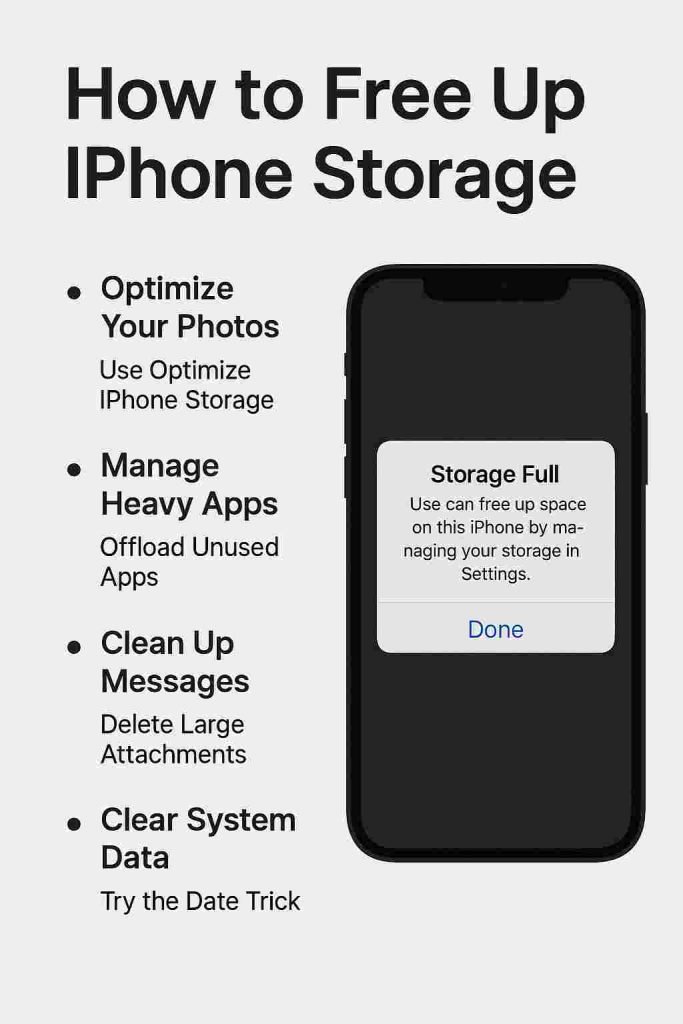
1. Optimize Your Photos
Photos and videos usually take up the most space. Here are two quick ways to reduce their size on your device.
Use “Optimize iPhone Storage”
This setting stores full-resolution images in iCloud while keeping smaller versions on your phone. It saves a lot of space without deleting anything.
How to enable it: Settings → Photos → Optimize iPhone Storage
Back Up to Google Photos
If you want more free storage, upload your photos and videos to Google Photos. After the backup completes, you can delete the files from your device.
If you are also trying to remove duplicates, you may find this guide helpful: https://mozpk.com/how-to-find-duplicate-photos-on-iphone/
2. Clean Up Your Apps
Apps take more space than most people expect, especially social media apps that build large caches.
Offload Unused Apps
This option removes apps you don’t use but preserves your data so you can reinstall them later.
How to enable it: Settings → General → iPhone Storage → Offload Unused Apps
Delete and Reinstall Heavy Apps
Apps like TikTok, Instagram, Facebook, and Snapchat often store gigabytes of temporary data. Deleting and reinstalling them can instantly free space.
3. Clear Messages and Attachments
Text messages can quietly build up storage usage, especially if you send and receive photos or videos regularly.
Delete Large Attachments
Open Messages → Filters → review Photos, Videos, and Documents. Delete anything you no longer need.
Set Messages to Auto-Delete
This keeps your message history slim.
How to change it: Settings → Messages → Keep Messages → 1 Year or 30 Days
4. Reduce System Data
System Data (previously known as Other Storage) can grow over time due to cached files and background processes.
Try the Date Trick
Some users report that changing the date forward temporarily helps iOS clear leftover files.
Steps:
- Settings → General → Date & Time
- Turn off Set Automatically
- Move the date 1 year ahead
- Turn Set Automatically back on
Restart Your iPhone
Restarting your device after deleting apps or large files helps iOS clear temporary storage.
If your iPhone ever becomes locked or says “iPhone Unavailable”, you can follow this recovery guide: https://mozpk.com/iphone-unavailable-try-again/
5. Do a Quick Cache Cleanup
Clear Safari History
If you browse frequently, clearing Safari’s cache can free up storage.
Settings → Safari → Clear History and Website Data
Use a Cleaning App
Apps like Clever Cleaner or Swipe Clean can help remove:
- Duplicate photos
- Blurred images
- Unused screenshots
- Large videos
- Junk files
This makes the cleanup process faster and more organized.
You can also use this simple guide if you need to transfer data before cleaning your phone: https://mozpk.com/transfer-data-from-iphone-to-iphone/
Final Tips to Avoid Storage Problems
- Review storage monthly
- Back up photos regularly
- Clear app caches when possible
- Keep message history short
- Delete unused apps often
A few minutes of maintenance can keep your iPhone running smoothly and prevent future storage warnings.
FAQs
1. Why is my iPhone storage full even after deleting photos?
Some apps store large amounts of cache and temporary files. System Data may also take up space. Try restarting your iPhone, offloading apps, or clearing Safari history.
2. What takes up the most storage on an iPhone?
Photos, videos, social media app caches, and message attachments typically use the most storage. Checking Settings → iPhone Storage shows a detailed breakdown.
3. Does offloading apps delete my data?
No. Offloading removes the app but keeps all your documents and settings. When you reinstall it, everything returns exactly as before.
4. How do I clear System Data on iPhone?
You can’t remove it manually, but you can reduce it by restarting your phone, deleting large apps, updating iOS, or using the date-change trick to force cache cleanup.
5. Will optimizing photos reduce quality?
The original high-resolution photos remain in iCloud. Your device only stores smaller versions. When you open a photo, the full-resolution one downloads instantly.
6. What is the fastest way to free up iPhone storage?
The quickest methods are offloading unused apps, deleting and reinstalling heavy apps, clearing Safari cache, and removing large photo/video attachments from Messages.




