




How to Fix ZArchiver “Access Denied” Error (Android/OBB Copy-Paste) If ZArchiver shows “Access is denied” when you try to copy/paste files into Android → obb (or sometimes Android → data), this guide walks you through the exact fix that works for most phones.
This issue usually happens because Android changes storage permissions, and ZArchiver needs the correct folder access again.
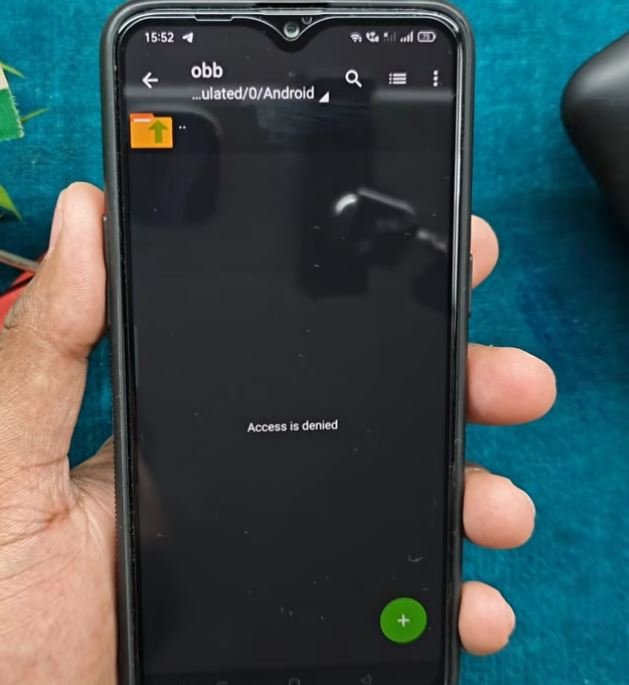
What You’ll See (Common Symptoms)
You may notice:
- You open ZArchiver
- Go to Android → obb
- Try to copy/paste any file
- ZArchiver throws an “Access is denied” error
Step 1: Check for ZArchiver Update (Quick Check)
- Open Google Play Store
- Search ZArchiver
- If you see Update, tap it
- If there’s no update, continue to the next steps
Even if there is no update, the fix below still works.
Step 2: Reset the Phone’s “Files” / File Manager App
This step is important because Android’s file access is controlled by system file components. Resetting them often removes the permission bug.
- Open Settings
- Go to Apps (or App Management)
- Open App list (or Manage apps)
- Tap the Search and type: Files (or File Manager)
Now do this for every “Files” app you see (some phones show more than one):
A) Uninstall Updates
- Open Files
- Tap the three dots (top-right)
- Tap Uninstall updates
- Tap OK
B) Clear Cache + Clear Data
- Go to Storage usage (or Storage & cache)
- Tap Clear cache
- Tap Clear data (or Clear storage)
If you see a second “Files” entry, repeat the same process on that one too.
Note: The names can differ by phone brand, but you’ll still find a “Files”/“File Manager” type app in App list.
Step 3: Reset ZArchiver App
Now reset ZArchiver so it requests the folder permission again.
- Settings → Apps → ZArchiver
- Tap Force stop
- Go to Storage usage
- Tap Clear cache
- Tap Clear data
Important: Clearing data resets ZArchiver settings and app history, but it does not delete your phone files.
Step 4: Grant Android/OBB Permission Inside ZArchiver (Most People Miss This)
Now open ZArchiver and give it access properly.
- Open ZArchiver
- Go to: Android → obb
- A warning/permission prompt will appear
Do NOT tap Cancel
Tap OK
- Then tap Use this folder
- Tap Allow to grant permission
Once you allow this, the folder will open normally and the “Access denied” error should be gone.
Confirm It’s Fixed
Go back to Android → obb again and try:
- Opening the folder
- Copy/paste a test file (if needed)
If it opens without an error, you’re done.
If It Still Doesn’t Work (Quick Troubleshooting)
Try these in order:
- Restart your phone, then repeat Step 4 (permission part)
- Uninstall ZArchiver → reinstall from Play Store, then do Step 4
- Make sure you’re tapping “Use this folder” (this is the key part)
FAQ
Will clearing ZArchiver data delete my phone files?
No. It only resets ZArchiver app settings, not your storage files.
Why does this happen?
Android storage permissions (especially for Android/obb) can break after updates or permission changes. ZArchiver needs the Storage Access permission again through “Use this folder.”
Final Words
Once you reset the Files app, reset ZArchiver, and then correctly tap OK → Use this folder → Allow, the Access Denied error in ZArchiver is usually fixed completely, and you can copy/paste smoothly again.
If you want, paste your phone model + Android version here and tell me whether the error is in Android/obb or Android/data, and I’ll tailor the steps to your exact menu names.



