


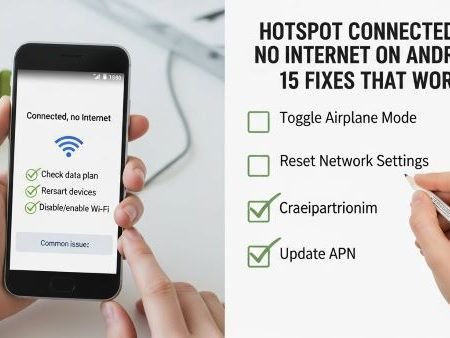

If your phone’s mobile hotspot connects (the other device shows “Connected”) but you still get no internet, it usually means the hotspot Wi-Fi link is fine, but your phone isn’t sharing the mobile data route correctly. This can happen due to a weak mobile data connection, VPN/Private DNS settings, hotspot configuration issues, or a stuck network stack. Google’s hotspot/tethering guide confirms hotspot and tethering rely on your phone sharing its connection.
Do this first
- Confirm mobile data works on the phone itself (open a website with Wi-Fi OFF)
- Toggle Hotspot OFF → ON and restart both devices
- On the connected device: Forget the hotspot network, reconnect, and re-enter password (fresh handshake)
- Turn VPN OFF and set Private DNS to Automatic
- Reset Wi-Fi, mobile & Bluetooth network settings (strong fix)
Mobile Data Not Working on Android
Fix 1: Make sure mobile data actually works on your phone first
This sounds obvious, but it’s the #1 reason hotspot “connects” yet has no internet. Turn Wi-Fi OFF on your phone and open 2–3 websites using mobile data only. Google’s connection troubleshooting starts with switching between Wi-Fi and mobile data to confirm where the problem really is.
If your phone can’t browse on mobile data, fix mobile data first (then hotspot will start working).
Fix 2: Toggle Hotspot OFF/ON and wait 30 seconds
Hotspot is basically a small router running inside your phone. Turning it off and on forces a fresh DHCP + routing setup. Google shows how to access hotspot controls from the quick settings and Settings app.
After you toggle it on, wait a full 30 seconds before connecting.
Fix 3: Restart both devices (phone + laptop/other phone)
Restarting clears stuck network services on both ends. Samsung’s hotspot troubleshooting includes rebooting as a primary step.
Do the phone first, then the device that connects to it.
Fix 4: On the connected device, “Forget” the hotspot network and reconnect
Sometimes the saved network profile becomes corrupted (old IP/DNS settings, wrong password cache, etc.). Forgetting and reconnecting creates a clean connection and often fixes “connected, no internet.”
On Windows/Mac, remove the Wi-Fi network; on another phone, forget Wi-Fi and reconnect.
Fix 5: Turn VPN OFF (on the hotspot phone)
A VPN can interfere with tethering/hotspot routing in different Android builds. If you need VPN later, first confirm hotspot works without it, then re-enable and test again. Google lists VPN and tethering among the same network settings area.
Fix 6: Set Private DNS to “Automatic” (or OFF temporarily)
Private DNS can cause “connected but no internet” symptoms if the DNS provider blocks or fails for tethered devices. Google shows where Private DNS lives in Network & internet settings.
Set it to Automatic, reconnect, then test browsing again.
Fix 7: Turn OFF Data Saver / allow hotspot app data
If Data Saver or background restrictions are aggressive, your phone may not properly share data to tethered devices. This is especially common when hotspot turns on but pages never load. (If you’re using a “battery/data saver” mode, temporarily disable it and test.)
Fix 8: Switch Hotspot band (2.4 GHz vs 5 GHz) if your phone allows it
Some older laptops/TVs struggle with certain hotspot bands. If your hotspot has a “Band” option:
- Try 2.4 GHz for compatibility
- Try 5 GHz for speed
Reconnect after changing band (forget network first if needed).
Fix 9: Change Hotspot security setting (WPA2/WPA3) if devices can’t browse
If a device connects but behaves weirdly, switch hotspot security to a more compatible option (often WPA2). Then reconnect from scratch. This helps when the device connects but doesn’t reliably get a working route.
Fix 10: Disable “Limit data” / check your mobile data cap
If your plan is out of data or throttled severely, hotspot may look connected but feel “dead.” Confirm you can browse on the phone over mobile data (Fix 1). If browsing on the phone is also broken, the hotspot isn’t the root problem.
Fix 11: Try USB tethering (testing method)
Google explains USB tethering as an alternative sharing method.
If USB tethering works but Wi-Fi hotspot doesn’t, your issue is likely hotspot configuration (band/security/DNS) rather than your mobile data plan.
Fix 12: Try Bluetooth tethering (testing method)
Google also documents Bluetooth tethering steps.
It’s slower than Wi-Fi but great for testing. If Bluetooth tethering works, your phone’s data route is fine and hotspot settings are the likely culprit.
Fix 13: Reset network settings (strong fix)
This is the cleanest “wipe and rebuild” for Wi-Fi/mobile/Bluetooth settings and often fixes stubborn hotspot problems. The Android Community guidance commonly points to Reset Wi-Fi, mobile & Bluetooth for hotspot issues.
Sony also documents the general Android path for resetting network settings.
After reset, re-enable hotspot and reconnect from scratch.
Fix 14: Update your phone software
Hotspot bugs can come from the system network stack. Samsung’s hotspot troubleshooting includes doing a software update.
After updating, restart once before testing hotspot again.
Fix 15: If hotspot connects but NOTHING loads, contact your network provider
Sometimes hotspot sharing is blocked by:
- account provisioning issues
- a network-side restriction
- temporary service problems
Samsung notes hotspot issues can be tied to the carrier/mobile data connection.
Ask your provider to confirm hotspot/tethering is allowed on your plan and to refresh your line provisioning.
No Service / No Signal on Android: 15 Fixes
Sources
Google Android Help: Share a mobile connection by hotspot or tethering
https://support.google.com/android/answer/9059108

Google Android Help: Fix internet connection problems on Android devices
https://support.google.com/android/answer/2651367

Samsung Support: Mobile hotspot issues with a Samsung phone
https://www.samsung.com/us/support/troubleshooting/TSG01001245/

Android Community: My hotspot not working (reset Wi-Fi, mobile & Bluetooth suggestion)
https://support.google.com/android/thread/383736883/my-hotspot-not-working

Sony Support: Reset network settings on Android
https://www.sony-asia.com/electronics/support/articles/SX670101

Google Help: Control airplane mode, private DNS & other network settings
https://support.google.com/fi/answer/2819583




