


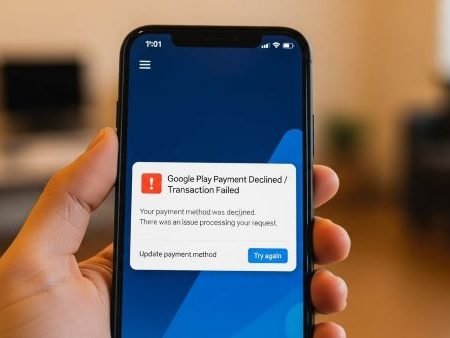

If Google Play says payment declined, unable to complete transaction, or your transaction cannot be completed, it’s usually one of these problems:
- Expired card or outdated card details
- Billing address / ZIP mismatch between your bank and Google Payments
- Google is asking you to submit extra verification info (KYC/identity/billing checks)
- Not enough funds or your bank is blocking the charge
- Your Play country / payments profile country doesn’t match your residence
App Fixes Hub (Complete Guide)
Do this first
- Check billing address + ZIP matches what your bank has on file (Google highlights this as a common reason payments fail).
- Remove/update expired cards, then retry.
- If Google asks for extra info, submit it first (other steps won’t help until that’s done).
- Try a different payment method (PayPal / gift card / another card).
- If your Play country is wrong, fix the payments profile country (may take up to 48 hours).
Fix 1: Look for “submit additional information” prompts
Google Payments says if the decline message includes instructions to submit extra information, do that first—the other steps likely won’t solve it.
Check your Google Payments alerts and complete any verification requests.
Fix 2: Confirm your card details and billing address match Google Payments
Google Play and Google Payments both point to billing address mismatch as a major cause of declines.
What to match exactly:
- Street + city
- State/province
- ZIP/postal code (very important)
Fix 3: Remove or update expired cards
Google Play explicitly recommends removing/updating any expired payment methods before trying again.
Fix 4: Make sure you have enough funds
Google Play lists insufficient funds as a common reason a transaction is declined.
If you’re using a balance-based method, ensure it covers the full total.
Fix 5: Call your bank/card issuer if it keeps getting declined
Google Payments recommends contacting your bank when payments keep failing.
Tell them: “Google Play purchase is being declined” and ask if online/international/e-commerce charges are blocked.
Fix 6: Try a different payment method (often the fastest solution)
Google Payments explicitly suggests trying the purchase again with a different payment method.
USA quick options you can mention in your post
Google Play lists multiple supported methods in the US (availability depends on account/carrier):
- Major cards (Amex/Discover/JCB/Mastercard/Visa)
- PayPal (with a note about PayPal Security Key setup)
- Carrier billing (with conditions, and not available on rooted devices)
- Google Pay balance / gift cards
Fix 7: Try a Google Play gift card (good workaround)
Google Payments suggests using a Google Play gift card to complete the transaction.
Fix 8: Use the right interface (Play Store app vs web)
Google Payments recommends using the best interface for your device:
- Desktop → try the website
- Mobile → try the product’s mobile app
If you’re buying a subscription, sometimes the Play Store app works better than the browser checkout.
Fix 9: If you’re using “guest checkout,” sign in and retry
Google Payments notes that if the error happened during guest checkout, try signing in to your Google account and place the order again.
Fix 10: Re-add your payment method (remove → add again)
Use Google’s official flow to edit/remove/re-add the method:
Play Store → Profile → Payments & subscriptions → Payment methods → More payment settings.
This refreshes saved details and can fix a “stuck” payment token.
Fix 11: Clear Play Store cache/data (refresh the checkout session)
When Play Store keeps showing old account/payment status, clearing cache/data can refresh things. Google Play’s country/payments guidance includes clearing Play Store cache & data as a troubleshooting step.
(Note: Clearing data can reset some Play Store settings.)
Play Store “Something Went Wrong / Try Again” Error (Fixes)
Fix 12: Turn off VPN / Private DNS and try again on another connection
This doesn’t “change country.” It’s just to avoid checkout failing due to routing/DNS filtering.
Try:
- VPN OFF
- Private DNS → Automatic
- Wi-Fi ↔ mobile data (USA readers can test on Verizon/AT&T/T-Mobile)
Fix 13: Check Play country and Payments profile country (big cause)
If Google thinks your Play country doesn’t match your residence, purchases can fail.
Google’s official guidance: in Google Pay settings, check Payments profile → Country/Region and if incorrect, create a new profile for your country (and allow up to 48 hours after a change).
Your Purchase Couldn’t Be Completed (Play Country/Residence): Fix
Fix 14: If the item is region-limited, payments won’t help
Sometimes the payment is fine, but the app/content itself is blocked in your region.
This Item Isn’t Available in Your Country (Play Store): Fixes
Fix 15: Carrier billing users (USA): check the common blockers
Google notes carrier billing won’t show/work if:
- your carrier account isn’t in good standing
- dual SIM is set up incorrectly
- device is rooted (carrier billing not available)
If you’re trying subscriptions, Google also notes some carriers can’t be used for subscriptions.
FAQs
Why does Google Play say “Your transaction cannot be completed”?
Google lists common causes like expired cards, billing address mismatch, or insufficient funds.
What does it mean when Google asks for extra info?
Google Payments says if you’re prompted to submit additional info, do that first—other steps may not work until verification is complete.
How do I fix a declined card on Google Play?
Update billing address/ZIP, remove expired cards, ensure funds, contact your bank, then try a different payment method.
Can I use PayPal on Google Play in the US?
Google’s US payment methods page lists PayPal as an option (with setup notes).
Does clearing Play Store data help payment problems?
It can refresh the session; Google’s Play country/payments guidance includes clearing cache/data as a troubleshooting step.
My Play country changed—how long until purchases work?
Google advises waiting up to 48 hours after a country change to take effect.
What if it only fails on mobile data or only on Wi-Fi?
That’s often a network routing/DNS/VPN issue. Turn off VPN/Private DNS and retry on a different network.
Sources
- Google Play Help: Fix payment issues on your account (expired card, billing address match, funds, submit info). (Google Help)
- Google Payments Center: Fix declined transactions (submit info, address match, gift card, different method, contact bank, interface tips). (Google Help)
- Google Play Help: Add/remove/edit payment methods (official steps). (Google Help)
- Google Play Help: Accepted payment methods (US list + carrier billing notes). (Google Help)
- Google Play Help: Play country / payments profile country + 48-hour note + cache/data troubleshooting. (Google Help)




