


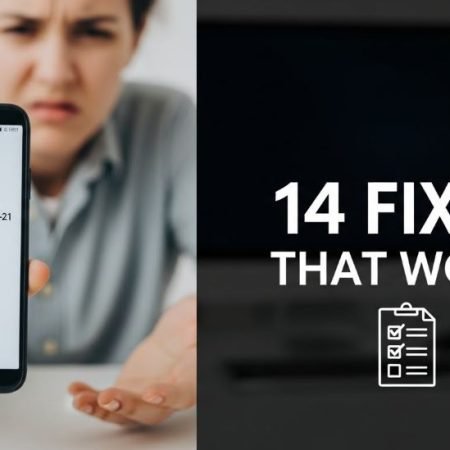

If Google Play shows “Payment declined”, “Your request failed. Use a different payment method”, or an error like OR-CCSEH-21, it usually means the payment couldn’t be authorized due to one of these:
- Card expired, incorrect details, or billing address mismatch
- Not enough balance / daily limit / international payments blocked by bank
- Temporary security hold (bank or Google)
- Google Play checkout is glitching (Play Store / Play services cache)
- Purchase verification settings causing extra prompts/blocks
Start here (data-rich quick diagnosis)
What exactly is failing?
- Paid app / game purchase fails → usually billing info, bank block, or Google Pay profile issue
- In-app purchase fails → could also be the game/app itself (restart app, check payment status)
- Only one card fails, others work → bank/card issue
- Everything fails on your account → Google Pay profile / Play Store cache / verification issue
30-second test
Try buying a small item (or a cheap in-app item). If it fails instantly, continue with the steps below.
Do this first
- Confirm card details + billing address are correct (most common)
- Make sure your bank isn’t blocking the transaction; ask them to allow Google/online payments
- Try a different payment method (card, carrier billing, etc.)
- Clear Google Play Store cache/data, then retry
- Remove and add the payment method again in Play Store / Google Pay
Play Store “Something Went Wrong / Try Again” Error: 14 Fixes
Fix 1: Double-check billing address + card details (must match bank record)
Small mismatch (ZIP/Postal code, street spelling) can cause declines. Google specifically calls out expired cards and old billing addresses as common payment failures.
Fix 2: Check balance, limits, and “online/international payments”
Google recommends confirming you have enough funds and contacting your bank if the account is blocking the payment.
Ask your bank to allow:
- Online payments
- International transactions (if applicable)
- “Google” merchant category/transactions
Fix 3: Try the purchase on mobile data (network filtering test)
Sometimes office/hotel Wi-Fi blocks payment services.
- Switch to mobile data
- Turn VPN/Private DNS OFF
- Try again
Fix 4: Use a different payment method (fastest proof)
Google suggests trying a different payment method if the bank keeps declining.
Examples:
- another card
- carrier billing (if supported)
- Play balance (gift card)
Fix 5: Remove the payment method and add it again
Google provides official steps to remove/edit/add payment methods from Play Store.
Path:
Play Store → Profile → Payments & subscriptions → Payment methods → More payment settings
Then add the card again carefully.
Fix 6: Clear Google Play Store cache/data
If payment screens are bugged or looping, this often fixes it.
Google’s troubleshooting includes clearing Play Store data for persistent issues.
Steps:
Settings → Apps → Google Play Store → Storage → Clear cache → Clear data
Restart phone and retry.
Fix 7: Clear Google Play services cache/data (if checkout keeps failing)
Play Store checkout depends heavily on Play services. If purchases are failing across apps, clear it once:
Settings → Apps → Google Play services → Storage → Clear cache → Clear data
Fix 8: Check Purchase Verification settings (if it keeps asking / blocking)
Google lets you set verification requirements for purchases. If verification prompts are stuck, review them:
Play Store → Payments & subscriptions → Purchase verification
Fix 9: If it’s an in-app purchase, try the official in-app purchase checklist
Google’s in-app purchase troubleshooting includes:
- check connectivity
- force stop and reopen the app/game
- restart device
- verify payment completion
Fix 10: Update Play Store / update Android
Outdated system components can break checkout flows.
- Update Play Store (if available)
- Check Android system updates
Fix 11: Check Google Payments profile (name/address)
Sometimes the payments profile info needs updating. Google points users to update payment info via the Payments center.
Fix 12: Remove & re-add your Google account (only if everything fails)
If your Google account auth is stuck, remove and add it again:
Settings → Accounts → Google → Remove → Restart → Add again
Do this only after cache/data steps.
Fix 13: Wait and retry (when it’s a temporary hold)
Sometimes payments fail for a few hours due to security checks. If your card is correct and the bank says it’s fine, wait and retry later with one small purchase.
Fix 14: Contact bank first, then Google support
Google’s guidance is: if payment info is correct and still declined, contact your bank, and try a different payment method.
If the bank confirms no block but Google still fails, use Google Payments help.
Google Play Store Keeps Stopping / Not Opening: 12 Fixes
Sources
Google Play Help: Fix payment issues on your account (Android)
https://support.google.com/googleplay/answer/1267137

Google Payments Center: Fix payment issues like declined transactions
https://support.google.com/paymentscenter/answer/9034675

Google Play Help: Add / remove / update payment method on Google Play
https://support.google.com/googleplay/answer/4646404

Google Play Help: Problems with in-app purchases
https://support.google.com/googleplay/answer/1050566

Google Play Help: Set up verification for purchases (Android)
https://support.google.com/googleplay/answer/15711295




