


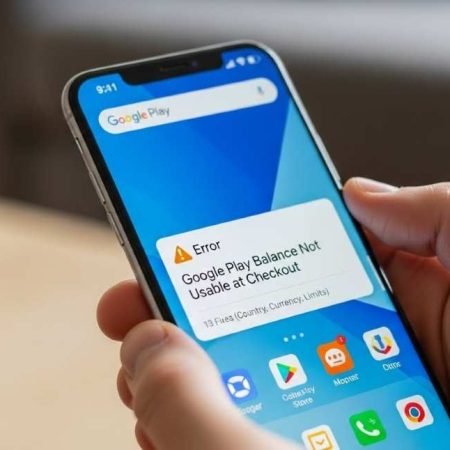

If your Google Play balance is not usable, or Play balance doesn’t show as a payment option during checkout, it’s usually because of one of these:
- The item you’re buying is not eligible for Play balance (example: hardware, topping up another payment method, or buying gift cards inside Play Store)
- Your currency/country does not match the balance currency, or you’re not physically in the country where the balance was redeemed
- Your balance is below the purchase amount, and you need a second payment method (where allowed)
- Play Store checkout is glitching (cache/data), or you’re on the wrong Google account
What message are you seeing?
- “Couldn’t complete your transaction. Your Play balance can only be used in [country/region]”
- Play balance option missing at checkout (only card shows)
- Balance shows in account, but can’t select it
- You can buy apps, but subscriptions/in-app payments fail (app-specific rules)
Quick check (30 seconds)
- Play Store → Profile → Payments & subscriptions / Payment methods → confirm Play balance is actually there
- Confirm you’re on the correct Google account (many people have 2 accounts on the same phone)
Do this first
- Confirm the item is eligible for Play balance (hardware/gift cards are not)
- Turn VPN OFF, and confirm you’re in the same country where balance was redeemed
- Make sure purchase currency matches your balance currency
- If balance is not enough, add a second payment method (where allowed)
- Clear Play Store cache/data and retry checkout
Can’t Redeem Google Play Gift Card / Code: 14 Fixes
Fix 1: Make sure what you’re buying is allowed with Play balance
Google clearly lists what Play balance can and can’t be used for:
- You can buy or subscribe to content on Google Play (country dependent)
- You cannot use Play balance to buy hardware in the store, or to top up other payment methods
- You also can’t use Play balance to buy Google Play or specialty gift cards in the Google Play app
If you’re trying one of the blocked categories, Play balance will not show at checkout.
Fix 2: Check “What you can buy” for your country
Play balance availability varies by country (apps, movies, subscriptions, etc.). Google provides a country list for this.
If your country doesn’t support that item type, the balance option may disappear.
Fix 3: Currency mismatch (very common)
Google states you can use balance only for content sold in the same currency as your balance (example: AUD balance can’t be used for EUR purchases).
If you redeemed a card in one currency and are trying to buy in another region/storefront, Play balance can vanish from checkout.
Fix 4: Country/region rule (the big one)
If you see: “Play balance can only be used in [country/region]”, Google’s guidance is:
- You must be present in the country where the balance/promo was redeemed
- If you’re traveling, try again when you return
- If you’re sure you’re in the correct country, submit their form
Fix 5: Turn off VPN / Proxy / Private DNS
Even if you are physically in the correct country, VPN can trigger region checks and block balance usage. Turn it off and try again.
Fix 6: Confirm you’re buying from the correct Google account
Google notes that content can’t be transferred between accounts and you must be signed into the account you want before purchase.
If balance is on Account A but you’re checking out on Account B, it won’t appear.
Fix 7: If your balance is less than the price, add another payment method
Google says you can combine Play balance with another form of payment if your balance is less than your purchase amount (some limitations can apply).
The official gift card terms also describe using another payment method when balance is insufficient.
If you don’t have a backup method saved, Play balance may not work for the total.
Fix 8: For pre-orders and future charges, balance must be enough on the charge day
Google explains pre-orders can fail if you chose Play balance but don’t have enough credit when the item is released.
So if it’s a pre-order or subscription renewal, top up balance or add a backup payment method.
Fix 9: Clear Play Store cache (quick checkout refresh)
Settings → Apps → Google Play Store → Storage & cache → Clear cache
Then retry checkout.
Fix 10: Clear Play Store data (strong fix)
Settings → Apps → Google Play Store → Storage → Clear storage/data
Then restart and try again.
Fix 11: Check for payment profile or card issues (when you’re mixing methods)
If you’re combining Play balance + card and it keeps failing, Google’s payment troubleshooting recommends checking billing address, expired card, and bank restrictions.
Fix 12: Try the same purchase on another device (same account)
Login to the same Google account on a second Android phone and test checkout.
If it works there, your problem is local to the Play Store app state on this phone.
Fix 13: Use Google’s official help flow for country/balance issues
For country errors and balance limitations, Google points users to the gift card/balance help steps and the form for “I’m in the correct country but still blocked.”
Google Play Balance Not Showing After Redeem: 14 Fixes
Sources
Google Play Help: What you can buy with your Google Play balance
https://support.google.com/googleplay/answer/6080850

Google Play Help: Fix problems with Google Play gift cards & codes (country rule + form)
https://support.google.com/googleplay/answer/11564359

Google Play Gift Card & prepaid balance terms (limits + insufficient balance guidance)
https://play.google/card-terms/

Google Play Help: Fix payment issues on your account (card/billing troubleshooting)
https://support.google.com/googleplay/answer/1267137




