


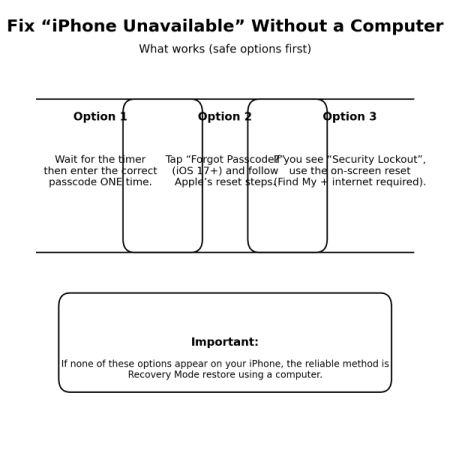

Seeing “iPhone Unavailable” can feel scary, especially if you don’t have a computer nearby. The truth is: sometimes you can fix it without a computer, but only if iOS shows the right on-screen options and your iPhone meets a few requirements.
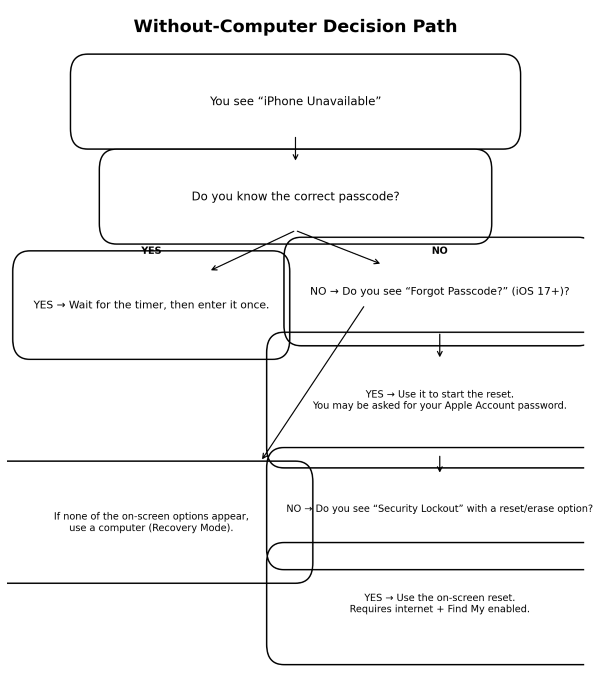
This guide explains:
- The real fixes that work without a computer
- How to use Forgot Passcode (iOS 17+)
- What “Security Lockout” means
- When a computer becomes the only reliable option
Quick answer (what to try first)
- Stop guessing passcodes.
- Wait for the timer to end and enter the correct passcode once (only if you’re sure).
- Look for Forgot Passcode? (iOS 17 or later).
- If you see Security Lockout with a reset option, you may be able to reset directly on the iPhone (requires internet + Find My enabled).
- If none of these appear, the dependable method is Recovery Mode restore using a computer.
Before you start: know what “without computer” can and can’t do
If you know the passcode
You may not need any reset. Just wait and unlock.
If you forgot the passcode
Any “without computer” method that actually works will still lead to a reset/erase path (or a protected recovery path). Apple’s official guidance for forgotten passcodes includes recovery mode restore as the main method when you’re locked out.
Method 1: Wait out the timer and enter the correct passcode (best-case scenario)
If your screen says something like “Try Again in 15 Minutes”:
- Wait until the timer ends
- Enter your passcode one time
- If you’re not 100% sure, don’t keep trying
Why this matters: every wrong attempt can increase the lockout time and can push you toward a forced reset screen.
Method 2: Use “Forgot Passcode?” (iOS 17+)
If your iPhone shows Forgot Passcode? on the Unavailable screen, you can start Apple’s built-in reset flow.
What you’ll need
- Your Apple Account (Apple ID) password
- Ideally, an internet connection (Wi-Fi or cellular)
What happens
- iOS guides you through resetting the device
- This may sign you out of your Apple Account on that iPhone as part of the process
This is one of the cleanest “no computer” options because it’s built into iOS.
Bonus: If you recently changed your passcode, you may be able to use the previous passcode (iOS 17+)
Apple also documents a feature that lets you use your old passcode temporarily (for a limited time) after a passcode change, through the Forgot Passcode flow.
This is useful if:
- You changed your passcode recently
- You forgot the new one but still remember the old one
Method 3: On-screen reset from “Security Lockout” (no computer, but requirements apply)
If your iPhone progresses from “Unavailable” to Security Lockout, iOS may offer an on-screen reset option (wording can vary by iOS version). Apple notes you can only reach this screen under certain conditions, including having an active cellular/Wi-Fi connection and previously enabling Find My.
You’ll typically need:
- Internet connection (Wi-Fi or cellular)
- Find My enabled on that device
- Apple Account password to continue
If your iPhone has no internet (no SIM, no Wi-Fi), you might not see the on-screen reset path.
Method 4: Erase using Find My from another device (still “no computer”)
If you have access to:
- another iPhone/iPad (Find My app), or
- a browser on any phone/tablet,
you can erase the locked iPhone through Find My / iCloud, if Find My was enabled earlier. Apple’s unavailable guidance ties reset availability to Find My being enabled.
This still erases the device, but it can be convenient if you don’t have a computer.
What doesn’t work (and wastes time)
- Restarting the iPhone to “clear” the unavailable screen (it doesn’t remove the lockout)
- Airplane mode tricks (may even prevent the reset option from appearing if internet is required)
- Random third-party “unlock without erase” tools (high risk, and many are not trustworthy)
If you don’t see Forgot Passcode or an on-screen reset option, Apple’s reliable route is recovery mode restore using a computer.
When a computer becomes the only real solution
Use a computer if:
- There is no “Forgot Passcode?”
- There is no on-screen reset/erase option
- Your iPhone can’t get internet and won’t show the reset flow
- You need the official recovery mode restore steps
Apple’s step-by-step recovery mode restore guide is here.
FAQ
Can I fix iPhone Unavailable without losing data?
Only if you know the correct passcode and unlock after the timer. If you forgot the passcode, reset/erase is usually required, then you restore from a backup.
Why don’t I see “Forgot Passcode?”
It’s available on iOS 17 or later on supported devices. Apple shows it as part of the iPhone Unavailable screen guidance.
Why don’t I see the on-screen reset option?
Apple notes the Security Lockout reset path depends on factors like having an active connection and Find My enabled.
Sources
Apple Support: If you see an iPhone, iPad, or Apple Vision Pro unavailable message
https://support.apple.com/en-us/105090

Apple Support: Temporarily use your old passcode when you forget your new passcode
https://support.apple.com/en-us/105039

Apple Support: If you forgot your iPhone passcode or your iPhone is disabled
https://support.apple.com/en-us/118430



