


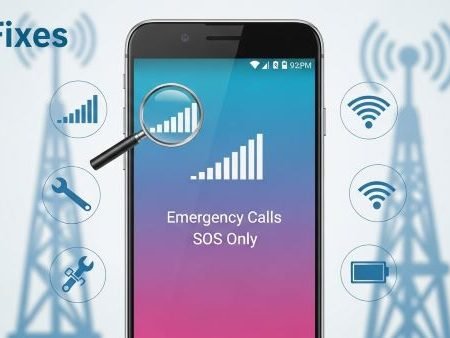

When your Android shows “Emergency calls only” or “SOS only”, it usually means your phone can’t properly register on your network provider’s cellular network, so it won’t place normal calls, send texts, or use mobile data reliably. Samsung explains this message appears when the phone is having trouble connecting with your carrier/network.
This guide is global (any country, any provider) and works for Samsung, Pixel, Xiaomi, Oppo, Vivo, OnePlus, etc.
Fast diagnosis
- If you’re in a basement/elevator/remote area → it may simply be no coverage (try moving outside).
- If it started after an update → it’s often network settings reset or SIM/eSIM re-registration.
- If another phone on the same provider also has no service → it may be a network outage.
Do this first
- Turn Airplane mode ON for 10 seconds → OFF
- Restart your phone
- Reseat your SIM (or toggle eSIM line OFF/ON)
- Reset network settings (quick clean-slate)
- If still stuck: manual network selection + provider check (outage / provisioning)
SIM Not Detected / No SIM / Invalid SIM on Android
Fix 1: Move to an open area (coverage test)
Before changing settings, do a simple coverage check. Go outside or near a window for 1–2 minutes and watch if signal bars appear. “Emergency calls only” often shows up when the phone can’t latch onto a usable tower signal. If it comes and goes based on location, it’s more likely a coverage or interference issue than a phone fault.
Fix 2: Toggle Airplane Mode (fast radio refresh)
Airplane mode forces the phone to disconnect and re-register on the network. Google’s Android troubleshooting recommends turning airplane mode on, waiting about 10 seconds, then turning it off.
After switching it off, wait a full minute. Sometimes the SIM/network handshake takes a bit to settle, especially after updates or weak signal moments.
Fix 3: Restart your phone (simple but real)
A restart clears stuck modem processes and reloads your network stack cleanly. If you just updated Android or installed security patches, a restart is one of the easiest ways to restore normal registration. If you haven’t restarted since the issue began, do it once before deeper steps. Samsung also includes restart in their “Emergency calls only” troubleshooting flow.
Fix 4: Reseat the SIM properly (physical SIM)
Power off your phone, remove the SIM tray, and reinsert the SIM carefully (flat, aligned, no wobble). Even a tiny misalignment can cause intermittent detection that looks like “SOS only.” Samsung notes SIM issues can be part of the cause when the phone can’t connect to the carrier.
After reinserting, power on and wait a minute for the network to register.
Fix 5: Clean the SIM + tray (dry only)
Dust, pocket lint, or slight oxidation can reduce contact quality. Use a soft, dry cloth to wipe the SIM and tray. Avoid liquids and sharp tools. Then reinsert the tray firmly so it sits flush.
Fix 6: Toggle your eSIM line OFF/ON (eSIM users)
If you use eSIM, you usually won’t “reseat” anything, so toggling the eSIM line can re-trigger registration. Go to SIM settings and switch the eSIM line off, wait 10 seconds, then on. Don’t delete the eSIM profile unless you’re 100% sure you can re-download it later.
Fix 7: Disable VPN / Proxy (temporary test)
VPNs can confuse routing and sometimes trigger network registration weirdness, especially on some Android skins. Turn VPN off completely and test again. If the issue disappears, keep VPN off for a day and update VPN app settings later.
Fix 8: Turn Wi-Fi Calling OFF then ON (if enabled)
Wi-Fi calling can sometimes get “stuck” when your phone bounces between weak cellular and Wi-Fi. Toggle Wi-Fi Calling off, restart, then turn it back on. This step is especially useful if the problem appears only at home/office where Wi-Fi calling is used heavily.
Fix 9: Turn “Automatically select network” ON
If your phone got locked onto a wrong/weak network, automatic selection helps it pick the best available network. In SIM settings, enable automatic network selection (wording varies by phone). If it’s already on, turn it off, wait 10 seconds, then turn it on again.
Fix 10: Manually select your network once (quick lock test)
When automatic selection fails, manual selection can force a fresh registration attempt. In SIM settings, open network operators, wait for the list to load, and pick your provider. If it immediately fails or shows “can’t connect,” it’s a strong hint of provider outage/provisioning or SIM issues rather than a simple phone toggle.
Fix 11: Reset Network Settings (strong, safe-ish)
This is one of the best fixes when “Emergency calls only” appeared after an update or random glitch. Sony’s official instructions show the typical Android path: Settings → System → Advanced → Reset options → Reset network settings.
This will usually reset Wi-Fi, Bluetooth, and mobile settings, so you’ll need to reconnect Wi-Fi and Bluetooth devices afterward.
Fix 12: Check APN only if data is broken after signal returns
APN is mainly for mobile data, not basic calling. So do this only after you get normal signal back but data still won’t work. If you changed APN before, use “Reset to default” where available.
Fix 13: Install any pending system update
Sometimes an update ships in parts (main update + modem fix). If the problem began right after updating, check again for an additional patch. Even a small follow-up update can fix network registration bugs.
Fix 14: Test your SIM in another phone (isolates SIM vs device)
If your SIM shows “SOS only” in multiple phones, it’s likely a SIM/provisioning problem. If your SIM works fine in another phone, your device may have a software issue or (rarely) a hardware radio/SIM reader fault. This single test saves a lot of guessing.
Fix 15: Contact your network provider (when you’ve tried the key steps)
If you’ve done Airplane Mode, restart, SIM reseat/eSIM toggle, and network reset and it still shows Emergency calls only, ask your provider to:
- confirm your line is active and not suspended
- refresh/re-provision the SIM/eSIM
- check for outages or maintenance in your area
Samsung also points to carrier connection issues as a common reason for this message.
4G/5G Not Showing After Update on Android
Sources
Samsung Support: Samsung phone displays Emergency calls only
https://www.samsung.com/us/support/troubleshoot/TSG10000275/

Google Play Help: Fix internet connection problems on Android devices (airplane mode steps)
https://support.google.com/googleplay/answer/2651367

Sony Support: Reset network settings (Android 9.0 or higher)
https://www.sony.com/electronics/support/articles/SX670101




