


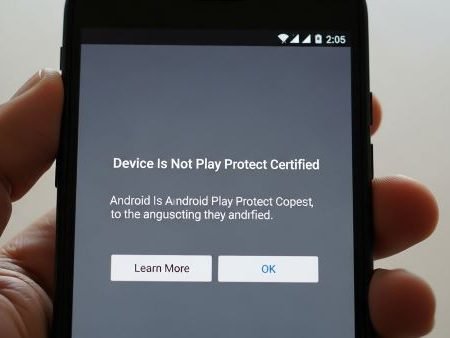

If Google Play Store shows “Device is not Play Protect certified”, it means your phone didn’t pass Google’s certification checks. On uncertified devices, Google warns that basic security features aren’t assured and some Play Store apps may not work as intended.
This usually happens when:
- the phone is rooted, running a custom ROM, or has an unlocked bootloader
- the manufacturer shipped Google apps without Play Protect certification (unlicensed builds)
App Fixes Hub (Complete Guide)
do this first
- Open Play Store → Profile icon → Settings → About → check Play Protect certification.
- If it says not certified, make sure you have a stable internet connection and update Google Play services (Google lists outdated/missing Play services as a common cause).
- If your bootloader is unlocked, lock the bootloader (Google says an unlocked bootloader can fail certification checks).
- If the phone is rooted or running modified Android, return to official stock firmware (Google recommends resetting/undoing modifications).
- If your device is unlicensed/uncertified by the manufacturer, contact the manufacturer/retailer for a certified device.
Fix 1: Verify the status the official way
Go to: Play Store → Profile icon → Settings → About → Play Protect certification.
Take a screenshot for reference (helpful if you contact support).
Fix 2: Don’t mix up “Play Protect scanning” with “device certification”
- Play Protect scanning = checks apps for harmful behavior
- Play Protect certified device = your whole device passed Google’s certification checks
Google shows both inside Play Store settings.
Fix 3: Restart + wait a few minutes (simple, sometimes enough)
If you recently updated Play services, changed accounts, or just set up the phone, reboot and wait 5–10 minutes before checking again.
Fix 4: Update Google Play services
Google’s troubleshooting specifically calls out “Google Play services is out of date” as a reason certification checks can fail, and it points users to update Play services.
Fix 5: Confirm Google Play services is enabled (not disabled)
Google also notes certification can fail if Play services can’t be found (disabled/not installed properly), and provides steps to turn it back on.
Fix 6: Fix basic connection issues (Wi-Fi ↔ mobile data)
Google’s certification troubleshooting includes a “no network connection” scenario and suggests checking your internet connection.
Quick test: try on Wi-Fi, then on mobile data (USA readers can test on Verizon/AT&T/T-Mobile to confirm it’s not a router/DNS issue).
Fix 7: Set Date & Time to automatic
Wrong time breaks secure sign-in and can cause weird Play behavior. Set Automatic date & time, then restart.
Fix 8: Check if your model is on the certified devices list
Google explicitly says to check whether your device is on the list of certified devices.
If it’s not listed, the device isn’t certified.
Android also explains what “not certified” means and recommends contacting the manufacturer/retailer.
Fix 9: If your bootloader is unlocked, lock it (official recommendation)
Google states a device can fail certification checks when the bootloader is unlocked, and it recommends locking it using your manufacturer’s instructions.
If you’re not confident, don’t guess—use your OEM’s official guide.
Fix 10: If the phone is rooted / running a custom OS, return to stock
Google notes that the device may be rooted or modified to run a custom Android OS, and recommends trying reset/restore steps to resolve the issue.
For most readers, the practical version is:
- back up your data
- flash/restore official firmware (OEM tool)
- re-check certification
Fix 11: Avoid “uncertified” TV boxes / cloned Android builds
Google’s warning for uncertified devices says the manufacturer preloaded Google apps without certification and recommends contacting the manufacturer for a certified device.
If it’s a cheap Android box or heavily modified build, there may be no clean fix besides replacing it.
Fix 12: If your goal is installing APKs, this is a different issue
Certification affects Play Store behavior, but APK installs are controlled by Install unknown apps / Auto Blocker settings.
Install Blocked (For Your Security) on Android: 15 Fixes
Fix 13: If Play Store errors show up, treat them as symptoms
Uncertified status can cause Play problems that look like random errors.
Play Store “Something Went Wrong / Try Again” Error: Fix
Play Store Apps Not Updating: 15 Fixes
Fix 14: Keep Play Protect enabled (recommended)
Even if your device is certified, Play Protect scanning should stay on for safety. Google recommends keeping it enabled.
Fix 15: If nothing changes, contact the manufacturer/retailer
If the device was sold with Google apps but remains uncertified, Android’s certified page recommends contacting the manufacturer/retailer for a fully tested, certified device.
FAQs
What does “Device is not Play Protect certified” mean?
It means Google hasn’t verified your phone meets certification checks, and some Play Store apps may not work as intended.
How do I check Play Protect certification?
Play Store → Profile icon → Settings → About → Play Protect certification.
Why did my device lose certification?
Common reasons include an unlocked bootloader, root/custom ROM, or a modified/unlicensed build. Google notes these can cause certification checks to fail.
Can I fix it without resetting?
Sometimes updating/enabling Google Play services and confirming network connection helps, but if the OS/bootloader is modified, you usually need to return to stock and lock the bootloader.
Will uncertified status affect banking or streaming apps?
It can. Android notes Play Store apps may not work as intended on uncertified devices.
Should I turn off Play Protect to fix it?
No. Google recommends keeping Play Protect enabled for safety.
What if the phone is a cheap Android box or imported device?
If it’s an unlicensed build, Google’s warning recommends contacting the manufacturer/retailer for a certified device.
Sources (E-E-A-T)
Google Play Help: Check & fix Play Protect certification status
https://support.google.com/googleplay/answer/7165974?hl=en

Google Play Help: Use Google Play Protect (also shows where to check certification in Play Store)
https://support.google.com/googleplay/answer/2812853?hl=en

Android.com: Certified Android devices (what “not certified” means and what to do)
https://www.android.com/certified/

Google: Device is not Play Protect certified warning page
https://www.google.com/android/uncertified/warningauto




