


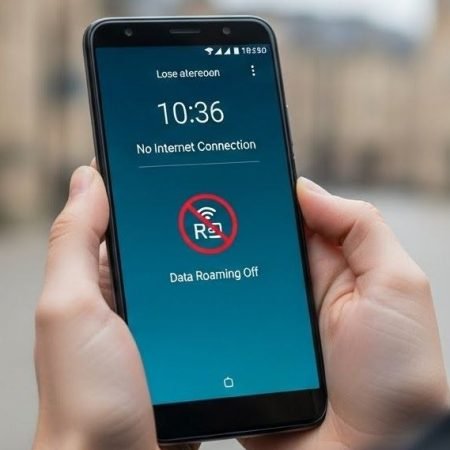

If your phone shows signal abroad but you have roaming with no internet, the issue is usually one of these: data roaming is off, your plan doesn’t allow roaming, your phone didn’t register with a partner network, or your APN/network settings need a reset. Samsung’s roaming guide also points out you must have mobile data + data roaming enabled, and your provider must have roaming activated for your plan.
Quick note: Data roaming can cost extra depending on your plan—turn it on only if you’re okay with charges.
Do this first
- Turn Mobile data ON and Data roaming ON
- Toggle Airplane mode ON → OFF, then wait 2–3 minutes
- Restart your phone
- Try manual network selection (pick a partner network)
- Reset APN to default, then test again
- If still no luck: reset network settings and contact your provider to confirm roaming is enabled
No Service / No Signal on Android: 15 Fixes
Fix 1: Confirm roaming is allowed on your plan (provider-side)
This is the most overlooked step. Even if your phone is perfect, roaming won’t work if your provider hasn’t enabled it for your line/plan. Samsung explicitly says to check your provider has permissioned your device and plan for data roaming.
If you’re using eSIM travel/secondary SIM, confirm which line has roaming service enabled.
Fix 2: Turn Mobile Data ON (sounds basic, but it matters)
Some phones keep calling/SMS working while data is off. Google Fi’s international troubleshooting starts by turning mobile data on in your SIM/network settings.
After enabling, wait 30–60 seconds before testing.
Fix 3: Turn Data Roaming ON (the main switch)
Roaming internet won’t work if the roaming toggle is off. Device guides show the path is typically: Settings → Network & internet → SIMs → Roaming (turn on).
Samsung also provides official roaming steps and troubleshooting.
Fix 4: Test correctly by turning Wi-Fi OFF
A lot of people “test” while still on hotel Wi-Fi, then assume roaming is working. Turn Wi-Fi OFF, open a website, and confirm the internet loads on mobile data.
This single test tells you if the problem is roaming or just the Wi-Fi network.
Fix 5: Toggle Airplane Mode ON then OFF (fast roaming re-register)
This forces your phone to detach and reattach, which often triggers the roaming handshake again. Google Fi specifically recommends airplane mode on/off to reset settings and fix the connection, then waiting 2–3 minutes.
If it works, you’ll usually see LTE/4G/5G come back within a minute or two.
Fix 6: Restart your phone (clears stuck network state)
Roaming issues commonly happen right after landing or after switching SIM/eSIM. Samsung includes rebooting as a key step if roaming data won’t connect.
Restart once, then wait a full minute before testing.
Fix 7: Try manual network selection (pick a partner network)
Sometimes the phone gets stuck trying to connect to the wrong partner network. Turning off “Automatically select network” and choosing a network manually can fix roaming instantly.
If one network fails, try another available option in the list.
Fix 8: Switch network selection back to Automatic (after it works)
If manual selection works, you can keep it manual—or switch back to automatic after you’re stable.
Automatic is usually better when you move between cities/countries.
Fix 9: Reset APN to default (big fix for roaming data + MMS)
Wrong APN settings can break roaming internet, especially after SIM swaps. Bell’s device guide shows the exact APN reset steps (APN → menu → Reset to default).
Samsung also documents resetting APN to default on Galaxy devices.
Fix 10: Don’t “guess” APN values — use your provider’s official APN
If APN reset doesn’t help, ask your provider for the correct roaming/internet APN. APN values can vary by plan. Samsung notes APN details differ by provider and can be provided by your network.
Entering random APNs from blogs often makes roaming worse.
Fix 11: Turn VPN OFF (temporary test)
VPNs can interfere with roaming routes and DNS. Turn it off, test roaming data, and only re-enable once you’re stable.
If roaming works without VPN, add your VPN back later and test again.
Fix 12: Set Private DNS to Automatic (or OFF temporarily)
Private DNS can cause “connected but no internet” if the DNS endpoint is blocked or slow on the roaming network. Google Pixel Help shows where to control Private DNS and other network settings.
After changing it, toggle airplane mode once and retest.
Fix 13: Reset Network Settings (strong clean-slate)
If roaming is still dead, a network reset clears mobile/Wi-Fi/Bluetooth network configs and can fix stubborn roaming bugs. Sony documents the standard Android path for Reset network settings
You’ll need to reconnect Wi-Fi networks afterward.
Fix 14: Check SIM/eSIM line selection (Dual SIM phones)
Dual SIM phones often switch the “data SIM” automatically. Make sure the correct SIM/eSIM is selected for mobile data and roaming.
If you’re using a travel eSIM, ensure that line is enabled and chosen for data.
Fix 15: Contact your provider for roaming provisioning / refresh
If you’ve enabled roaming, tried airplane mode, manual network selection, and resets, it’s usually a provider provisioning issue. Samsung’s official advice says to contact your provider to confirm roaming is activated for your plan.
Ask them to: enable roaming, refresh your line provisioning, and confirm partner networks in your location.
APN Settings on Android: Reset, Fix Mobile Data & MMS
Sources
Samsung: Turn international data roaming on/off + troubleshooting
https://www.samsung.com/uk/support/mobile-devices/how-do-i-turn-international-data-roaming-on-or-off-on-my-samsung-galaxy-device/

Google Fi Help: Troubleshoot international service (airplane mode reset, data roaming checks)
https://support.google.com/fi/answer/6202294?co=GENIE.Platform%3DAndroid&hl=en

Bell Device Guides: Turn data roaming on/off (Android menu path)
https://support.bell.ca/mobility/smartphones_and_mobile_internet/google-smartphone.how_to_turn_data_roaming_onoff

Bell Device Guides: Reset APN settings to default (Android steps)
https://support.bell.ca/mobility/smartphones_and_mobile_internet/google-smartphone.how_to_reset_the_apn_settings_to_default

Samsung Pakistan: Setup APN and reset it (Reset to default steps)
https://www.samsung.com/pk/support/mobile-devices/smart-phone-how-to-setup-the-apn-and-how-to-reset-it/

Sony: Reset network settings (Android path)
https://www.sony.com/electronics/support/articles/SX670101

Google Pixel Help: Control airplane mode & Private DNS
https://support.google.com/pixelphone/answer/2819583?hl=en




