


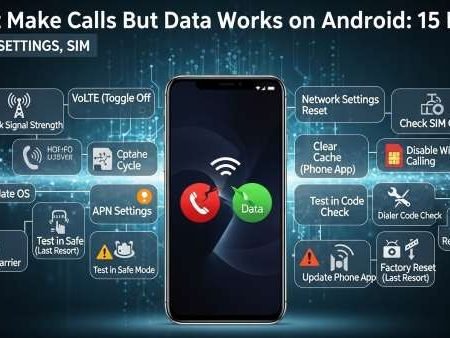

If your mobile data works (you can browse, use apps) but your phone can’t make or receive calls, the most common causes are:
- A device setting blocking calls (Do Not Disturb, blocked numbers, call barring)
- A network registration / signal problem (phone isn’t properly attached for voice)
- A VoLTE/4G calling issue, especially in areas where 3G has been shut down (data can still work, but voice fails)
- SIM/eSIM provisioning needs a refresh
Do this first
- Toggle Airplane mode ON 10 seconds → OFF, then restart
- Check Do Not Disturb, blocked numbers, and call barring
- Confirm VoLTE / 4G calling is enabled and network mode is Auto / LTE/5G
- Reseat SIM (or toggle eSIM line OFF/ON)
- Reset network settings (Wi-Fi, mobile, Bluetooth)
No Service / No Signal on Android
Fix 1: Confirm it’s a “calls-only” problem (quick test)
Turn Wi-Fi OFF, keep mobile data ON, and try:
- open a website (data test)
- call any automated number (voice test)
If data works but calling fails, it strongly points to voice registration / VoLTE / call settings rather than “no coverage.” Fairphone’s VoLTE diagnostics guide calls this pattern a key VoLTE indicator.
Fix 2: Toggle Airplane mode (fast voice re-registration)
Airplane mode forces the phone to disconnect and reattach to the network. Google Fi’s call troubleshooting includes toggling airplane mode as a reset step
After turning it off, wait 60 seconds before testing a call again.
Fix 3: Restart your phone (simple but effective)
A restart clears stuck modem/telephony services. Samsung’s “unable to make or receive calls” troubleshooting includes basic device checks like this early.
If you recently updated Android, restarting is even more important.
Fix 4: Turn off Do Not Disturb and check blocked numbers
DND can silence calls, and blocked numbers can make it look like calls “don’t come through.” Samsung explicitly recommends disabling DND and checking blocked contacts/numbers when calls fail.
After changing this, ask someone to call you once to confirm.
Fix 5: Check Call Barring (blocks outgoing/incoming calls)
Call barring is designed to stop outgoing or incoming calls. If it was enabled accidentally, you may have data but no calling. Samsung explains call barring can block calls based on settings you enable.
Search your Settings for “Call barring” and disable it for all outgoing calls (and incoming, if enabled).
Fix 6: Make sure the correct SIM is selected for calls (Dual SIM phones)
On Dual SIM devices, Android can route calls through the wrong line or a disabled line after an update. Pixel’s mobile connectivity guide shows SIM controls like “Use SIM” and carrier/SIM selection in Settings.
Set Calls to the SIM you actually use, then test again.
Fix 7: Reseat the SIM (or toggle eSIM line OFF/ON)
A slightly loose SIM contact can break voice registration while data seems “okay” for a moment. Samsung’s call troubleshooting includes checking the SIM as part of the fix flow.
For eSIM, toggle the line OFF then ON (don’t delete the eSIM unless you can re-add it).
Fix 8: Set Preferred network type / Network mode to Auto (LTE/5G)
If your phone gets stuck on a weird mode after an update, calls may fail. Pixel Help specifically suggests checking Preferred network type under SIM settings.
Choose an Auto option like 5G/LTE/3G/2G (Auto) (wording varies).
Fix 9: Enable VoLTE / 4G calling (very common “data works, calls fail” cause)
In many regions, networks are reducing or shutting down older 3G voice support. In those cases, your phone can still use 4G data, but voice calls may fail unless VoLTE / 4G calling is working. Fairphone’s VoLTE diagnostics explicitly describes this “data works but voice fails” pattern and recommends VoLTE checks and operator provisioning.
Some operators also explain that VoLTE/4G calling is required for voice once older networks are retired.
Fix 10: Turn off Wi-Fi Calling temporarily (test)
Sometimes Wi-Fi Calling can interfere when the phone keeps bouncing between Wi-Fi and cellular voice paths. Pixel community guidance often suggests disabling Wi-Fi Calling as a troubleshooting step.
Turn it OFF, restart, and test calls on cellular.
Fix 11: Reset network settings (strong “clean slate”)
Resetting network settings clears carrier/network configs that can break calling after updates or SIM changes. Pixel Help includes network and SIM configuration checks and is commonly paired with resets for connectivity issues.
On many phones: Settings → System → Reset options → Reset Wi-Fi, mobile & Bluetooth (wording varies). Sony documents the generic “reset network settings” approach on Android.
Fix 12: Update your phone software (and try any follow-up patch)
If the issue started after an update, check for a follow-up update. Pixel Help notes updates roll out in phases and checking for updates is a standard step in call troubleshooting threads.
After installing updates, restart once before testing calls.
Fix 13: Check if your account/service is active (provider-side)
If your account is suspended, the plan expired, or the line isn’t provisioned for voice, you may get partial service (sometimes data-only behavior varies by provider). Samsung’s troubleshooting includes verifying your account and service status.
Log into your provider app/site or contact support to confirm your line is active.
Fix 14: Test with another SIM (isolates SIM vs device)
This is the fastest way to stop guessing:
- If another SIM makes calls fine in your phone → your SIM/line provisioning is the problem
- If multiple SIMs fail in your phone → your device settings or hardware is the problem
Samsung troubleshooting frequently points users toward SIM checks as part of diagnosing call failures.
Fix 15: Ask your provider to provision VoLTE/IMS (when everything else checks out)
If the pattern is “data works, calls fail,” ask your provider to:
- confirm VoLTE/IMS is provisioned on your line
- refresh/re-provision your SIM/eSIM
- confirm there’s no local outage
Fairphone’s VoLTE diagnostics even suggests what to tell your operator (VoLTE/IMS registration/provisioning checks).
4G/5G Not Showing After Update on Android
Sources
Samsung Support: Galaxy phone is unable to make or receive calls
https://www.samsung.com/us/support/troubleshoot/TSG10001939/

Samsung Support: Call and text messages blocking issues with Galaxy phone (blocked numbers / DND)
https://www.samsung.com/us/support/troubleshoot/TSG10001942/

Samsung Support: Call barring feature (can block outgoing/incoming calls)
www.samsung.com/ae/support/mobile-devices/how-to-activate-and-use-the-call-barring-feature-on-my-samsung-phone/

Google Pixel Help: Fix mobile connectivity issues (SIM settings + preferred network type)
https://support.google.com/pixelphone/answer/14116080

Google Fi Help: Trouble with phone calls or Wi-Fi calls (airplane mode reset + diagnostics)
https://support.google.com/fi/answer/6195552



