


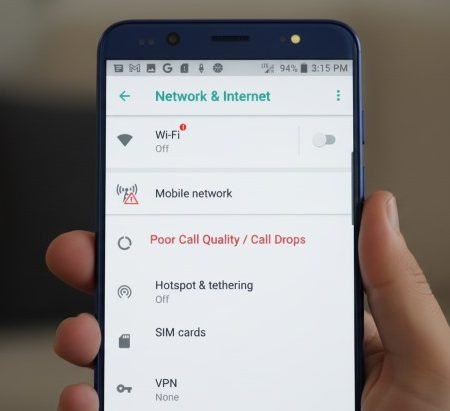

If your Android calls drop, go silent, cut out, or sound robotic/echoey, the cause is usually one of these:
- Weak signal, congestion, or an outage (network side)
- Wi-Fi Calling / VoLTE handoff issues (voice path switching)
- Bluetooth or accessory interference
- Microphone/speaker blockage, case/film issues
- SIM/eSIM or network settings glitches
Samsung notes dropped calls are often signal-related, but can also be tied to SIM problems or device damage.
Google Fi’s call quality checklist also starts with signal strength and hardware checks (mic/speaker).
Do this first
- Check signal bars and try a different spot (near a window/outside)
- Toggle Airplane mode ON 10 seconds → OFF, then restart
- Turn Wi-Fi Calling OFF temporarily and test one call (isolates voice path)
- Disconnect Bluetooth (test without earbuds/car)
- Reset network settings if it keeps happening
No Service / No Signal on Android
Fix 1: Check signal strength (bars matter more than you think)
If you have 0–1 bars, call quality will suffer and drops are more likely. Google Fi explicitly says low bars can affect call quality.
Do a quick test: step outside or near a window and call again. If it improves, the issue is mostly coverage/interference.
Fix 2: Toggle Airplane Mode (fast network re-register)
Airplane mode forces your phone to disconnect from the tower and reconnect fresh. This often fixes “stuck” registration that causes random call drops. Google Fi includes connection checks like this in call troubleshooting.
After switching it off, wait a full minute before placing the next call.
Fix 3: Restart your phone (clears telephony glitches)
A restart resets your modem processes and can instantly stabilize calls. Samsung includes rebooting as a key troubleshooting method for dropped calls.
If your issue started after a recent update, restarting is even more important.
Fix 4: Turn Wi-Fi Calling OFF temporarily (isolate the problem)
Wi-Fi Calling can be great, but if your Wi-Fi is unstable, calls may cut out or drop. Google Fi troubleshooting includes checking call settings and Wi-Fi call behavior for quality issues.
Turn Wi-Fi Calling off, test 1–2 calls on cellular, then decide whether to keep it off or fix Wi-Fi first.
Fix 5: If Wi-Fi Calling is ON, test on a different Wi-Fi network
Some routers/firewalls block what Wi-Fi Calling needs. If Wi-Fi calls drop only at home but work elsewhere, your router setup is the likely culprit.
Try a second Wi-Fi (friend’s Wi-Fi or your own mobile hotspot) for a clean comparison.
Fix 6: Disconnect Bluetooth and make a normal call
Bluetooth earbuds, car systems, or smartwatches can cause one-way audio, drops, or “robot voice,” especially when they connect/disconnect mid-call. Google Fi suggests checking mic/speaker behavior and doing basic hardware checks.
Turn Bluetooth off and test one call using the phone normally.
Fix 7: Clean and test microphone + speaker (simple hardware check)
Poor sound quality can be as simple as a blocked microphone hole or speaker grill. Samsung’s guidance for poor call sound quality includes step-by-step checks and points out device damage as a possibility if issues persist.
Remove thick cases, screen protectors near the earpiece, and gently clean openings with a soft dry brush.
Fix 8: Switch between earpiece and speakerphone during the call
If earpiece audio is bad but speakerphone is fine (or the opposite), it narrows the problem to a specific mic/speaker path.
This helps you avoid wasting time on network resets when it’s actually an audio hardware issue.
Fix 9: Set Network mode to Auto (don’t force 2G/3G)
If your phone is forced to an older mode, calls may be unstable depending on your area. Use an Auto option that includes LTE/5G when available. Samsung’s mobile network troubleshooting emphasizes checking network settings when you have poor signal or calling problems.
After changing network mode, restart once.
Fix 10: Toggle VoLTE / 4G Calling ON (if available)
In many places, voice quality and call stability improve when VoLTE is properly working because it uses LTE for voice. If VoLTE isn’t active, calls may fall back to older networks where coverage is weaker.
If you’re not sure, test a call: if your phone drops from LTE to 3G/2G during calls, VoLTE may be off.
Fix 11: Reseat SIM (or toggle eSIM line OFF/ON)
A slightly loose or aging SIM can cause intermittent registration that looks like random call drops. Samsung notes frequent dropped calls can be related to a damaged or improperly inserted SIM.
Power off, reseat the SIM, and test again. For eSIM, toggle the line off/on instead of deleting it.
Fix 12: Update your phone software
Updates can improve modem performance and fix call bugs. Samsung recommends checking software updates as part of dropped-call troubleshooting.
After updating, restart once and do a 2–3 minute test call.
Fix 13: Reset network settings (strong fix when drops are frequent)
If drops started after an update, SIM change, or network switch, a network reset can clear corrupted configurations. Samsung’s troubleshooting flow mentions resets among appropriate methods for dropped calls.
Note: this will remove saved Wi-Fi networks and Bluetooth pairings, so keep passwords handy.
Fix 14: Try Safe Mode (checks for app conflicts)
Some “call recording,” “battery saver,” firewall/VPN, or security apps can interfere with calling. Safe Mode disables third-party apps temporarily so you can test clean calling behavior.
If calls are perfect in Safe Mode, uninstall the most recent apps (especially call-related or network tools).
Fix 15: Contact your network provider (when phone checks out)
If you’ve tested different locations, turned off Wi-Fi calling/Bluetooth, reseated SIM, and still drop calls daily, ask your provider to:
- check for local outages or tower congestion
- refresh/re-provision your SIM/eSIM line
- verify voice services (VoLTE/IMS) are enabled on your account
Samsung’s dropped-call guidance highlights signal issues and SIM/account/device factors.
Wi-Fi Calling Not Working on Android
Sources
Samsung Support: Dropped calls on a Samsung phone (signal + SIM + troubleshooting methods)
https://www.samsung.com/us/support/troubleshooting/TSG01001240/

Samsung Support: Troubleshoot poor sound quality during a phone call
https://www.samsung.com/uk/support/mobile-devices/how-to-troubleshoot-poor-sound-quality-during-a-phone-call/

Google Fi Help: Trouble with phone calls or Wi-Fi calls (signal strength, mic/speaker checks)
https://support.google.com/fi/answer/6195552

Samsung Support: Phone has poor signal and cannot use data or make calls (settings checks)
https://www.samsung.com/us/support/troubleshooting/TSG01001598/




