


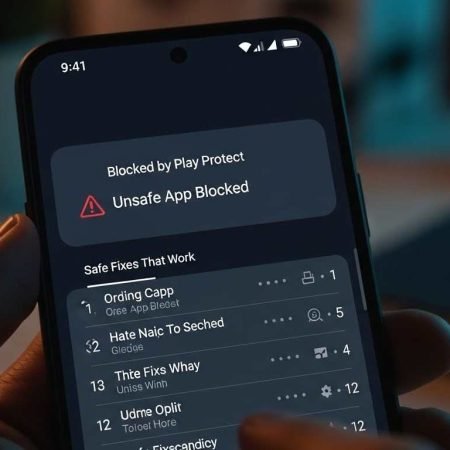

If you see messages like “Blocked by Play Protect”, “Unsafe app blocked”, “Harmful app blocked”, or “App blocked to protect your device”, Google Play Protect is warning you that the app may be risky or the install source looks suspicious.
What the warning usually means
- You’re installing an APK from a higher-risk source (browser, messaging app, third-party site). Play Protect actively checks those installs and can block apps that request sensitive permissions or look dangerous.
- The app is new/unverified, modified, or not signed the way Play Protect expects.
- Some “blocked” prompts appear during the install flow (Google documents this exact warning experience for developers too).
Two important checks before you do anything
- Is the app available on the Play Store? If yes, install it from there (safest).
- Did you get the APK from the official developer website? If no, don’t install it.
Do this first
- Don’t bypass the warning until you confirm the source is legit
- Try installing the app from the official Play Store listing (if available)
- Update Play Store + Play services, then retry
- Clear Play Store cache/data (if Play Protect is glitching)
- If you must sideload: temporarily toggle Play Protect scanning OFF, install, then turn it back ON (not recommended long-term)
Android “App Not Installed” Error: 11 Fixes
Fix 1: Confirm the app is real (safest move)
Before you try any “fix”:
- Search the app name + developer name on Play Store
- Avoid APKs from random sites, Telegram/WhatsApp groups, or “mod” pages
Play Protect exists to reduce malware risk; bypassing it can put accounts and data at risk.
Fix 2: Prefer the Play Store version (if it exists)
If the app is available in Google Play, install from there and avoid sideloading. Play Protect is designed around safer installs, and sideloaded apps are treated as higher risk.
Fix 3: Redownload the APK (corrupted file = suspicious behavior)
If you’re 100% sure the source is official:
- Delete the APK
- Download again from the official site
Corrupted downloads can trigger warnings or fail installation.
Fix 4: Restart your phone
A basic restart clears stuck Play services processes.
Fix 5: Update Google Play services / Play Store
Play Protect runs through Google’s services layer. If your device is behind on updates, weird warnings can happen. Google recommends keeping Play Protect enabled and updated through Play Store settings.
Fix 6: Clear Play Store cache (safe)
Go to:
Settings → Apps → Google Play Store → Storage & cache → Clear cache
Then try again.
Fix 7: Clear Play Store data (strong, but common fix)
Settings → Apps → Google Play Store → Storage → Clear storage/data
This can reset Play Store settings, but often fixes repeated security prompt glitches.
Fix 8: Check “Install unknown apps” permission (only for trusted sources)
If you’re installing an APK:
Settings → Security/Privacy → Install unknown apps
Enable it only for the app you’re using to install (Chrome or Files). Turn it back off after.
Fix 9: Understand what Play Protect is flagging (why it blocks)
Google states Play Protect analyzes apps from higher-risk sources and looks for suspicious access patterns (like sensitive permissions / abuse paths), and it can block unsafe installs.
If an APK asks for things that don’t match its purpose (SMS, Accessibility control, notification reading), treat it as a red flag.
Fix 10: Temporarily turn OFF Play Protect scanning (only if you’re certain)
If you fully trust the app (official source, correct file, you understand the risk), Google explains how to turn Play Protect scanning on/off:
Play Store → Profile → Play Protect → Settings → Scan apps with Play Protect (OFF)
Install the app, then turn Play Protect back ON.
Security note: Google recommends keeping Play Protect on by default.
Fix 11: If it’s still blocked, don’t force it — use safer options
If Play Protect keeps blocking the app even after updates and re-download:
- Use the official Play Store version (if available)
- Use the service’s official website
- Contact the developer for the official APK or guidance
This is usually safer than trying “patched” or unofficial builds.
Fix 12: For developers (short note)
Google provides specific guidance for Play Protect warning experiences and why apps get blocked during install.
If you’re not a developer, the main takeaway is: don’t bypass warnings unless you trust the source.
This App Isn’t Compatible With Your Device (Play Store): 12 Fixes
Sources
Google Play Help: Use Google Play Protect (turn on/off Play Protect scanning)
https://support.google.com/googleplay/answer/2812853

Google Account Help: Play Protect scans higher-risk sources and may block unsafe installs
https://support.google.com/accounts/answer/2812853

Google Developers: Guidance for Play Protect warnings shown when an app is blocked
https://developers.google.com/android/play-protect/warning-dev-guidance




