




Seeing a black line on your HP laptop screen? Use this step-by-step guide to diagnose software vs hardware, test with an external monitor, run HP diagnostics, update drivers/BIOS, and know when you need a screen or cable repair.
Black Line on HP Laptop Screen (Vertical or Horizontal): How to Fix It
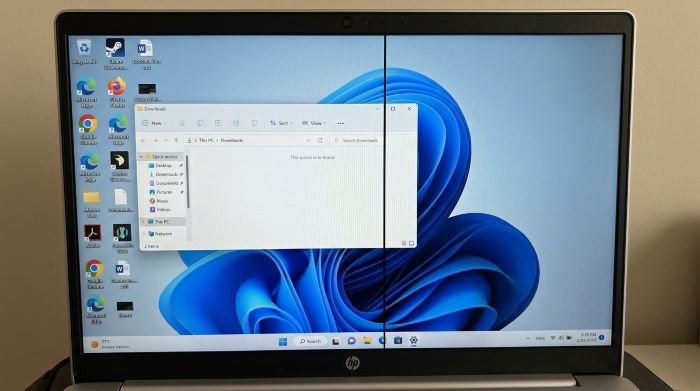
A black line on an HP laptop screen usually comes from one of two buckets:
- Software issue (graphics driver, Windows update, refresh rate, display settings)
- Hardware issue (LCD panel damage, loose display cable, hinge stress, GPU fault)
Use this quick diagnostic flow first so you don’t waste time.
Quick Diagnosis (2 minutes)
1) Restart your laptop
Some display issues clear after a simple restart.
2) Take a screenshot
- If the black line shows in the screenshot, it’s likely software/GPU.
- If the black line does not show in the screenshot, it’s usually screen/cable hardware.
3) Connect an external monitor (most important test)
- If the external monitor looks clean, your laptop screen or cable is the problem.
- If the external monitor also shows lines, it’s more likely GPU/driver.
Step-by-step fixes (do in order)
Fix 1: Check for physical pressure or hinge angle issue
Gently tilt the screen forward/back and see if the line changes (thicker, thinner, flickers).
If it changes, it often points to a loose/strained display cable near the hinge.
What to do:
- Stop forcing the hinge
- Avoid closing the lid tightly
- Plan for a cable reseat/repair (hardware)
Fix 2: Update the graphics driver (Windows)
A buggy display driver can create lines, flicker, or distortion.
Device Manager method (official Microsoft steps):
- Right-click Start → Device Manager
- Expand Display adapters
- Right-click your GPU → Update driver
- Choose Search automatically for updated driver software
Also check Windows Update “Optional updates” for driver updates.
Fix 3: Roll back the driver (if it started after an update)
If the line appeared right after a Windows update or driver update:
- Device Manager → Display adapters → right-click GPU → Properties
- Driver tab → Roll Back Driver (if available)
Fix 4: Reset display settings (resolution + refresh rate)
Wrong refresh rate or odd resolution scaling can trigger artifacts.
Try:
- Set resolution to Recommended
- Try refresh rate 60Hz (then test another option if available)
Fix 5: Boot into Safe Mode (software check)
Safe Mode uses basic drivers.
- If the black line disappears in Safe Mode, it’s likely driver/software.
- If it stays, it’s likely hardware.
Fix 6: Run HP UEFI/System Diagnostics display test
HP’s hardware diagnostics can help confirm if it’s a screen-level fault.
Common HP flow is:
- Restart → press Esc repeatedly → F2 for System Diagnostics → run a Display Test (options vary by model).
Result reading:
- Line shows in diagnostics = hardware fault (panel/cable)
- No line in diagnostics but appears in Windows = software/driver
Fix 7: Update BIOS (helps with display compatibility issues)
HP provides BIOS update paths via BIOS setup and via Support Assistant depending on model.
- One HP method: restart and press F10 repeatedly to enter BIOS setup.
- HP Support Assistant can also check updates (including BIOS updates) from its Updates section.
(If you’re not comfortable with BIOS updates, do this last, or get help. Don’t power off mid-update.)
Fix 8: If it’s hardware, here’s what it usually is
If the line stays on BIOS/diagnostics and external monitor is fine, the most common causes are:
- Damaged LCD panel (needs screen replacement)
- Loose or worn display ribbon cable (reseat/replace cable)
- Hinge stress cutting into cable over time
If external monitor also shows the line, suspect:
- GPU/driver first (try driver fixes)
- If driver fixes fail: GPU hardware (service required)
When to stop troubleshooting and go for repair
Go for repair if any of these are true:
- The line appears before Windows loads (HP logo/BIOS)
- The line changes when moving the hinge
- You see cracks, liquid marks, or pressure spots
- External monitor is clean but laptop screen is not
If your laptop is under warranty, it’s smarter to contact HP/service instead of opening the laptop.
You also like: Fix zarchiver access denied error
FAQs (Quick Answers)
Why is there a vertical black line on my HP laptop screen?
Most often it’s an LCD panel column failure or a display cable issue. Use the external monitor test to confirm.
Can a driver update fix black lines?
Yes, if the issue is software-based. Update or roll back the display driver via Device Manager.
If the line shows on an external monitor too, what does it mean?
It usually points to GPU/driver (try drivers first). If it persists after driver fixes, it may be hardware.



