


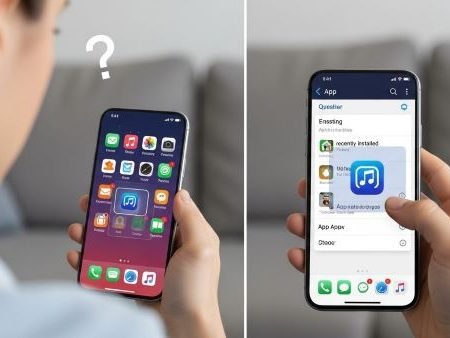

So the app is installed, but you can’t find its icon anywhere — not on the Home screen, not in the app drawer. This is usually one of four things:
- the icon is hidden (common on Samsung)
- the app is inside a Work profile (Work tab)
- the app is disabled
- your launcher (Home app) is glitching or filtering apps
App Fixes Hub (Complete Guide)
Do this first
- Swipe up → open All Apps / App Drawer and use the search bar. Google confirms all apps live in “All Apps.”
- Go to Settings → Apps → See all apps and confirm the app is installed and Enabled (not disabled).
- If you see a Work tab in the app drawer, turn Work profile ON (or check Work apps).
- On Samsung, check Hide apps (it can remove icons from the drawer).
- If nothing shows, boot Safe mode to test if a launcher/third-party app is causing it.
Quick check: Is it actually installed?
Open Settings → Apps → See all apps and search the app name.
- If you don’t see it there, it’s not installed (or install failed).
- If you do see it, continue below.
Android “App Not Installed” Error: Fixes
Fix it based on what you’re seeing
A) The app shows in Settings, but icon is missing everywhere
1) Search “All Apps” and add it back to Home screen
Google’s Android guide confirms: some apps are on Home screens, and all apps are in All Apps.
If you find it in All Apps:
- Long-press the app → Add to Home (or drag it to Home)
2) Check if the app is disabled
Disabled apps can disappear from the list and not behave normally. Google explains some apps can be turned off (disabled)
Try:
- Settings → Apps → the app → Enable
3) Samsung users: check “Hide apps”
Samsung One UI can hide apps from the app drawer. Samsung’s support shows Hide apps inside Home screen settings.
Try:
- Long-press Home screen → Settings → Hide apps → remove the app from the hidden list
4) Check Work profile (Work tab)
If your phone has a Work profile (company/school setup), the app may live under the Work tab in the app drawer. Android Enterprise Help shows you can toggle Work profile from the Work tab.
Try:
- App drawer → Work tab → toggle Work apps ON If Work profile is paused, Work apps won’t appear.
5) Check Secure Folder / Private space
On Samsung, apps moved into Secure Folder may not show normally. If you use Secure Folder, open it and check inside (especially for banking/social apps).
B) The app appears in Settings, but you can’t open it from anywhere
6) Restart once
Simple restart fixes stuck launcher indexing surprisingly often.
7) Update the app (if you can) or reinstall it
If the app is “installed” but broken, remove it and install again.
8) Safe Mode test (to catch launcher or third-party conflicts)
Google recommends Safe Mode to identify whether a downloaded app is causing system/launcher issues.
Samsung also explains Safe Mode runs without third-party apps, helping you isolate conflicts.
If the icon shows in Safe Mode, your launcher or a third-party app is the culprit
C) The app is missing only from the Home screen (but it’s in the drawer)
9) Just add it back
This is the easiest case:
- Open All Apps → long-press → Add to Home
10) Check Home screen layout/lock settings
Some phones prevent changes when Home screen layout is locked. Unlock it, then add the icon again.
D) You use a custom launcher (Nova, Microsoft Launcher, etc.)
11) Check launcher “hidden apps” list
Many launchers have a “hide apps” feature. Open launcher settings and check hidden apps.
12) Switch default Home app back and test
Go to:
- Settings → Apps → Default apps → Home app
Pick the stock launcher (Pixel Launcher / One UI Home), test, then switch back.
E) When the issue started after installing an APK (sideload)
If you installed from outside Play Store, permissions/security settings can block it or hide it.
Install Blocked (For Your Security): 15 Fixes
FAQs
Why is an installed app not showing in my app drawer?
Most common causes: it’s hidden (Samsung), disabled, inside Work profile, or filtered by your launcher.
How do I find an app if the icon is missing?
Use the All Apps search. Google confirms all apps are in All Apps and can be searched/opened from there.
What is the Work tab in the app drawer?
It’s for Work profile apps. You can toggle Work profile ON/OFF from the Work tab.
What does Safe Mode help with?
Safe Mode runs without third-party apps, which helps you confirm if a launcher/app conflict is hiding icons.
Sources
Google Android Help: Find, open & close apps (All Apps / app drawer basics)
https://support.google.com/android/answer/9079646?hl=en

Samsung Support: Hiding apps on Galaxy (Hide apps setting)
https://www.samsung.com/au/support/mobile-devices/hiding-apps-on-samsung-phone/

Android Enterprise Help: Pause or turn on your work profile (Work tab toggle)
https://support.google.com/work/android/answer/7029561?hl=en

Google Android Help: Find problem apps by rebooting to safe mode
https://support.google.com/android/answer/7665064?hl=en

Samsung Support: How to turn on Safe Mode (Galaxy)
https://www.samsung.com/pk/support/mobile-devices/smart-phone-how-to-turn-on-the-safe-mode-on-the-device/

Google Android Help: Disable apps that came with your device (disabled apps context)
https://support.google.com/android/answer/13627571?hl=en



