


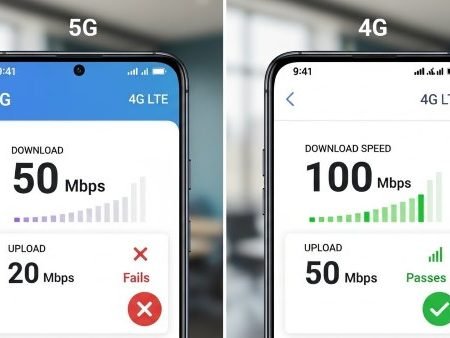

If your 5G is slower than 4G/LTE, you’re not imagining it. It can happen when you’re at the edge of 5G coverage, when the 5G network is congested, or when your phone is using a “5G” mode that still depends on parts of the 4G network (called NSA: non-standalone). GSMA explains that 5G NSA often runs 5G radio on top of an existing 4G core/EPC.
Even speed-test reporting has shown 5G performance can vary and sometimes decline as networks get loaded.
The good news: in most cases, you can make your internet feel faster by using the right network mode and a few Android settings.
Do this first
- Run 2 speed tests in the same spot: one on 5G, one after forcing LTE/4G (compare fairly).
- Move near a window/outside and test again (5G is very sensitive to signal).
- Change Preferred network type to LTE for a day if LTE is consistently faster. Pixel phones let you pick preferred network type like 5G or LTE.
- Turn Data Saver OFF and remove any mobile data limit (these can slow app loading).
- Turn VPN off, set Private DNS to Automatic (temporary test).
- Reset network settings if the problem started after an update (Samsung lists resets as a core step for slow mobile connection).
4G/5G Not Showing After Update on Android: 14 Fixes
Fix 1: Make sure 5G is actually slower (test it the right way)
Do this quick comparison so you don’t guess:
- Turn Wi-Fi OFF
- Test speed on 5G
- Switch to LTE/4G (Fix 4 below)
- Test speed again in the same place
If LTE wins repeatedly, your “5G” signal or network mode is likely the issue, not your phone performance.
Fix 2: Test 5G in an open area (signal makes 5G feel “slow”)
5G can look strong (icon shows) but still be weak indoors. Try:
- near a window
- outside your home/office
- a different room
If speed jumps outside, keep LTE indoors and use 5G only where it’s strong.
Fix 3: Toggle Airplane Mode and restart (quick network refresh)
Sometimes your phone sticks to a bad 5G connection. Airplane mode forces a fresh attach.
After Airplane mode OFF, wait 60–90 seconds, then test again.
Fix 4: Switch Preferred Network Type to LTE/4G (best real-world fix)
If 5G is unstable in your area, locking to LTE often makes your browsing feel faster and more consistent.
On Pixel, “Preferred network type” is a built-in option (5G/LTE etc.).
On Samsung, their mobile network troubleshooting specifically tells users to check network settings and select a network mode.
Fix 5: If LTE is faster, keep LTE indoors and use 5G outdoors
This is the most practical setup:
- LTE-only when you’re mostly indoors (stable)
- Auto/5G when you’re outside or in strong coverage
You don’t need 5G always. You need the best connection for your location.
Fix 6: Use “Auto” mode when you move around a lot
If you travel between areas, Auto mode can be better than forcing LTE forever.
Samsung’s guidance highlights that region/environment and settings can affect slow connections, so changing network mode can help depending on where you are.
Fix 7: Turn Data Saver OFF (it can make the internet feel slow)
Data Saver can restrict background data and app behavior, which can make pages load slower or apps feel “laggy.” Pixel Help explains Data Saver limits most apps’ background data on mobile.
Also check Android’s official Data Saver + data limit settings (data limits can cut off or throttle).
Fix 8: Remove “Data limit” and raise “Data warning” (if you set it)
If you set a very low data limit, Android may stop mobile data in the background or behave weirdly. Android’s guide shows where Data warning & limit live.
After adjusting, restart once and test again.
Fix 9: Turn VPN OFF and set Private DNS to Automatic (temporary test)
VPN and custom DNS can sometimes route traffic in a slower way, especially on mobile networks.
Turn VPN OFF, set Private DNS to Automatic, then run one speed test again. If speed improves, re-enable one thing at a time to find the culprit.
Fix 10: Reset Network Settings (strong “clean slate”)
If this started after:
- an Android update
- SIM/eSIM change
- switching providers
A network reset is one of the highest success fixes. Samsung lists “Reset network settings” as part of mobile network troubleshooting.
After reset, you’ll need to reconnect Wi-Fi and Bluetooth.
Fix 11: Check for a small follow-up update
Sometimes modem/network fixes come in a second patch. After updating:
- restart once
- test speed in the same spot again
Fix 12: Refresh SIM/eSIM (quick re-provision test)
If your phone is flipping between 5G and LTE and speeds are inconsistent:
- Physical SIM: power off → reseat SIM → power on
- eSIM: toggle the line off/on
This forces a fresh registration attempt and can stabilize performance.
Fix 13: Understand “NSA 5G” (why 5G can feel inconsistent)
Many places still use 5G NSA, which means the 5G radio is used but parts of the connection still rely on the 4G core network. GSMA and Ericsson both describe NSA vs SA as two different 5G tracks.
At busy times, that can translate into unstable speeds, especially if your phone keeps switching between 5G and LTE.
Fix 14: If it’s slow only at peak hours, it’s probably congestion
If 5G is fast at 2 AM but slow at 7 PM, your phone is likely fine. That’s usually network congestion.
IEEE Spectrum reported that Ookla speed-test data showed performance declines and variability as 5G networks evolved and load increased.
Best workaround: use LTE at peak hours, and switch back to 5G later.
Fix 15: Contact your network provider (ask the right questions)
If you tried LTE vs 5G tests and resets and 5G is always slower, ask your provider:
- Is my plan/SIM provisioned correctly for 5G?
- Is 5G in my area low-band only?
- Are there outages or capacity issues near my location?
Samsung’s official troubleshooting also points to plan, region, and network settings as common causes of slow mobile connection.
APN Settings on Android: Reset, Fix Mobile Data & MMS (15 Steps)
Sources
Google Pixel Help: Connect to mobile networks (Preferred network type options like 5G/LTE)
https://support.google.com/pixelphone/answer/2926415

Samsung Support: Issues with mobile network connection (check settings, network mode, reset)
https://www.samsung.com/us/support/troubleshooting/TSG01212956/

GSMA: 5G Standalone vs NSA (NSA uses 4G core/EPC)
https://view.gsma.com/complete-5g/p/2

Ericsson: Standalone vs Non-standalone (two 5G tracks)
https://www.ericsson.com/en/blog/2023/4/standalone-and-non-standalone-5g-nr-two-5g-tracks

Pixel Help: Use less mobile data with Data Saver (background data restriction)
https://support.google.com/pixelphone/answer/7055392

Android.com: Data Saver + Data warning & limit settings
https://www.android.com/articles/how-to-use-android-data-saver/

IEEE Spectrum: 5G performance variability and Ookla speed-test reporting
https://spectrum.ieee.org/5g-rollout-disappointments




