


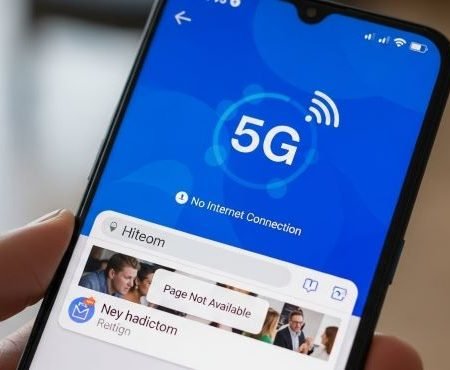

If your phone shows 5g (or LTE) but apps keep spinning and websites won’t open, you’re dealing with a “connected but not actually online” situation. Most of the time it’s caused by a stuck connection, a DNS/VPN issue, wrong APN settings, or a network-mode glitch after an update. Google’s official troubleshooting starts with switching between Wi-Fi and mobile data and restarting.
Do this first
- Turn Wi-Fi OFF, keep mobile data ON, and try loading 2–3 sites (real test).
- Toggle Airplane mode ON 10 seconds → OFF, then restart.
- Turn VPN OFF and set Private DNS to Automatic.
- Reset APN to default, then test again.
- If it’s still dead: Reset network settings and re-check network mode.
APN Settings on Android: Reset, Fix Mobile Data & MMS
Fix 1: Confirm it’s not a website/app issue
Try two different apps (Chrome + YouTube, for example). If nothing works, it’s your connection. If only one app fails, update that app first.
Fix 2: Do the “Wi-Fi OFF” test properly
Many people think mobile internet is broken while the phone is still using Wi-Fi. Google recommends switching between Wi-Fi and mobile data to isolate the real problem.
So turn Wi-Fi off and test again for one minute.
Fix 3: Restart your phone (simple, high success)
A reboot clears stuck network processes. Google lists restarting as an early step for connection problems.
After restart, wait 30–60 seconds before testing
Fix 4: Toggle Airplane mode to force a clean re-connect
Airplane mode forces your phone to detach and re-register. It often fixes the “5G icon is there, but nothing loads” bug.
Fix 5: Turn Data Saver OFF (and remove strict limits)
Data Saver can make apps behave like the internet is “not responding” because background data is restricted. If you use data limits, increase them or disable them while testing.
Fix 6: Disable VPN (temporary test)
VPNs can route traffic through slow or blocked paths. Turn it off, test browsing, then decide whether your VPN settings need adjustment.
Fix 7: Set Private DNS to Automatic (or OFF temporarily)
Private DNS issues can break browsing even when you have signal. Google shows where to change Private DNS and recommends keeping it enabled by default, but for troubleshooting you can switch it back to Automatic.
After changing it, test again with Wi-Fi off.
Fix 8: Toggle mobile data OFF/ON for your SIM line
On dual-SIM phones, it’s easy to toggle data for the wrong line. Turn mobile data off then on again for the correct SIM and test a page load.
Fix 9: Check the selected SIM for data (Dual SIM users)
If your phone has two SIMs (or SIM + eSIM), make sure the right line is selected for mobile data. This single setting causes a lot of “signal shows but internet dead” reports.
Fix 10: Reset APN to default (big fix for “no browsing”)
APN tells your phone how to reach the provider’s internet gateway. If it’s wrong, you can get bars and still have no usable data. Reset APN to default, restart once, and test again.
Fix 11: Switch network mode (Auto vs LTE) when 5G is unstable
Sometimes 5G is available but not usable in your spot (edge coverage or congestion). Try switching to LTE/4G for stability, or set Auto again after testing. Samsung’s guidance includes checking network mode as part of mobile connection troubleshooting.
Fix 12: Check for a pending system update
If this started after an update, there may be a follow-up patch that fixes radio/modem issues. Install updates, then restart.
Fix 13: Reset network settings (strong clean slate)
If nothing has helped, a network reset often clears hidden glitches. Samsung’s official troubleshooting includes reset network settings as a step for mobile connection issues.
Note: you’ll need to reconnect Wi-Fi and Bluetooth devices afterward.
Fix 14: Reseat SIM (or toggle eSIM line OFF/ON)
A weak SIM contact or an eSIM glitch can cause weird “connected but offline” behavior. Power off, reseat the SIM properly, and try again. For eSIM, toggle the line off/on.
Fix 15: Contact your network provider (ask for a refresh)
If your phone settings look fine but mobile internet still won’t work, ask your provider to:
- confirm your line has data service enabled
- refresh/re-provision your SIM/eSIM profile
- check if there’s a local outage or maintenance
Mobile Data Not Working on Android: 15 Fixes
Sources
Google: Fix internet connection problems on Android devices (restart + switch Wi-Fi/mobile)
https://support.google.com/googleplay/answer/2651367?hl=en

Google Pixel Help: Control airplane mode, Private DNS & other network settings (Private DNS path)
https://support.google.com/pixelphone/answer/2819583?hl=en

Samsung Support: Issues with mobile network connection (network mode + reset network settings)
https://www.samsung.com/us/support/troubleshooting/TSG01212956/




