


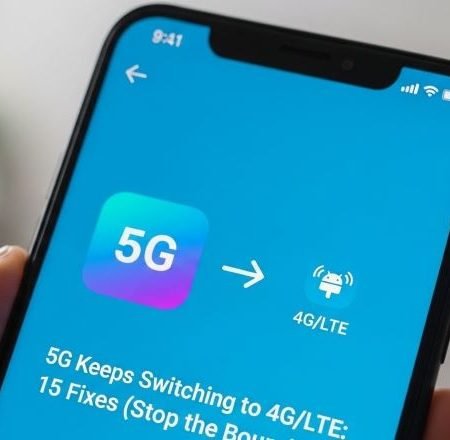

If your phone keeps bouncing between 5G and LTE/4G, it’s usually not a “fault” — it’s your device trying to hold the fastest connection, then falling back when the signal gets weak, indoors blocks it, Battery Saver is on, or the network is busy. Google even notes a 5G icon doesn’t always mean you’re actually using 5G at that moment, and phones may drop back to 4G when 5G isn’t available.
Also, many carriers still run 5G NSA (Non-Standalone), which sits on top of a 4G core, so switching behavior is more common at coverage edges.
Do this first
- Turn off Battery Saver (it can force LTE on some phones).
- Move near a window/outside and test again (walls/cases can block signal).
- Set Preferred network type to LTE for stability (quick test for 24 hours).
- Toggle Airplane mode ON (10 sec) → OFF.
- If it still keeps flipping, reset network settings and check for updates.
5G Shows But No Internet on Android
Fix 1: Confirm it’s real switching (not just an icon)
Sometimes the status icon changes even if performance doesn’t. Do a simple test:
- open a website + run one speed test
- if speed and loading stay stable, you can ignore the icon
Google explains the 5G icon can appear even when you’re not actively getting 5G service.
Fix 2: Turn OFF Battery Saver / Power Saving
On Pixel phones, Google clearly states: while Battery Saver is on, a 5G phone may use 4G.
So if you want the phone to stay on 5G more often, disable Battery Saver and test again.
Fix 3: Remove “signal blockers” (case + thick walls)
Google lists buildings/walls and even some phone cases as things that can interfere with mobile service, including 5G.
Try one quick test: take the case off for 2 minutes and check again
Fix 4: Test near a window or outdoors (2-minute experiment)
If it stabilizes outside, your issue is mostly indoor signal. In that case:
- use LTE indoors for consistency
- use 5G outdoors where it’s stronger
Fix 5: Toggle Airplane mode (fast network refresh)
Google’s Android troubleshooting recommends turning Airplane mode on/off (wait ~10 seconds) to fix connection problems.
This often stops the “stuck handshake” that causes frequent switching.
Fix 6: Restart your phone
A reboot clears the radio stack and reconnects cleanly. If the bouncing started after travel, SIM change, or an update, this helps.
Fix 7: Change Preferred Network Type (Pixel / stock Android)
On Pixel: Settings → Network & internet → SIMs → Preferred network type (pick 5G or LTE).
If you want stability, choose LTE for a day. If your speeds don’t drop, you’ve found a practical fix.
Fix 8: Change Network Mode (Samsung Galaxy)
Samsung’s guide shows: Settings → Connections → Mobile networks → Network mode → choose your preferred mode.
Samsung even suggests reverting from 5G to 4G in low reception areas.
Fix 9: Use LTE-only in weak areas (it feels faster in real life)
When coverage is borderline, the phone keeps “hunting” between networks. Locking LTE often gives:
- steadier browsing
- fewer drops
- better battery
Fix 10: Turn Auto/5G back on when you’re moving around
If you travel between strong and weak areas, Auto mode can be better than forcing LTE all week. You get 5G when it’s truly strong and fallback when it’s not.
Fix 11: Manually pick a network operator (when auto selection is messy)
Some phones let you choose the operator/partner network manually. Pixel includes a “Network: Pick your network operator” option under SIM settings.
This can help if your phone keeps hopping because auto-selection is unstable.
Fix 12: Check for a system update (modem fixes often come quietly)
Pixel recommends checking for system updates as part of fixing mobile network issues.
Samsung also tells users to keep device software updated for 5G use.
Fix 13: Reset network settings (strongest “clean slate” fix)
This clears mobile/Wi-Fi/Bluetooth network configs and can stop weird switching loops. Sony’s official steps show: Settings → System → Reset options → Reset network settings.
Pixel and Samsung both include network reset as a troubleshooting step for mobile connectivity issues.
Fix 14: SIM/eSIM check (especially Dual SIM)
If you use two lines, confirm the correct SIM is set for data. Pixel notes mobile settings change per SIM and includes guidance for default data SIM.
Quick test: switch data to the other SIM (if available) for 1 minute, then switch back.
Fix 15: Ask your carrier about coverage + 5G type (US + worldwide)
Google notes some carriers offer 5G in smaller areas than their other services, and 5G types/speeds vary by carrier.
So if you’re targeting the USA (Verizon / AT&T / T-Mobile), tell readers: check coverage maps or ask support if their area has strong 5G on their plan and device.
5G Slower Than 4G on Android: 15 Fixes
Sources
Google Pixel Help: Connect to mobile networks (preferred network type, icon behavior, Battery Saver and 5G, reset steps)
https://support.google.com/pixelphone/answer/2926415?hl=en

Google Pixel Help: Use Battery Saver on a Pixel phone (5G may use 4G while Battery Saver is on)
https://support.google.com/pixelphone/answer/6187458?hl=en

Google Play Help: Fix internet connection problems (airplane mode toggle steps)
https://support.google.com/googleplay/answer/2651367?hl=en

Samsung Australia: Changing Network Mode on Galaxy (switch between 5G/4G)
https://www.samsung.com/au/support/mobile-devices/network-mode/

Samsung US: Mobile network connection issues (plan/region/settings can cause disconnect)
https://www.samsung.com/us/support/troubleshooting/TSG01212956/

Sony Support: Reset network settings (official steps)
https://www.sony.com/electronics/support/articles/SX670101

GSMA: 5G Standalone vs Non-Standalone (NSA laid over 4G core)
https://view.gsma.com/complete-5g/p/2




